Many people are curious about Linux but worry that installing it will wipe their files or break the computer they rely on every day. The good news is that you can explore it safely, and most of the ways to do so leave Windows exactly as it is.
In this article, we will explore what Linux really is, the three safe ways to test it, how to protect your data first, and how to decide whether a full switch makes sense for you.
Linux is a family of systems, not one product
When people say they are trying Linux, they usually mean one of many distributions, often shortened to distros. A distribution bundles the Linux kernel, which is the core that talks to your hardware, with a desktop, a set of everyday programs, and a way to install and update software. Well-known examples include Ubuntu, Linux Mint, Fedora and Debian, and each has its own style and its own community. They all share the same foundation, but the look and the feel can differ quite a lot.
For a beginner, the most useful difference is how much the distribution tries to look after you. Some are designed for people coming from Windows, with a taskbar, a Start-style menu and a familiar arrangement of windows. Others expect you to make more choices, which is rewarding for tinkerers but tiring for someone who just wants to browse the web and write letters. A good rule is to pick a distribution that is popular, well documented, and described by its own developers as suitable for newcomers.
The desktop environment matters as much as the distribution itself. This is the part you see and click: the panel, the menus, the file manager and the settings window. Several distributions offer the same system with different desktops, so you can try two or three and keep the one that feels natural. Do not feel pressure to find the perfect one on the first attempt, because switching later is normal and many users do it more than once.
It also helps to know what Linux does well and where it asks for patience. It is free to download, it receives regular updates, it tends to run well on older computers and it gives you a lot of control over your own machine. On the other hand, a few commercial programs are not available for it, some specialist hardware lacks polished support, and certain tasks are done differently from how Windows does them. Going in with realistic expectations makes the trial far more pleasant.
A practical way to compare distributions without installing any of them is to read their documentation pages for beginners and look at screenshots of the default desktop. Pay attention to how often the project releases updates, how long each release is supported and whether the community is active. A project that explains things clearly on its website will usually explain them clearly when you need help later.
Trying a live USB stick leaves Windows untouched
The simplest and safest test is a live USB stick. You download an installation image of the distribution you chose, write it to a USB drive with a small preparation tool, restart the computer and start from the stick. Linux then runs from the USB drive and from memory, and it does not need to change anything on your internal disk. When you shut down and remove the stick, the next start brings you back to Windows as if nothing had happened.
Preparing the stick takes a few careful steps. First, download the image from the official website of the distribution, never from a random mirror you found through an advertisement. Many projects publish a checksum, which is a short code that lets you confirm the file arrived complete and unaltered, and checking it is a good habit even if it feels fussy. Next, use a USB drive with enough space; a drive of at least 8 GB is commonly suggested, though the exact requirement is listed on the distribution page. Remember that the preparation tool erases everything on the stick, so use an empty one.
Starting from the stick is the step that confuses most beginners. After a restart, you press a key to open either a boot menu or the firmware settings, and the key depends on the manufacturer, so look at the first screen or in your computer manual. Common choices are Escape, F2, F10, F12, or Delete, but there is no universal answer. Choose the USB drive from the list, and the distribution should offer a menu with a choice such as trying it or installing it. Pick the trying option.
Some newer computers use a feature called Secure Boot, which checks that the software starting the computer is trusted. Most mainstream distributions are prepared to work with it, so you often will not need to change anything. If the stick refuses to start, check the distribution documentation before switching the feature off, because the steps differ between makers. A live session is also a useful place to test the keyboard, screen brightness, sound and Wi-Fi in a few minutes.
A live session has limits that are worth knowing. It feels slower than a real installation because the stick is slower than an internal drive, and anything you change is usually lost at shutdown unless you set up special persistent storage. Treat it as a quick look, not a verdict. Spend time with the file manager, the settings window and the software center rather than rushing through a few clicks, because those are the places you will use every day. If you like what you see, you can continue to one of the longer trials described below.
It is also wise to decide in advance what would make you stop. Perhaps the Wi-Fi drops, a program you need fails, or the whole experience simply feels unfamiliar and tiring. Giving yourself permission to quit early removes pressure and keeps the experiment fun. Choose a calm week for the first installation rather than the night before an important project. Nothing is lost by trying, and every minute spent in a live session teaches you something about how your computer works.
Backing up your files comes before any experiment
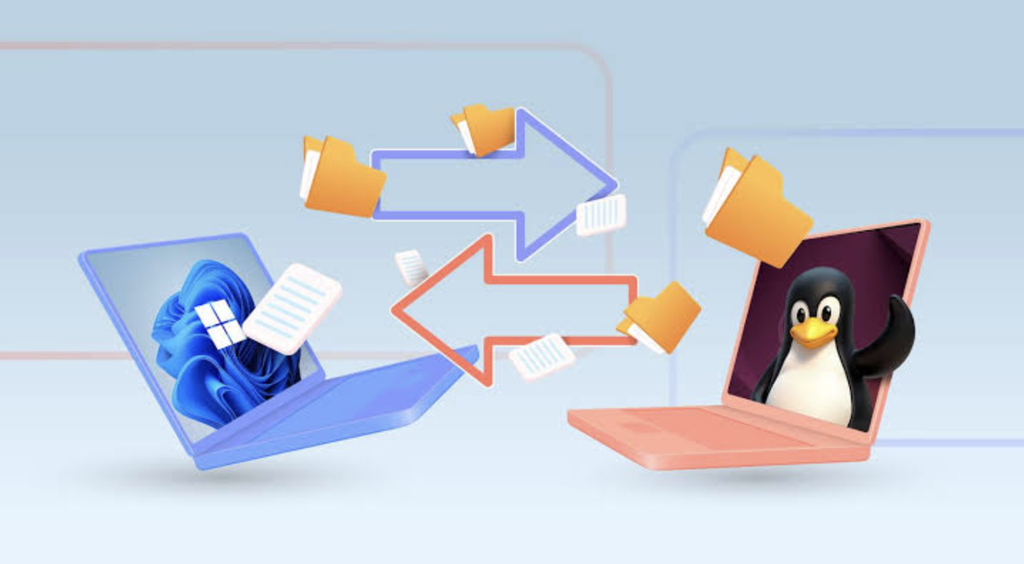
Even though a live session should not change your disk, every careful person makes a backup before touching the way a computer starts. A backup protects you from the unlikely accident, a power cut at the wrong time or a mistaken click in a partitioning tool. It also gives you peace of mind, which helps you enjoy the experiment instead of worrying about it. The rule many technicians repeat is that data you have in only one place is data you could lose.
Start by listing what matters. Documents, photos, videos, tax records, schoolwork, saved game files, browser bookmarks and the passwords stored in your browser all deserve attention. Copy them to an external drive or to a cloud storage account you already trust, then open a few of the copies to confirm they work. A backup you have never checked is only a hope, not a plan.
Windows also stores some details that are easy to forget. If your disk is encrypted with a feature such as BitLocker or device encryption, you should know where your recovery key is kept, because changes to the boot process can sometimes prompt for it. The key is normally linked to your Microsoft account or printed on a document you saved earlier. Write down or photograph the key and store it somewhere other than the computer itself.
Finally, make a note of your product keys and licenses for paid programs, and sign out of or deactivate programs that limit how many computers you can use. Many modern programs are tied to an account and need nothing, but older ones may ask for a code again. Taking ten minutes for this list now can save an evening of frustration later. If the computer belongs to your employer or school, ask the technical staff before changing anything, since they may have rules about it.
Virtual machines let you test inside a window
A virtual machine is a program that creates a pretend computer inside a window on your normal desktop. You give it some memory, some disk space, and an installation image, and then you install Linux into that pretend computer just like a real one. Windows keeps running underneath, and if you make a mess, you can simply delete the virtual machine. Free and paid virtualization programs exist for Windows, and some editions of Windows include their own tool, so check what is available on your version.
The big benefit is safety combined with comfort. You can keep your browser and email open in Windows, copy text between the two systems, take notes while following a tutorial, and close everything when you have had enough. Because the virtual disk is just a large file, nothing on your real drive is partitioned or changed. That makes this route ideal for learning commands, trying different desktops, or testing a program before you rely on it.
The drawbacks are about speed and hardware. A virtual machine shares your processor and memory with Windows, so a computer with little memory can feel sluggish, and demanding programs such as modern games or video editors will not run well. Your graphics card is usually not fully available to the virtual system, which limits 3D performance. Also, some features that need direct hardware access, such as certain printers or fingerprint readers, may not work inside the window.
When you set one up, give it a sensible share of resources. A common approach is to give the virtual machine about half of your memory at most, and a disk of perhaps 25 to 40 GB, which is enough for a system and a handful of programs. Turn on the shared clipboard and any integration tools the program offers, because they make the experience smoother. If the virtual machine runs slowly, close other heavy programs in Windows first.
Windows also offers a way to run a Linux command-line environment inside it, often called the Windows Subsystem for Linux. This is a different idea from a full desktop and is mainly aimed at people who write code or want to learn the terminal. It is a good option if your goal is learning commands rather than replacing your desktop. Availability and features depend on your Windows version, so read the current Microsoft documentation before you begin.
Dual booting puts both systems on one computer
Dual booting means installing Linux next to Windows on the same machine, and choosing which one to start every time you turn it on. It gives Linux full access to your hardware, so it runs at normal speed with working graphics and sound. It also means a real change to your disk, which is why it comes after the earlier steps. Done carefully, it is a reliable setup that many people use for years.
The first task is to make room. Windows includes a disk management tool that can shrink the main partition and leave unallocated space for Linux. Many guides suggest leaving at least 30 to 50 GB for a comfortable installation, and more if you plan to store files there. Before shrinking, run a disk check, close your programs and, if shrinking offers less space than expected, remember that unmovable system files sometimes limit it.
Two Windows settings often cause trouble, so adjust them with care. Fast Startup is a feature that saves part of the system state on shutdown, and it can leave the Windows partition in a state that Linux treats as unsafe to touch. Turning it off makes sharing files between the two systems more reliable. Also keep an eye on the encryption mentioned earlier, because encrypted drives need extra attention and the installer documentation will explain what is supported.
During installation, the installer usually detects Windows and offers to install alongside it. Choose that option, confirm which free space it will use, and read each screen before clicking forward, especially the one that lists the changes about to be written. When it finishes, a boot menu should appear at each start with both systems listed. If the menu does not appear after a Windows update, which can happen, you can repair it from the live USB stick you made earlier.
Keep a few good habits afterwards. Do not edit Windows files from Linux unless you must, keep your recovery key and backup safe, and update both systems regularly. If you ever decide to remove Linux, there are documented steps to delete its partitions and restore the Windows boot files, so the decision is reversible with some effort. A second option, if you want less risk, is to install Linux on a separate internal or external drive, which keeps the Windows disk completely out of the process.
Everyday software and Windows programs on Linux
The practical question is whether you can do your normal tasks. For most daily needs, the answer is yes. Browsers such as Firefox and Chromium-based ones exist for Linux, email and calendar programs are available, and office tasks can be handled by suites like LibreOffice. Music players, video players, photo viewers and PDF readers are all included or one click away in the software center of a beginner-friendly distribution.
Installing software is different from Windows, and it is one of the pleasant surprises. Instead of searching the web and running downloaded installers, you usually open a software center, search for the program and press install. The system also handles updates for all of these programs in one place, which reduces the risk of old, forgotten software. Downloading from the official repositories of your distribution is generally safer than running installers from unknown websites.
Windows-only programs are the harder part. Some have a Linux version or a web version that works in any browser, which is increasingly common for office, design and communication tools. Others may run through a compatibility layer such as Wine or related tools, with results that vary from perfect to unusable. Online databases kept by the community report how well specific programs work, and checking them before you commit saves disappointment.
Games deserve their own mention. Many popular games run on Linux through compatibility tools built into the major game stores, while some titles that use certain anti-cheat systems do not. If gaming is central to how you use your computer, check the games you play before deciding. Keeping Windows in a dual-boot setup is a sensible compromise for such cases.
| Task | Typical Linux approach | What to check first |
| Web browsing | Firefox or a Chromium-based browser | Sync your bookmarks and passwords |
| Office documents | LibreOffice or a web office suite | Open your own files and look at layouts |
| Photos and video | Free editors in the software center | Whether your favorite editor has a version |
| Printing and scanning | Built-in drivers for many devices | Search your printer model on the maker site |
| Games | Compatibility tools in game stores | Look up each game in a community database |
| Specialist work software | Web versions or Windows in a virtual machine | Ask the software vendor about support |
Learning the basics makes the first week easier
Once Linux is running, the first surprise is that the folder layout looks different. Your personal files live in a home folder, with familiar subfolders for documents, pictures, music and downloads. System files are kept elsewhere and are protected, so ordinary programs cannot change them without your permission. This separation is one reason the system tends to stay tidy, and it is also why you will sometimes be asked for your password before a change.
The terminal is the second surprise, and it is far less frightening than its reputation. Most everyday tasks can be done with the mouse, and a beginner can use Linux for months without typing a command. Still, learning a handful of commands, such as listing files, changing folders and updating the system, makes tutorials easier to follow. Copy commands only from sources you trust, read what they do before pressing Enter, and be careful with any command that begins with the word sudo, which gives it administrator power.
Updates are the third habit worth forming. Open the update tool that comes with your distribution once a week, review what it offers and apply it, restarting when it asks. Many distributions also offer a snapshot or restore tool, which lets you roll back after a bad update if you set it up at the start. If you used a long-term release, expect steady, conservative updates; if you used a faster-moving one, expect newer features and slightly more change.
Finally, learn where to get help. Each major distribution has a forum, a wiki and a documentation section, and many questions have been answered there already. When you ask a question yourself, state which distribution and desktop you use, describe what you expected and what happened, and paste any exact error message. Polite, specific questions get useful answers quickly, and you will soon find that you can answer simple ones from others.
Hardware, drivers and security deserve a check
Most computers work with Linux immediately because the drivers are built into the kernel. Wi-Fi cards, touchpads, webcams, Bluetooth and sound normally need no setup, and that is part of why the live session is so useful. Problems tend to appear with a few categories: some wireless chips, fingerprint readers, newer graphics hardware and unusual laptop buttons. Test each of these in the live session and write down what does not work.
Graphics are worth a special look. Many Linux distributions include open drivers that work well for everyday use, and they offer optional proprietary drivers for certain graphics cards that improve gaming and creative work. A beginner-friendly distribution usually offers a simple tool to install them. If the screen looks wrong or the fans run loudly, this is the first place to look.
Printers and scanners are usually fine for common brands because of widely used standards, but old or very cheap multifunction devices can be stubborn. Check the manufacturer support page or the distribution documentation for your device family, and try printing a test page during the trial. If the device offers wireless printing without a driver, this often works without extra effort. For a scanner you rely on, test it as well, since scanning tools are less standardized.
Security is a strong point but not a magic shield. Linux systems have a good track record because of the permission model, quick patching and the habit of installing software from curated sources. You still need to apply updates, use a strong login password, and be careful with downloads and links. Disk encryption is available at installation time if you carry sensitive data, but remember that losing the encryption password can make your data unrecoverable, so store it safely.
Conclusion
Begin with the lowest-risk steps and move up only when you are comfortable. Step one is the backup described earlier, with a quick check that the files open. Step two is choosing one beginner-friendly distribution and downloading it from its official site, then verifying the file if a checksum is offered. Step three is creating the live USB stick and spending an hour with it, testing Wi-Fi, sound, the screen, the printer and a few of your usual websites and programs.
If the live session impresses you, spend a week or two with a virtual machine or a second drive before changing your main disk. During this period, write down tasks you do often and note which ones worked, which needed a workaround and which failed. A simple list of this kind turns a vague feeling into a clear decision. It also shows you if your needs are better met by dual booting than by a complete switch.
When you decide, follow this short checklist. Do your key programs run or have a good alternative, does your hardware work, do you have recent backups, and do you know how to start Windows again? If the answers are yes, a dual-boot installation is a sensible next step. If some answers are no, keep Windows as your main system and keep Linux in a virtual machine or on a USB stick for learning.
Remember that this is not an all-or-nothing choice, and there is no deadline. Many people use both systems for years, and plenty of others try Linux, decide it is not for them and happily go back. Keep the live USB stick afterwards, since it doubles as a rescue tool if the boot menu or the installation ever misbehaves. If you feel stuck, the forums and documentation of your chosen distribution are friendly places to ask questions, and local user groups often help beginners in person. The point of the trial is to learn what suits you, and that is a success whatever you decide.