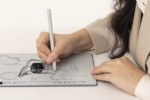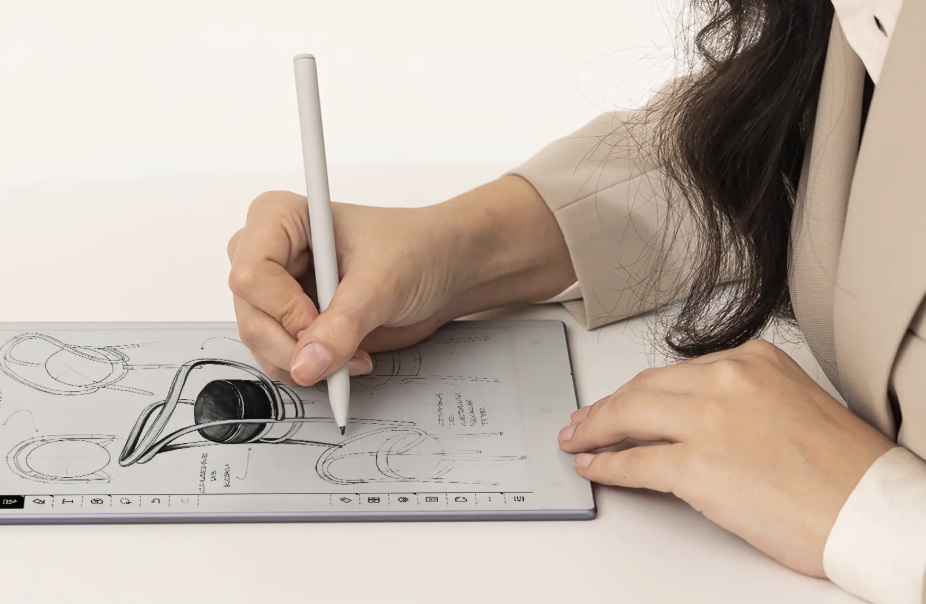
A stylus turns a tablet from a screen for scrolling feeds and watching video into something closer to a notebook or a sketchbook, letting fingers set aside a cramped on-screen keyboard in favor of natural handwriting or freehand drawing.
Not every stylus behaves the same way, though, and the right pick depends heavily on whether the main use is jotting quick notes during a meeting or working on detailed illustrations for hours at a stretch.
This guide covers pressure sensitivity and tilt, palm rejection, note-taking features, drawing-specific needs, charging and pairing, and compatibility across different tablet brands and product lines.
Pressure Sensitivity and Tilt Support
Pressure sensitivity lets a stylus produce thinner or thicker lines depending on how hard it presses against the screen, mimicking the feel of a pencil or brush on paper far better than a uniform line width ever could.
- Pressure levels: Higher-end styluses support thousands of distinct pressure levels, giving finer control over line weight compared to budget models with only a handful of steps available.
- Tilt recognition: Some styluses detect the angle at which they are held, letting a drawing app simulate soft shading effects similar to tilting a real pencil on its side across paper.
- Latency: The delay between moving the stylus and seeing a line appear on screen affects how natural handwriting feels, with lower latency producing a more immediate, pen-like response.
- Palm pressure versus tip pressure: Quality styluses distinguish between an accidental palm touch and an intentional tip press, avoiding stray marks during natural hand movement across the page.
Why Pressure Sensitivity Matters More for Some Tasks
A person jotting a quick grocery list cares little about pressure sensitivity, since basic handwriting recognition works fine with a single uniform line weight throughout. An illustrator working on shaded artwork, by contrast, relies heavily on pressure sensitivity to vary line weight within a single stroke, making this spec one of the more important differentiators between a budget stylus and a professional-grade one.
How Latency Affects the Feel of Writing
Latency, the small delay between a stylus tip touching the screen and a line appearing, can make or break how natural a stylus feels during fast handwriting. Even a delay as short as a few dozen milliseconds is noticeable to many users, producing a faint lag that makes cursive handwriting or quick sketching feel slightly disconnected from hand movement. Manufacturers have steadily reduced this lag over successive product generations, and testing a stylus with fast, looping handwriting during an in-store trial reveals latency issues far more clearly than slow, careful printing ever would on its own.
Palm Rejection for Natural Writing
Palm rejection prevents a tablet from registering accidental touches from the side of a hand resting on the screen while writing, which matters enormously for anyone who rests their palm the way they would on paper.
- Software-based rejection: Some tablets use software alone to distinguish a stylus touch from a palm touch, which can occasionally misfire during unusually fast or energetic writing sessions.
- Hardware-assisted rejection: Pairing a specific stylus with a compatible tablet often improves palm rejection reliability through dedicated hardware communication happening constantly between the two devices.
- Writing angle adjustments: Some users find that adjusting how they hold a tablet, propping it at an angle rather than flat on a desk, reduces accidental palm contact naturally over time.
- App-specific settings: Many note-taking apps include their own palm rejection toggle or sensitivity adjustment, kept separate from the tablet’s broader system-level settings menu.
Testing Palm Rejection Before Buying
Trying a stylus and tablet combination in person, writing a full sentence at a natural pace with the palm resting exactly as it normally would, reveals palm rejection quality far better than reading a spec sheet alone. Online reviews that specifically mention palm rejection performance during real handwriting tests are worth seeking out, since this feature varies more between combinations than many buyers expect going in.
Common Palm Rejection Complaints
A frequent complaint involves a tablet mistaking a resting palm for an intentional touch during fast writing bursts, causing a stray line or an unwanted selection box to appear mid-sentence. Another common issue shows up when writing near the very edge of a screen, where some tablets struggle to distinguish palm contact from stylus input due to how edge sensors happen to be calibrated by the manufacturer.
Reading user forums dedicated to a specific tablet model often surfaces these edge cases well before a general review would ever mention them, giving a far clearer picture of real-world reliability over time.
Note-Taking Features Worth Checking
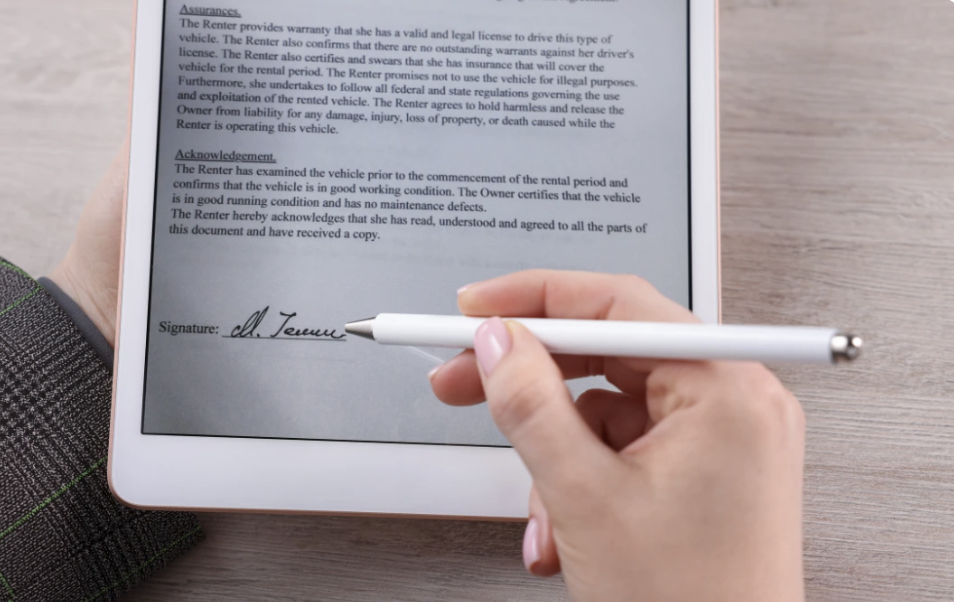
For students, professionals, and anyone replacing a paper notebook with a tablet, several features beyond the stylus itself shape how well note-taking feels in daily practice.
- Handwriting-to-text conversion: Many note apps can convert handwritten notes into searchable, editable text, useful for organizing notes taken quickly during a busy lecture or a long meeting.
- Page and notebook organization: Apps that mimic the structure of physical notebooks, with tabs, sections, and page templates, help notes stay organized the way a paper system would feel familiar.
- Syncing across devices: Cloud syncing lets notes taken on a tablet appear almost instantly on a laptop or phone, useful for reviewing material away from the tablet itself later in the day.
- Handwritten search: Some apps can search directly through handwritten text without converting it first, a convenient middle ground for users who prefer writing by hand over typing on a keyboard.
Shortcut Buttons and Customization
Many styluses include a side button or a double-tap gesture that can be assigned to a specific function, like toggling an eraser or switching tools without reaching for the screen. Spending a few minutes customizing these shortcuts to match personal habits, rather than leaving factory defaults in place, saves real time across months of regular note-taking.
Templates and Reusable Page Layouts
Many note-taking apps offer page templates, from lined and grid paper to specialized layouts for to-do lists, meeting notes, or weekly planning. Setting up a small library of favorite templates early on saves the repeated work of recreating the same page structure every single day, and some apps let a user set a default template for new pages so the right layout appears automatically each time.
Mixing paper-style templates with blank pages for freehand sketching gives flexibility for a notebook that handles both structured notes and occasional diagrams or doodles without ever needing to switch between separate apps during the day.
Drawing and Illustration Needs
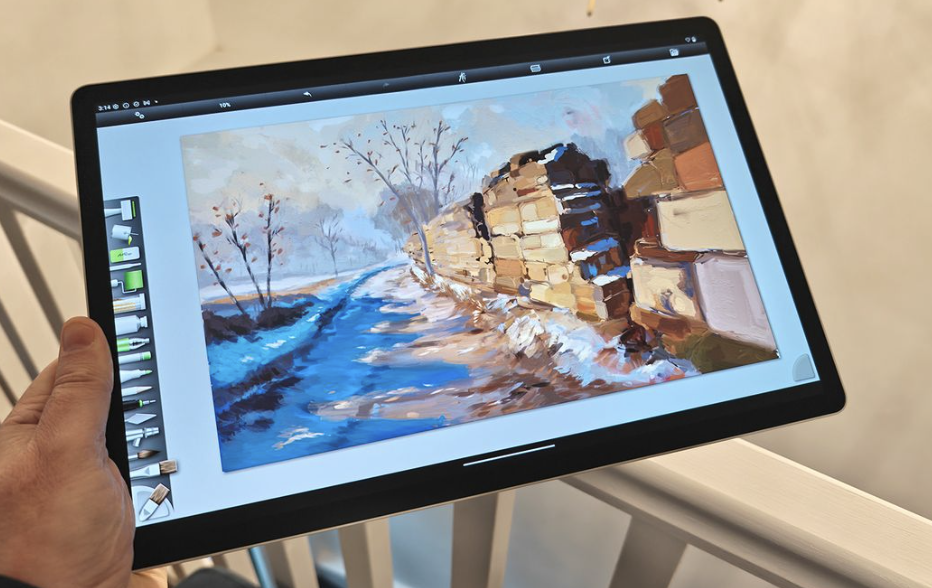
Digital artists push a stylus harder than note-takers, relying on a wider range of features to replicate the feel of traditional media like pencils, ink pens, and brushes.
- Brush engine compatibility: Some drawing apps offer extensive brush customization that responds to pressure, tilt, and stylus rotation, rewarding a stylus with more sensors to detect those subtle inputs accurately.
- Nib and tip options: Replaceable tips in different materials, like felt versus hard plastic, change how the stylus feels against glass and how much friction it produces during long sessions.
- Rotation sensing: A few premium styluses detect rotation around their own axis, useful for simulating calligraphy pens or angled brushes that respond to a natural twisting motion of the wrist.
- Palm-free drawing posture: Artists working on detailed illustrations for long sessions benefit from the same reliable palm rejection note-takers need, since resting a hand naturally against the screen matters even more during fine, detailed work on a small area.
Comparing Entry-Level and Professional Styluses
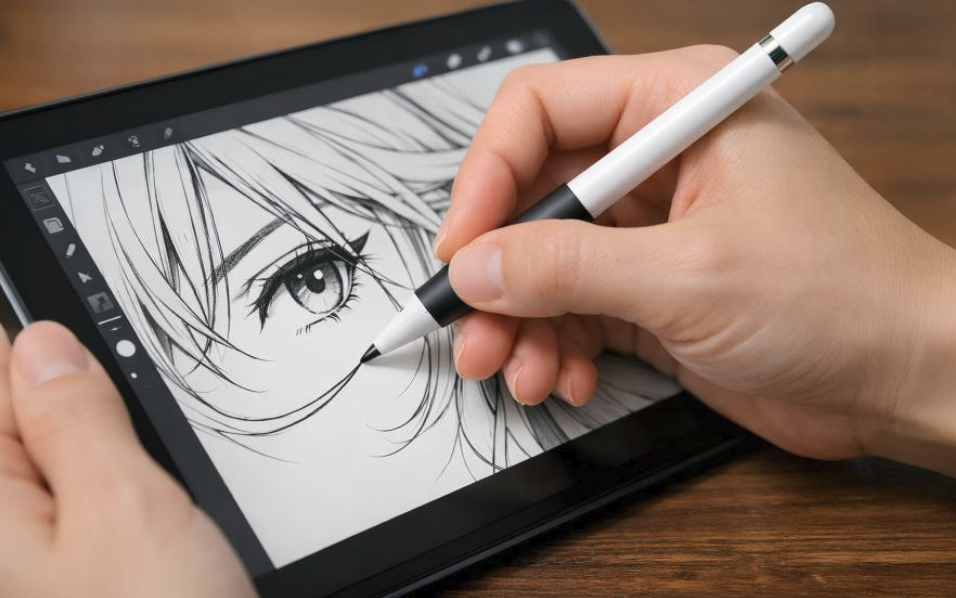
A budget stylus with basic pressure sensitivity suffices for casual sketching and simple illustrations, while a professional-grade stylus with tilt, rotation, and thousands of pressure levels serves artists producing detailed, shaded work for client projects or serious hobby pursuits.
The price gap between these tiers can be substantial, so matching the purchase to real, ongoing need rather than aspirational future use avoids overspending on features that go unused.
Choosing the Right Screen Surface
The texture of a tablet’s screen surface shapes how a stylus feels during drawing nearly as much as the stylus itself, and this is worth considering alongside the stylus purchase itself. A smooth glass screen offers very little friction, which some artists find far too slippery compared to the texture of real paper or canvas under a brush.
Matte screen protectors designed to mimic a paper-like feel add welcome friction for many artists, though they can slightly reduce screen clarity and may wear down a stylus tip noticeably faster than bare glass would over months of heavy, repeated use.
Charging and Pairing Methods
How a stylus charges and connects to a tablet affects daily convenience just as much as its drawing capabilities, especially for anyone who relies on it throughout a busy day.
- Magnetic charging: Many premium styluses attach magnetically to the side of a tablet, charging wirelessly while also staying safely stowed and ready to grab when not in use.
- Cable charging: Budget styluses often charge through a small port and included cable, requiring the stylus to be set aside separately from the tablet during the charging process itself.
- Battery-free styluses: Some basic styluses use passive technology requiring no battery at all, trading advanced features for simplicity and the convenience of never needing a charge in the first place.
- Bluetooth pairing for extra features: Styluses with buttons or tilt sensors often pair over Bluetooth in addition to the core writing technology, enabling those extra functions to work reliably alongside everything else.
Battery Life Expectations
A stylus with a built-in rechargeable battery typically lasts anywhere from several hours to a couple of weeks between charges, depending heavily on how often pressure-sensing and Bluetooth features are actively kept turned on and used.
Checking battery life estimates against real daily habits, such as hours spent in a drawing app versus occasional quick notes, helps set realistic expectations before relying on a stylus for an important deadline.
Compatibility Across Tablet Brands
Not every single stylus works with every tablet out there, and the underlying technology that enables pressure sensitivity and palm rejection often ties a stylus to one specific tablet ecosystem.
- First-party styluses: A tablet manufacturer’s own stylus usually offers the deepest feature support and most reliable palm rejection on that same brand’s tablets, since both are engineered together from the start.
- Third-party alternatives: Some independent brands make styluses compatible with popular tablet lines, often at a lower price point but sometimes with reduced feature support or slightly higher latency.
- Universal capacitive styluses: Basic styluses that work on nearly any touchscreen sacrifice pressure sensitivity and palm rejection entirely in exchange for broad compatibility across many different brands and models.
- Cross-brand limitations: A stylus designed for one tablet brand will often fail to pair or lose key features entirely when used with a different manufacturer’s tablet, even when the physical tip still makes contact with the screen.
Checking Before You Buy
Reading a specific tablet model’s supported accessory list before purchasing a stylus, rather than assuming compatibility based solely on general brand reputation, avoids a frustrating return process and wasted money. Manufacturer support pages typically list exactly which stylus models work with a given tablet generation, since even tablets from the same brand sometimes support different stylus technology between model years.
Buying a Replacement Tip or Accessory
Replacement tips, cases, and charging cables often need to match a specific stylus generation rather than a broader brand family, so keeping track of the exact model name and version purchased saves confusion when ordering replacement parts later.
Buying a small pack of spare tips at the same time as the stylus itself avoids a last-minute scramble months later when the original tip finally wears down from regular daily use. Some third-party sellers offer tip packs compatible with multiple stylus generations, which can be a more economical choice for anyone who draws frequently enough to wear through tips at a fairly steady pace throughout the year.
Final Thoughts
Choosing a tablet stylus comes down to matching its features to how it will truly be used, whether that means quick daily notes or detailed digital illustration.
Pressure sensitivity and tilt support matter most for artists working on shaded illustrations, while reliable palm rejection and low latency matter more broadly for anyone writing by hand on a screen each day.
Checking compatibility with a specific tablet model before buying avoids a frustrating mismatch, and testing a stylus in person whenever possible reveals far more about real daily comfort than any spec sheet alone ever could.
A well-chosen stylus turns a tablet into a truly capable notebook or sketchbook, one that holds up to daily, repeated use for years.
Frequently Asked Questions
Can any stylus work with any tablet?
No, pressure-sensitive and palm-rejecting styluses typically rely on specific technology built into a matching tablet, so compatibility is often limited to a single brand or even a specific product line. Basic capacitive styluses without pressure sensitivity tend to work more broadly across different touchscreen tablets, though they offer far fewer features in exchange for that flexibility, making them better suited to casual navigation than serious note-taking or drawing work.
How long does a typical stylus battery last?
Battery life varies widely by model and feature set, ranging from a few hours of continuous drawing use on more feature-rich styluses to a couple of weeks for simpler models with fewer active sensors running. Checking a specific model’s battery claims against how heavily pressure sensing and Bluetooth features will be used each day gives a more realistic sense of real-world battery life than any single advertised number on a product page can honestly provide.
Is a more expensive stylus always better for note-taking?
Not necessarily, since basic note-taking relies more on reliable palm rejection and low latency than on advanced pressure sensitivity or tilt recognition, which matter more for detailed drawing work. A mid-range stylus with solid palm rejection often serves note-takers just as well as a premium model costing far more for features they will rarely use, leaving extra budget free for a better case or a larger tablet instead.
Do styluses wear out over time?
Yes, the tip of a stylus experiences gradual wear from repeated contact with a glass screen, which can affect accuracy and the smoothness of the writing experience over months of daily use. Most styluses use replaceable tips specifically to address this, letting an owner swap in a fresh tip rather than replacing the entire device once wear becomes noticeable, a far cheaper and quicker fix than most people expect the first time it happens.
Can a stylus be used for precise tasks beyond writing and drawing?
Yes, many people use a stylus for everyday tasks like photo editing, signing digital documents, or navigating a tablet interface with more precision than a fingertip allows, especially on a small screen with tightly packed icons or form fields. The same pressure sensitivity that benefits drawing can also help with tasks like selecting fine details in editing software, filling out detailed forms, or marking up a document with handwritten annotations during a review.
What should a beginner artist look for in a first stylus?
A beginner benefits most from solid pressure sensitivity and reliable palm rejection at a reasonable price point, rather than chasing every single premium feature like rotation sensing or the highest possible pressure level count right away. Starting with a mid-range option and upgrading later, once specific limitations become apparent through regular practice, is a more practical path than overspending up front before developing a clear sense of personal drawing habits and preferences, which often only becomes obvious after several months of consistent use across different kinds of projects.