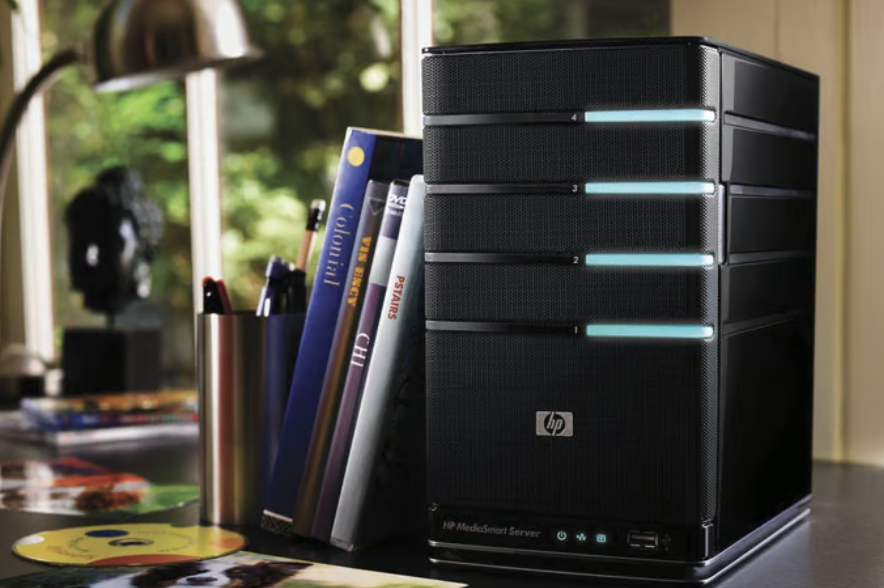
Years of family photos, home videos from a child’s early birthdays, and a growing collection of legally owned digital files tend to pile up across old phones, laptops, and scattered cloud accounts until nobody in the household can find anything.
A home server pulls all of it into one organized place that a household fully controls on its own, accessible from any room and, with the right setup, from anywhere while traveling.
This guide walks through picking hardware, organizing a personal media library well, choosing server software, enabling remote access, building a backup plan, and keeping power use and noise in check.
Picking Hardware for a Media Library
The right hardware for a home server depends heavily on how much storage a household needs now and how much room there is to grow, since photo and video collections only expand over time.
- Dedicated NAS devices: Purpose-built network storage boxes handle multiple drives, run server software out of the box, and require little technical setup compared to building a machine completely from scratch at home.
- Repurposed old computers: An aging laptop or desktop that still runs reliably can serve as a budget-friendly starting point, especially for a smaller photo and video collection that has not yet outgrown its storage.
- Single-board computers: Small, low-power boards can run lightweight server software for a modest library, though they struggle with large video libraries needing frequent format conversion on the fly during playback.
- Custom-built servers: For households wanting maximum control over storage capacity and performance, building a dedicated machine with multiple drive bays offers the most room to grow over the years ahead.
How Much Storage Is Enough
A household with a decade of phone photos and a handful of home videos might need only a few terabytes, while a family that has recorded years of high-resolution video footage could easily fill ten terabytes or more.
Drive Types and Their Tradeoffs
Traditional spinning hard drives remain the most cost-effective option for bulk storage, offering a low price per terabyte that solid-state drives still cannot match for large libraries. Solid-state drives deliver far faster read and write speeds, which matters more for a server also running other applications than for simple media storage and playback.
A hybrid setup using a smaller, faster solid-state drive for the operating system and frequently accessed files, paired with larger spinning drives for the bulk photo and video library, often gives the best balance of cost and performance for a typical household media server running day after day without complaint. Starting with drives that leave real headroom beyond current needs, rather than filling a system to capacity on day one, avoids a stressful upgrade scramble once storage runs low during an important event like a holiday gathering full of new photos.
Organizing Photos, Videos, and Files
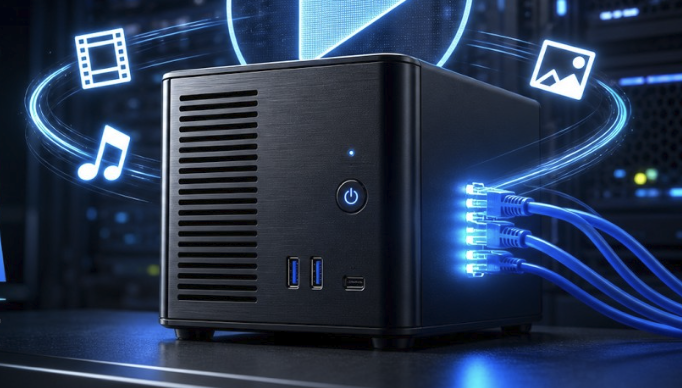
A media library only stays useful if its organization makes sense months and years later, when the person who set it up may not remember the exact folder structure they chose.
- Consistent folder naming: Using a predictable pattern, such as year followed by event name, makes browsing and searching far easier than an inconsistent mix of naming styles built up over several years.
- Separate libraries by type: Keeping photos, home videos, and documents in distinct top-level folders prevents a single sprawling mess that becomes hard to navigate after a few busy years.
- Metadata and tagging: Many media server programs can read embedded date and location data from photos and videos, automatically sorting content without any manual folder work on the household’s part.
- Duplicate detection: Running a duplicate-finding tool periodically clears out redundant copies that quietly accumulate from multiple phone backups or repeated imports carried out over the years.
Importing From Old Devices
Gathering files scattered across years of old phones, external drives, and cloud accounts is often the most time-consuming part of setting up a media library, more so than the hardware itself. Working through one device or account at a time, confirming each import completed successfully before deleting anything from the original source, prevents the sinking feeling of realizing a transfer failed partway through after already clearing space elsewhere.
Handling Mixed File Formats
Years of accumulated media often include a mix of file formats, from older video formats recorded on early phones to newer high-efficiency formats used by current devices. Most media server software handles a wide range of formats automatically, but very old or unusual file types occasionally need conversion before they display correctly on every device in the house. Keeping the original files untouched during any conversion process, and only ever working from a copy, avoids an irreversible mistake if a conversion tool mishandles a batch of irreplaceable old footage from years long past.
Choosing Media Server Software
The software layer determines how a library gets browsed, streamed, and organized across devices, and several solid options exist depending on technical comfort level.
- All-in-one media server platforms: These programs automatically organize a video and photo library, generate thumbnails, and stream content to apps on phones, tablets, and smart TVs.
- Simple file-sharing setups: For households that just want folder access without fancy browsing features, a basic shared network folder can suffice without needing any additional software installed.
- Photo-focused platforms: Some software specializes specifically in photo libraries, offering facial grouping, map views based on location data, and familiar album-style browsing for casual users.
- Open-source options: Free, community-maintained software often offers deep customization for technically comfortable users willing to spend extra time on setup and ongoing maintenance work.
Matching Software to Household Technical Comfort
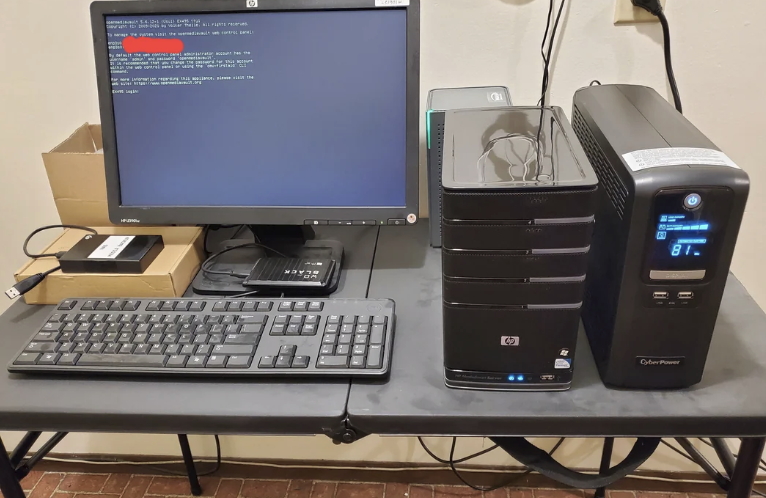
A household with one tech-savvy member willing to handle setup and occasional troubleshooting can take advantage of more flexible, open-source software with deeper customization. A household wanting something that simply works with minimal fuss should lean toward an all-in-one platform with a polished app and straightforward setup wizard, even if it offers less flexibility under the hood.
Streaming to Different Devices Around the House
A media library is only as useful as its ability to reach every screen a household wants to watch on, from a living room smart TV to a tablet used in bed. Most server software offers dedicated apps for popular TV platforms, phones, and tablets, handling the technical work of converting video formats on the fly so older devices can still play newer file types without issue. Testing playback on every device in the house shortly after setup, rather than assuming compatibility across the board, catches format or app issues early before a family member discovers a video will not play during a planned movie night with relatives visiting for the evening.
Remote Access to Your Library
Accessing a home media library while traveling or away from the house requires some additional configuration beyond what works automatically on a home network.
- Built-in remote access features: Many all-in-one platforms include their own remote connection service, simplifying setup by a wide margin compared to manual network configuration.
- VPN connections: Setting up a virtual private network into the home network provides secure remote access to everything on the home network, not just the media server.
- Dynamic DNS services: Since most home internet connections have an address that changes periodically, a free dynamic DNS service keeps a consistent, memorable web address pointing to the home network at all times.
- Router port forwarding: Some remote access setups require opening specific ports on a home router, a step that benefits from careful attention to security settings so nothing extra gets exposed.
Balancing Convenience Against Exposure
Opening a home network to the wider internet always introduces some additional risk, even with careful configuration, so weighing how often remote access will get used in practice against that added exposure is worth doing honestly. A household that rarely travels might decide local-only access, perhaps paired with cloud backup for peace of mind, is the simpler and safer choice over maintaining a constantly open remote connection.
Setting Up a VPN for Safer Remote Access
A virtual private network connection into the home network offers a more contained alternative to opening individual ports directly on a router. Rather than exposing a specific service to the open internet, a VPN creates an encrypted tunnel that makes a remote device behave as though it were sitting on the home network itself, which limits the attack surface by a wide margin compared to port forwarding.
Many modern routers include built-in VPN server functionality, removing the need for a separate dedicated device, though setup still requires some care around strong passwords and keeping router firmware current throughout the life of the equipment.
Backup Strategy for a Home Server
A home server holding irreplaceable family photos and videos needs its own backup plan, since a single point of storage failure could mean losing decades of memories permanently.
- The three-copy rule: Keeping the original plus two backups, ideally stored in different locations, protects against both hardware failure and events like fire or theft affecting a single location at once.
- RAID configurations: Running multiple drives together in a redundant array protects against a single drive failure without needing to restore from a separate backup at all.
- Offsite cloud backup: A paid cloud backup service for the most critical files adds protection against anything that could affect the physical home itself, like a fire or flood.
- Periodic backup verification: Regularly testing that backups restore correctly and completely, rather than assuming a backup job completing without errors means the files are safe, catches silent corruption before it becomes a disaster.
What Happens When a Drive Fails
A failed drive in a server without any redundancy or backup plan can mean permanent loss of everything stored on it, which is precisely the scenario a proper backup strategy exists to prevent. Testing the recovery process before it is ever needed in a real emergency, by intentionally pulling a drive from a RAID array in a controlled test, builds confidence that a real failure will not catch a household unprepared when it matters most.
Power Use and Noise Considerations
A home server running continuously, day and night, adds a small but real amount to a household’s electricity bill and can introduce unwanted noise depending on the hardware chosen.
- Low-power hardware options: Devices built around efficient processors draw far less power than repurposed gaming desktops, reducing both electricity costs and heat output over months of continuous operation.
- Fan noise and placement: Running a server in a closet, basement, or dedicated space away from bedrooms and living areas avoids a constant background hum during quiet hours at night.
- Scheduled sleep modes: Some setups allow a server to power down overnight when nobody is likely to access it, trimming electricity use without sacrificing availability during the day.
- Drive count and heat: More drives mean more heat generated overall, so adequate ventilation becomes more important as a library grows and additional storage gets added over time.
Choosing hardware with power consumption and noise in mind from the start saves both money and household peace over years of continuous operation, since a server is typically left running around the clock rather than switched off like a regular desktop computer.
Monitoring Temperature and Long-Term Health
Keeping an eye on internal temperatures, either through a built-in dashboard or a simple monitoring app, helps catch a failing fan or a clogged air vent before it causes a drive to overheat and fail prematurely. Many NAS platforms display drive health statistics directly in their management interface, including warning signs that a drive is nearing the end of its useful life well before an outright failure occurs.
Setting aside a few minutes each month to glance at these health indicators costs little and can mean the difference between a planned drive replacement and an unexpected scramble to recover lost files during a busy week when nobody has time for a crisis.
Final Thoughts
Setting up a home server for a personal media library takes an afternoon of planning and a bit of ongoing attention, but the payoff is a single organized place for years of family photos, home videos, and other files a household already owns.
Matching hardware to realistic storage needs, choosing software that fits the household’s technical comfort level, and building in a real backup plan matter more than chasing the most powerful setup available on the market.
Remote access and power considerations round out a system that keeps working quietly in the background for years to come. Once up and running, a well-maintained home server quietly becomes the single place a family always turns to whenever an old memory needs revisiting.
Frequently Asked Questions
Do I need technical experience to set up a home server?
Dedicated NAS devices with guided setup wizards have made this far more approachable for non-technical users than it used to be, often requiring little more than plugging in drives and following on-screen prompts. More advanced setups involving custom software or networking configuration do benefit from some comfort with basic computer troubleshooting, though many households successfully learn as they go, picking up small skills with each new feature they decide to add.
How much does it cost to set up a basic home media server?
A modest setup using a budget NAS device with a couple of drives can start in the low hundreds of dollars, while a more capable system with larger storage capacity and better performance can run well beyond that range. Repurposing an older computer already owned by the household can bring the starting cost down close to zero, aside from any additional storage drives purchased, which remain the main recurring expense as a library keeps growing year after year.
Is a home server better than just using cloud storage?
A home server offers more storage for a given cost over time compared to ongoing cloud subscription fees, along with full control over where files live and how they are organized rather than trusting them entirely to a third party. Cloud storage offers easier setup and built-in remote access without any home networking configuration, making a combination of both, home storage with cloud backup, a reasonable middle ground for many households that want both control and convenience.
Can a home server replace a streaming subscription?
A home server stores and plays back a household’s own photos, home videos, and legally owned media files, functioning as a personal library rather than a source of new content the way a subscription service does. It complements rather than replaces commercial streaming services, since it only contains what the household has gathered and stored on its own over time, and it will never grow a new catalog of shows or movies on its own the way a subscription service continuously does.
What happens to a home server during a power outage?
Most home servers simply shut down when power is lost unless paired with a battery backup device, and a clean shutdown matters for protecting data integrity on the drives. Pairing a server with even a modest uninterruptible power supply gives enough time for an automatic graceful shutdown rather than an abrupt power cut that risks file corruption, and many of these battery units can signal the server directly to begin that shutdown process on its own.
How often should a home media library be reorganized?
There is no fixed schedule, but revisiting folder structure and tagging once a year, perhaps alongside an annual photo import from phones and cameras, keeps a library from becoming unwieldy as it grows. Waiting until a library becomes truly hard to navigate before addressing organization tends to turn a quick annual task into a much larger, more daunting cleanup project.