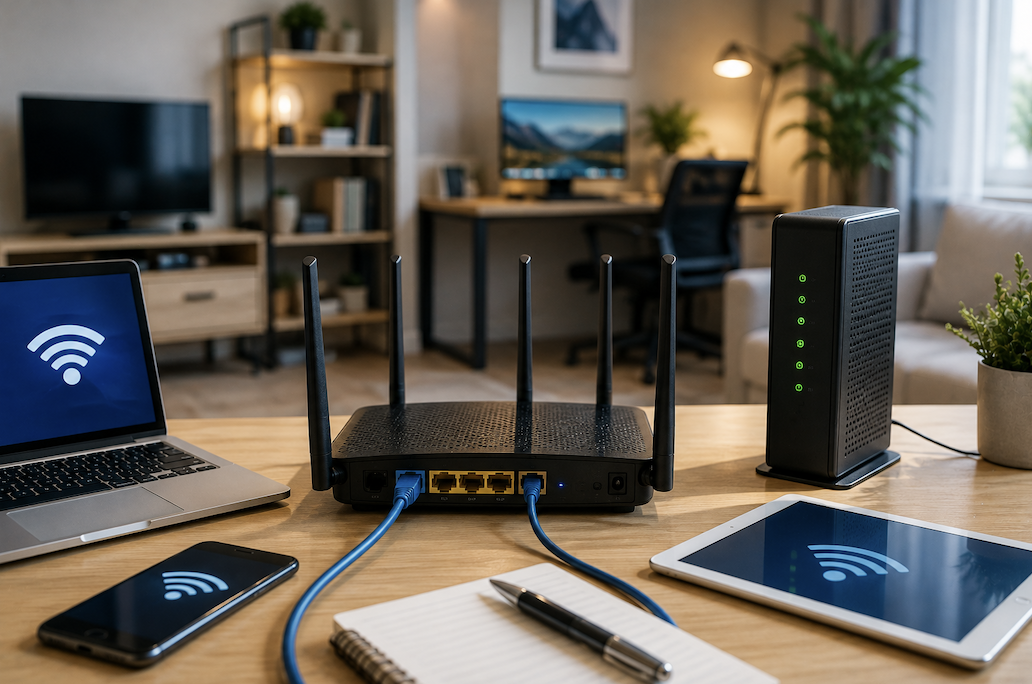
Most home network problems come down to a handful of setup mistakes made on day one, poor router placement, default settings left unchanged, or a network that was never built with the number of connected devices in mind. Here’s how to set one up properly from the start.
Router Placement: The Most Overlooked Factor
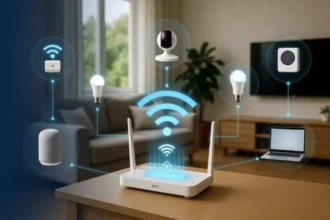
Where you physically put the router affects Wi-Fi performance more than almost any setting inside it. A central location, elevated off the floor, and away from thick walls, metal objects, and large appliances (which interfere with the signal) will outperform a router tucked into a corner or closet every time. Avoid placing it inside cabinets or behind the TV, both are common but significantly reduce signal strength throughout the home.
Initial Setup: The Basics
Most routers today are configured through a mobile app rather than a web browser, which simplifies the initial setup considerably. During setup, you’ll typically be asked to name your network (the SSID) and set a Wi-Fi password. Avoid using personally identifiable information in your network name, and choose a strong, unique password rather than reusing one from another account.
Change the Default Admin Password Immediately
This is different from your Wi-Fi password and is one of the most commonly skipped security steps. The admin password controls access to your router’s settings themselves, and default admin credentials are widely known and publicly documented for most router models, making this a genuine security gap if left unchanged.
Set Up a Guest Network
A separate guest network keeps visitors’ devices off your main network without sharing your primary password. This matters more than it might seem, it limits the number of unfamiliar devices with access to shared files, printers, or smart home devices on your main network, and it’s a standard feature on nearly all modern routers.
Wired vs Wireless: Use Both Strategically
For devices that don’t move, a desktop computer, a smart TV, a gaming console, a wired Ethernet connection is faster and more stable than Wi-Fi, and it also frees up wireless bandwidth for devices that actually need to be wireless, like phones and laptops. If your router is near where these stationary devices live, running a cable takes only a few minutes and meaningfully improves performance for everything else on the network.
When to Consider a Mesh System
A single router, no matter how well placed, struggles to cover larger homes or homes with multiple floors evenly. A mesh Wi-Fi system, which uses multiple coordinated access points throughout the home, solves this far more effectively than a single powerful router or a basic Wi-Fi extender, both of which tend to create weaker “secondary” networks rather than one seamless one. If you have persistent dead zones despite good router placement, this is usually a stronger fix than buying a more expensive single router.
Understanding Quality of Service (QoS)
Most modern routers include a QoS setting that lets you prioritize certain types of traffic, for example, prioritizing video calls or gaming traffic over background downloads. This is particularly useful in households with multiple people using the network simultaneously for different purposes, since it prevents one large download from noticeably slowing down someone else’s video call.
Keep Firmware Updated
Router firmware updates often include security patches, not just feature improvements, and many routers don’t update automatically by default. Checking for firmware updates every few months, or enabling automatic updates if your router supports it, closes security gaps that are otherwise easy to overlook indefinitely.
Basic Security Beyond the Password
Beyond a strong Wi-Fi password, disabling remote management (which allows router settings to be accessed from outside your home network) is worth doing unless you specifically need that functionality. Similarly, using WPA3 encryption if your router and devices support it provides meaningfully stronger security than the older WPA2 standard, which is still common but gradually being phased out.
Troubleshooting Weak Spots
If a specific room consistently has weak Wi-Fi, first confirm it’s not a router placement issue before assuming you need additional hardware, sometimes simply relocating the router a few feet, or reorienting its antennas, resolves the problem. If placement is already reasonable and the dead zone persists, that’s a stronger signal that a mesh system or a properly placed access point, rather than a basic extender, is the right fix.
Naming Devices for Easier Management
Most router apps allow you to rename connected devices from generic manufacturer labels (like a string of numbers and letters) to something recognizable, such as “Kitchen Smart Speaker” or “Dad’s Laptop.” This small step, done once during setup, makes both troubleshooting and security review meaningfully easier later, since you won’t need to guess which device on a long list actually belongs to what, months after the network was first configured.
Setting Up a Reliable Network for Remote Work
For anyone working from home, a wired Ethernet connection to your primary work computer is worth prioritizing over Wi-Fi whenever possible, since video calls are far more sensitive to brief connection drops than most other everyday internet use. If a wired connection genuinely isn’t feasible because of your home’s layout, positioning your desk as close to the router as reasonably possible, or considering a dedicated mesh access point for your home office specifically, both meaningfully reduce the dropped-call and frozen-screen issues that are common with weaker Wi-Fi signals.
Setting Up Parental Controls and Device Restrictions
Most modern routers include built-in parental controls, letting you restrict access times or block specific categories of content for particular devices without needing separate software. These are generally set up through the same router app used for initial configuration, and are worth configuring at setup time rather than after a problem has already come up, since retroactively identifying which device belongs to which family member becomes harder once the network has been running for a while.
When to Upgrade Your Internet Plan vs Your Router
A common mistake is upgrading router hardware to fix a problem that’s actually caused by an insufficient internet plan, or vice versa. If speed tests show slow results on a device connected directly by Ethernet cable, close to the router, the issue is likely your internet plan itself, not your Wi-Fi setup. If wired speeds are fine but wireless speeds are noticeably slower, especially in certain rooms, that points to a router placement or coverage issue rather than a plan limitation.
Choosing the Right Router for Your Home Size
As a rough guideline, a single standard router is generally sufficient for homes under about 1,500 square feet with a straightforward layout. Larger homes, homes with multiple floors, or homes with unusual layouts (long hallways, detached rooms) typically benefit more from a mesh system than from a single higher-powered router, since coverage evenness matters more than raw signal strength from one point.
Common Sources of Signal Interference
Microwaves, older cordless phones, and baby monitors can all interfere with Wi-Fi signals, particularly on the 2.4GHz band. Most modern routers broadcast both a 2.4GHz and 5GHz band simultaneously, the 5GHz band is faster and less prone to this kind of interference but has shorter range, while 2.4GHz travels further through walls but is more crowded and slower. Letting devices automatically choose the best band (a feature called band steering, common on modern routers) is usually more effective than manually assigning devices to one band or the other.
Monitoring Connected Devices
Most router apps show a list of currently connected devices. Reviewing this list periodically helps catch unfamiliar devices that may have gained access, and it’s also useful for simply understanding how many devices are competing for bandwidth at once, smart home devices in particular tend to accumulate over time without most people tracking the total count.
Conclusion
A reliable home network comes down to a few fundamentals done properly: central router placement, changed default credentials, a separate guest network, and wired connections for stationary devices. Most ongoing Wi-Fi frustration traces back to one of these being skipped at setup, rather than a genuine hardware limitation.