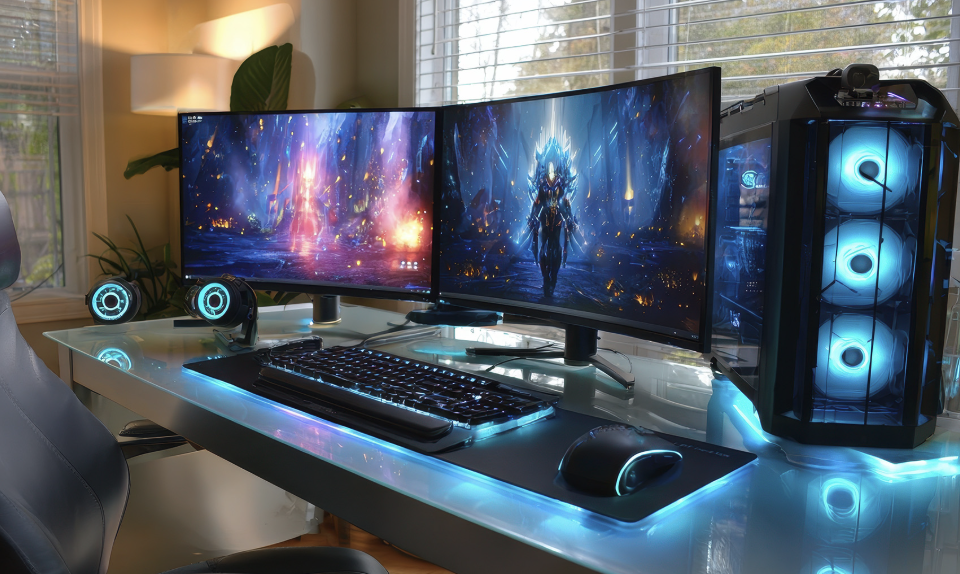
The graphics card is often the most expensive and most confusing part of a computer, yet it decides how smoothly games run and how quickly many creative programs finish their work. Choosing badly means paying for power you never use, or struggling with a machine that cannot keep up.
In this article we will discuss what a graphics card does, how to match one to your screen and your software, what to check about power, size and compatibility, and how to decide between new, used and laptop options.
Gaming and Creative Work Place Different Demands on a Graphics Card
A graphics card, also called a GPU or graphics processing unit, is a separate board with its own processor and memory, built to handle thousands of small calculations at the same time. That design suits drawing images, which is why it powers games, but it also suits video effects, three-dimensional modelling, photo editing and some forms of data processing.
The card sits in a slot on the motherboard and sends its output to your monitor through a video cable. Many processors also include a smaller built-in graphics section, which is fine for office work and video watching but limited for demanding tasks.
Gamers care about how many frames the card can produce each second, and how steady that rate is. A higher frame rate makes motion look smoother and reduces the delay between your action and the picture. Visual settings such as shadow quality, texture detail and ray tracing, which simulates the way light bounces, all add to the load. Competitive players often turn settings down to chase speed, while players of story-driven games may prefer richer visuals at a lower frame rate.
Creative users care about different things. A video editor wants fast preview playback and quick exports, a three-dimensional artist wants fast rendering and enough memory for large scenes, and a photographer wants smooth handling of big files and filters. Some programs use the card for only a few features, so the benefit varies widely. Before spending money, find out which features of your software are accelerated by a graphics card, using the maker’s documentation or user forums.
Many people do both, and that is fine, but it helps to rank your priorities. If gaming is the main use and creative work is occasional, a card sized for your games will usually cope. If paid creative work comes first, put reliability, memory and software support ahead of peak game speed. Writing a short list of your three most demanding tasks gives you a clear yardstick for every card you consider.
The table below shows how the priorities usually differ by type of user. Treat it as a guide to what to look for, and adjust it to your own software and games. If you fall between two rows, read the priorities of both and weigh them by how often you do each task.
| Type of user | Matters most | Matters less |
| Competitive gamer | High frame rate, low delay, fast monitor support | Large memory capacity |
| Story and visual-quality gamer | Balanced power, memory for detailed textures, upscaling features | Absolute top frame rate |
| Video editor | Memory, codec support, driver stability | Peak game performance |
| Three-dimensional artist | Memory capacity, rendering speed, software support | Monitor refresh rate |
| Photographer and designer | Colour output, smooth handling of large files | Ray tracing and gaming features |
| Everyday user | Display outputs, quiet operation, low power draw | Raw speed |
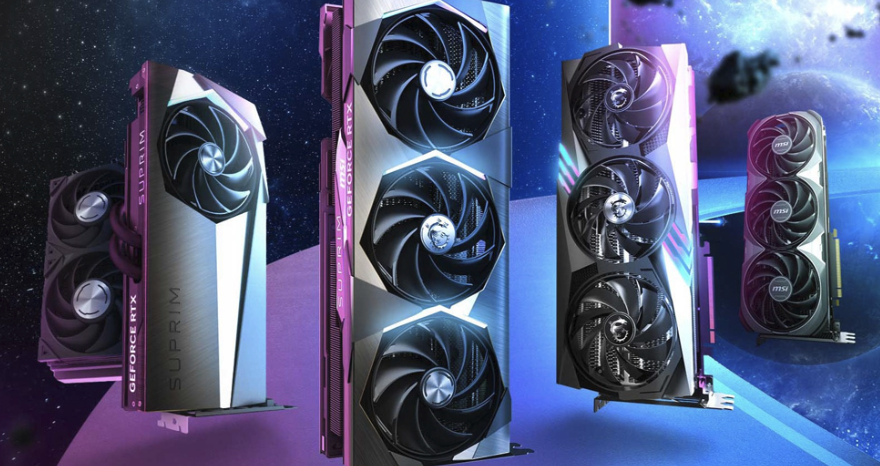
It also helps to know that graphics cards come from a small number of chip designers, with several partner companies building the finished boards. Two boards that use the same chip can differ in cooler design, factory speed settings, noise and warranty. This is why reviews often cover several versions of the same chip. Choosing a version is partly about the chip and partly about the quality of the cooler, the power delivery and the support behind it.
Video Memory and Why Capacity Matters
Video memory, often called VRAM, is the fast storage on the card that holds textures, frame data and working files. When a scene needs more memory than the card has, the system must borrow from slower main memory, and the result is stutter, long pauses or, in some programs, an error message. This makes capacity a practical limit rather than a luxury. It is also one of the easiest specifications to compare, since it is printed on every product page.
How much you need depends on what you do. Higher resolutions, detailed texture packs and ray tracing all raise memory demand in games. In creative work, large images, long timelines with effects and big three-dimensional scenes can fill memory quickly. Because requirements change as software evolves, avoid buying at the bare minimum listed by a game or program, and leave some room for the future.
Memory speed and the width of the connection between the processor and the memory also affect performance. Two cards with the same capacity can behave quite differently if one moves data faster. This is why you should not judge a card by capacity alone. Independent benchmarks that test real games and programs at your resolution show the combined effect better than any single specification.
Be careful with names and labels. The same product family may be sold in versions that differ in memory size, and sometimes in other details, while sharing nearly identical names. Read the full specification on the product page and compare it with the review you relied on. If the memory amount or the processor description differs, the review may not apply to the card in your basket.
A useful habit is to check what your current setup is using. Many operating systems and monitoring tools show memory use on the graphics card while a game or program runs. If your present card is regularly close to full, memory is your bottleneck and an upgrade should prioritise capacity. If it is rarely above half, raw processing speed may matter more.
Memory type and bus design are worth a short look if you enjoy detail, though most buyers can leave them to the reviewers. What counts for you is the outcome: does the card hold a steady frame rate at your resolution without stuttering when a new area loads? Look for review charts that show the slowest moments of play, often described as low-percentile frame rates, because averages can hide stutter. A card with a slightly lower average but smoother lows may feel better in actual use than one with a higher average and frequent hitches.
Resolution, Refresh Rate and Frame Targets
The most important buying question is what you plan to plug the card into. Resolution is the number of pixels on the screen, commonly described as 1080p, 1440p and 4K. More pixels mean a sharper image but also far more work per frame, so moving up a resolution step demands a noticeably stronger card. Choosing a card before choosing a monitor is a common error, since the screen dictates the workload.
Refresh rate, measured in hertz, is how many times per second the monitor updates. Many monitors run at 60 hertz, and gaming monitors commonly offer higher rates. A fast monitor only helps if the card can feed it enough frames, so match the two sensibly. A powerful card paired with a basic monitor wastes money, and a fast monitor paired with a weak card never reaches its potential.
Variable refresh technologies let the monitor adjust its rate to match the card’s output, which reduces tearing and stutter. They work through standards supported by both monitors and cards, and the exact names depend on the makers involved. Check that your chosen monitor and card both support a compatible standard, and read how it is connected, since some features need particular cable types. Good support for this feature often improves the feel of a game more than a small increase in raw speed.
Upscaling and frame generation features are now common. They render a game at a lower internal resolution and use software to produce a sharper image, or insert extra frames to increase smoothness. Results vary by game, by maker and by the quality setting you choose, and some people notice slight artefacts or added delay. Treat them as useful tools, but judge them with your own eyes, and avoid comparing a card running these features against another that is not.
To set a sensible target, follow a short routine. First, note your monitor resolution and refresh rate. Second, decide on a frame rate you would be happy with, such as a steady sixty for slower games or higher for fast ones. Third, search for independent reviews that test the games you play at that resolution. Fourth, pick the least powerful card that meets your target with some room to spare.
Image quality settings deserve a final word here. Many games include presets such as low, medium, high and ultra, and the top preset often costs a large share of performance for a small visible gain. Experimenting with a few individual settings, such as shadows and reflections, can free up speed without any visible loss. This means a mid-range card, tuned sensibly, can deliver a result close to that of a far more expensive one.
Power, Cooling and Case Fit
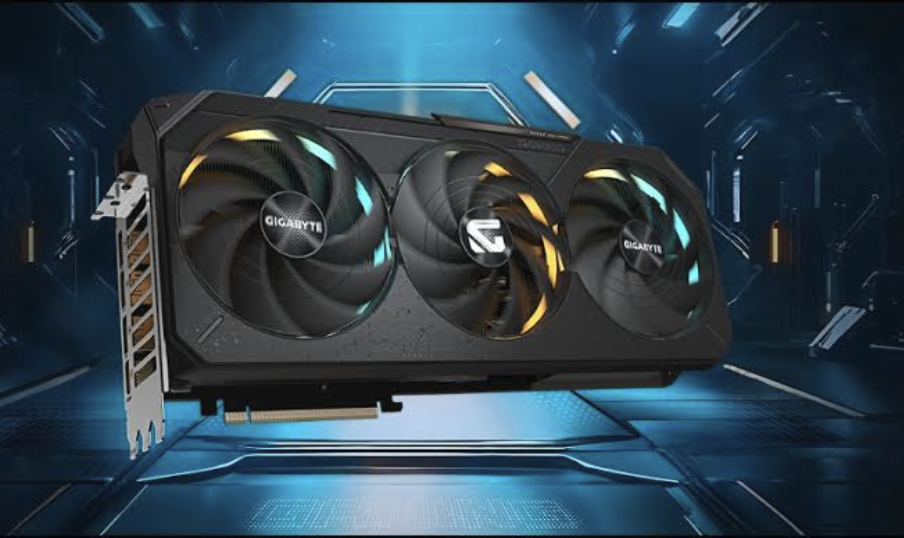
A graphics card is a physical object that must fit inside your computer and receive enough power. Cards vary greatly in length, height and thickness, with large models taking up two, three or more expansion slots. Measure the space available in your case, check the maximum card length listed by the case maker, and allow for cables at the end of the card. Also consider whether an adjacent slot is blocked, which may matter if you use other add-in cards.
Power is the next check. Each card lists a typical board power, and the maker publishes a recommended power supply rating for the whole system. Treat that recommendation as a minimum and choose a quality power supply from a reputable brand with some headroom. A weak or low-quality supply can cause crashes under load, and in rare cases damage components. If you are unsure, consult the power supply maker’s calculator or a qualified technician.
Connectors matter as well. Cards take power from the motherboard slot and, in most cases, through one or more cables direct from the power supply. Different connector styles exist, and adapters are sometimes included, but they should be used as the maker instructs. Push connectors in fully and follow the manual, because a loose connection can overheat. If you have any doubt about installation, have it done by a competent person rather than forcing a connector.
Heat and noise follow from power use. Higher-powered cards produce more heat, which the cooler removes with fans and heat pipes. Good airflow in the case helps, and dust buildup reduces it over time, so clean filters and fans periodically, with the machine turned off and unplugged. Independent reviews often measure noise and temperature, and these figures are worth reading if your computer sits close to you.
Lastly, think about running costs. A card that draws more power adds to your electricity use, and the effect grows if the machine runs for long hours. Electricity prices differ greatly between countries and providers, so work out the effect with your own rates. Some people choose a slightly slower, more efficient card for a quieter and cheaper machine.
Mounting and weight are easy to overlook. Large cards are heavy, and over time the weight can bend the slot or strain the board if nothing supports the far end. Many cases include a bracket, and support stands are sold separately. When you move a computer, it is sensible to remove the card or add support so the slot is not stressed in transit. Always power the machine off and unplug it before opening the case, and ground yourself by touching bare metal to avoid static damage.
Compatibility With the Rest of Your PC
A new card should work well with the parts you already own. First check the slot: most current desktop cards use a PCI Express slot, and the physical connector is the same across generations, though speed varies. A card designed for a newer generation will normally work in an older slot, but may run at reduced bandwidth. For most users the difference is small, though it can matter for the very fastest cards or when memory is short.
Next, consider the processor. A powerful graphics card paired with an old, slow processor may be held back, a situation often called a bottleneck. The reverse can also waste money, with an expensive processor feeding a modest card. Reviews that test a card with several processors reveal how sensitive it is, and forums for your particular processor can help. As a rule, balance the parts so that neither is far behind the other.
Check your monitor connections too. Cards offer a mix of output types, and the cables supported by your monitor must match. High resolutions and refresh rates need cables and ports that can carry enough data, so confirm that your cable is rated for your intended settings. If you use several monitors, count the available outputs before buying.
Do not forget software support. Your operating system must be supported by the card’s drivers, and drivers are updated from time to time to fix bugs and improve performance. Install updates from the maker’s official channels, and read release notes for any issues affecting your software. If your work depends on a stable setup, delay updates until you have time to test them, and keep a note of the driver version that worked.
Finally, think about the future. Some people buy a slightly stronger card than they need so that it lasts longer, while others prefer to buy a modest one now and upgrade later. Neither approach is wrong, and the best choice depends on your budget and how much you enjoy tinkering. Keep your power supply, case and monitor in mind, since they will carry through to the next upgrade.
Storage and memory in the rest of the computer also affect results. A fast graphics card will not rescue a machine that is short of system memory or that stores large project files on a very slow drive. For video editing, a quick solid-state drive and enough system memory keep the card supplied with data. Review the whole machine before blaming or upgrading the card alone.
Creative Software and Professional Features
For creative work, software support often matters more than raw speed. Video, photo and modelling programs use graphics cards through different technologies, and some features are tied to one maker’s cards. Read the software maker’s documentation to see which cards are supported and which features are accelerated. A card that is fast in games may offer little advantage in a program that uses it only lightly.
Video encoding and decoding deserve attention. Modern cards include dedicated hardware for common video formats, which can speed up exports, streaming and playback of high-resolution footage. Support for specific formats varies by card generation and by software, so check the exact formats you use. If you stream your gameplay, hardware encoding lets the card handle much of the work with a smaller effect on game speed.
Stability is vital when deadlines are involved. Some makers offer driver branches focused on stability for creative applications, in addition to those aimed at gamers. Such drivers are tested against professional programs and updated less often. If a crash would cost you paid work, consider a driver branch designed for that purpose, and check whether it is available for your card.
Professional-grade cards exist, with features such as certified drivers, larger memory options and support for specialist software. They usually cost more, and for many freelancers and hobbyists a mainstream card works well. The decision depends on whether your software maker certifies or recommends particular hardware, and whether your employer or clients require it. Check with the software maker before assuming you need a professional model.
If you work with colour, remember that the graphics card is only one link in the chain. Accurate results need a good monitor, calibration and proper colour settings in your software. A card with a clean, correct output at the right bit depth helps, but it cannot fix a poor display. Put your budget in balance across the whole workflow rather than into the card alone.
Warranty and support are worth comparing between board makers. Some offer longer cover or easier returns, and some are better known for responding to faults quickly. Read user reports about fan noise, coil whine and failures, remembering that online comments are a small and uneven sample. A well-reviewed cooler and a clear warranty are reasonable signs of a mature product.
Buying New, Used or Choosing a Laptop
New cards come with a warranty, current drivers and a return policy, which makes them the safest choice for most people. Buy from reputable retailers, compare the exact product versions, and keep your receipt. Be cautious of offers that seem far too good to be true, since counterfeit or misdescribed listings do occur. Check the warranty terms in your country, since consumer rights and the length of cover differ by region.
Used cards can offer excellent value but carry more risk. Cards that have been used for long periods of heavy work may be worn, and some have been run hot or modified. Ask the seller about the card’s history, request photos and test results, and prefer sellers who offer a return window or buyer protection. If possible, test the card soon after receiving it, running a demanding game or benchmark and watching for crashes, strange images and high temperatures.
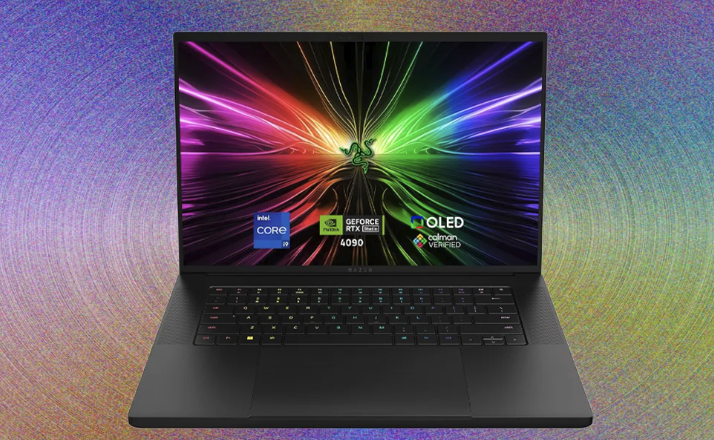
Laptops are different, because the graphics hardware is usually fixed to the machine and cannot be replaced. Two laptops with similarly named graphics chips may perform differently, because makers set different power limits and cooling designs. Thin designs tend to run slower than thicker ones, and independent reviews that measure sustained performance are especially valuable. Choose your laptop with the graphics hardware you need from the start, and check how it handles heat and noise.
Another option is an external enclosure that houses a desktop card and connects to a laptop through a fast cable. It can improve performance, but it adds cost, takes up desk space, and may not reach the speed of a card in a desktop. Support depends on the laptop and its ports, so check compatibility carefully before buying. For most people, a desktop or a suitably equipped laptop is simpler.
Timing also matters. New generations of cards appear every so often, and older models are often discounted when they do. If your current setup works acceptably, waiting may save money, while an urgent need justifies buying now. Avoid being swayed by pressure sales and instead return to your list of requirements.
Which Option Should You Choose?
Start with your screen and your software. Write down your monitor resolution and refresh rate, the games or programs you use most, and the settings you hope to run. Search for independent reviews that test those cases and note which cards reach your frame rate target. This simple list will usually reduce a bewildering market to a small number of candidates.
Next, set a budget before you browse. Decide the most you are willing to spend on the card, then leave a little aside for anything the rest of the machine may need, such as a stronger power supply, a new cable or a better monitor. Prices move often, so compare several retailers and check recent reviews instead of relying on a price you saw months ago. A card that sits slightly below your ceiling and meets your frame rate target is usually a better purchase than the most expensive model you can stretch to.
The table below links common screen setups to what you should look for. It deliberately avoids product names, because models change every year, and focuses on the qualities worth checking in a review.
| Your setup | What to look for | Sensible approach |
|---|---|---|
| 1080p screen, 60 to 144 hertz | A solid mid-range card with enough memory for current games | Prioritise value and low power draw |
| 1440p screen, 120 hertz or more | A strong mid-range or upper mid-range card with generous memory | Check the slowest moments of play in reviews, not just averages |
| 4K screen | A high-end card, good cooling and a quality power supply | Expect to lower some settings or use upscaling |
| Video editing and design | Ample memory, codec support and stable drivers | Test with your own software before committing |
| Three-dimensional rendering | The largest memory you can afford and proven software support | Check which rendering features use the card |
| Office, browsing and streaming video | Built-in graphics, or an entry-level card with the right outputs | Do not pay for power you will not use |
A Simple Checklist Before You Buy
Run through these points on the product page and in the reviews. If any answer is “no” or “unsure”, pause and find out before paying.
- Does it hit your target? Independent reviews should show the card reaching your frame rate at your resolution in the games or programs you use.
- Does it fit? Compare the card’s length, height and thickness with the space in your case.
- Is your power supply ready? Check the recommended wattage and the type and number of power connectors.
- Do the outputs match? Confirm that the card’s ports work with your monitor and cables.
- Is the memory enough? Leave room for future games and larger project files.
- Is the exact version reviewed? Make sure the memory size and chip name match the reviews you have read.
- Is the seller trustworthy? Look for a clear warranty, a return window and a reputable retailer.
Common Mistakes to Avoid
Most disappointing purchases come from a short list of avoidable errors. Knowing them in advance saves money and frustration.
- Buying the card before the monitor. The screen decides the workload, so settle on resolution and refresh rate first.
- Judging by memory alone. Capacity matters, but speed, chip design and cooling all affect real performance.
- Ignoring the power supply. A weak or low-quality unit can cause crashes and is a false economy.
- Skipping the case measurements. A card that does not physically fit is an expensive lesson.
- Trusting average frame rates only. Smooth lows often feel better than a slightly higher average with stutter.
- Comparing results with different settings. A card using upscaling cannot be fairly compared with one that is not.
- Buying for hype. Choose from your own list of tasks, not from the loudest advert or the newest release.
- Forgetting the rest of the machine. An old processor, short memory or slow drive can hold back even a good card.
Final Thoughts
The best graphics card is not the fastest or the most expensive one. It is the one that matches your screen, your software, your case and your budget, and that still has a little room to grow. Start with what you do most, set a target frame rate or a workflow you want to improve, and let independent testing narrow the field. Check the physical and electrical details before you pay, and prefer a card with a clear warranty from a seller you trust.
Whether you are chasing smooth gameplay, faster exports or a quiet everyday machine, a calm and methodical approach protects you from the two classic mistakes: overspending on power you never use, and underspending on a card that cannot keep up. Take your time, read more than one review, and buy the card that fits your life, not the one that wins an argument online.
Frequently Asked Questions
How do I choose the right graphics card for gaming?
Start with your monitor’s resolution and refresh rate, then decide the frame rate you want in the games you play. Read independent reviews that test those games at your resolution and choose the least powerful card that meets your target with some room to spare.
How much video memory do I need?
It depends on resolution, texture detail and the programs you use. Avoid buying at the bare minimum listed by a game or application, and leave headroom for future software. Monitoring your current card’s memory use shows whether capacity is your real limit.
Is a more expensive graphics card always better?
No. A pricier card can offer more speed and memory, but if your monitor, processor or software cannot use that power, the extra money is wasted. Match the card to your actual tasks instead of buying the top model.
What power supply do I need for a graphics card?
Check the card maker’s recommended power supply rating for the whole system and treat it as a minimum. Choose a quality unit from a reputable brand with some headroom, and make sure it has the right connectors.
Will a graphics card fit in my PC case?
Measure the maximum card length and height your case allows, and check how many expansion slots the card occupies. Leave space at the end of the card for cables.
Can a new graphics card work with an older processor?
Yes, but a very old processor can hold the card back, a situation called a bottleneck. Reviews that test a card with several processors show how sensitive it is.
Is it safe to buy a used graphics card?
It can be, if you buy from a seller who offers a return window or buyer protection, ask about the card’s history and test it soon after delivery with a demanding game or benchmark. Watch for crashes, odd images and high temperatures.
Do I need a professional graphics card for video editing or design?
Often not. Many editors and designers do well with a mainstream card that has enough memory and stable drivers. Check with your software maker before assuming you need a certified professional model.
What is the difference between a graphics card and built-in graphics?
A graphics card is a separate board with its own processor and memory, while built-in graphics share resources with the main processor. Built-in graphics are fine for office work and video, but a dedicated card is far better for demanding games and creative software.
Is it better to buy a graphics card now or wait for a new generation?
If your current setup works acceptably, waiting can save money because older models are often discounted when new ones appear. If you have an urgent need, buying now is reasonable. Base the decision on your requirements, not on release rumours.