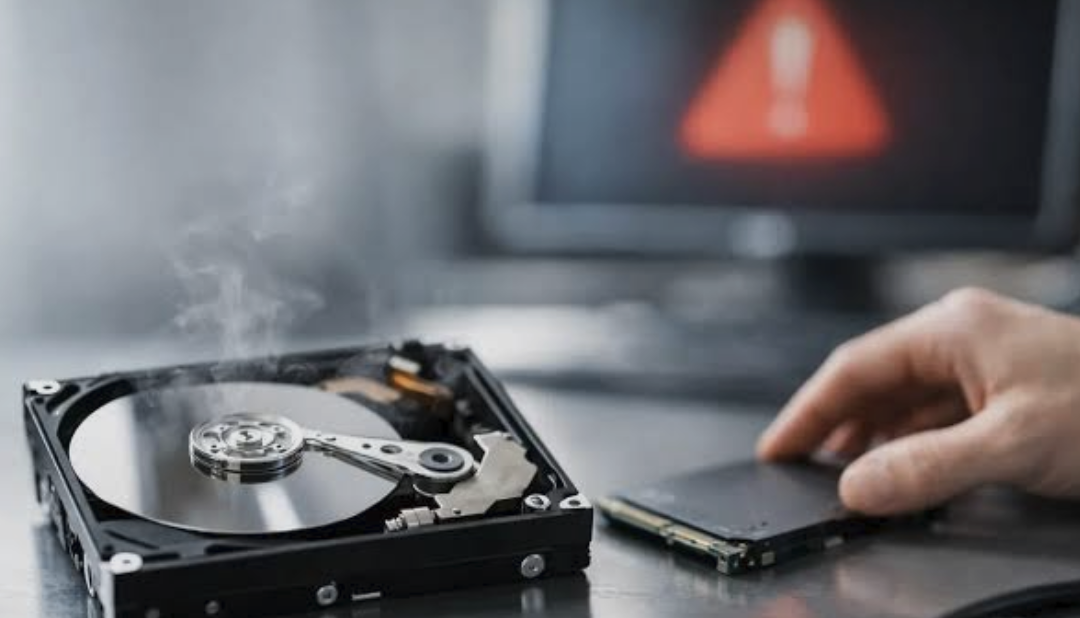
Every storage drive will stop working one day, and for most people that day arrives without a calendar reminder. The photos, documents and records stored on a failing drive can be impossible to replace, so a little preparation pays off.
In this article we will explore how drives fail, which warning signs deserve attention, what to do in the first minutes of a problem, how recovery works, and how to build habits that make a failure an inconvenience instead of a disaster.
Mechanical and Solid-State Drives Fail in Different Ways
A traditional hard drive stores data magnetically on spinning platters, and tiny read and write heads float just above those surfaces. Because it contains moving parts, it can suffer from worn bearings, a failing spindle motor, damaged heads or surface defects that spread over time. These drives also dislike shocks, so a laptop dropped while the platters are spinning is a classic route to trouble. Age, heat and constant vibration all add to the wear, although two identical drives can last very different lengths of time.
A solid-state drive has no moving parts and stores data in flash memory cells controlled by a small processor called a controller. Flash cells tolerate only a limited number of rewrites, and the drive spreads writes around to delay that limit, but for ordinary home use this wear is rarely the first thing to fail. More often the controller, its firmware or a power problem causes the drive to vanish from the system without notice. Some solid-state drives switch to a read-only state when they are worn out, which is helpful, yet others simply stop appearing at all.
This difference changes how you should think about risk. With a mechanical drive you often get days or weeks of noises and slowdowns, which gives you a chance to react. With a solid-state drive the failure can be sudden, so waiting for a warning is a weak strategy. Neither type is automatically safer for your files, and manufacturers publish different endurance and warranty figures that vary by product and by country.
External drives, memory cards and USB sticks follow the same basic principles but add their own weak points. Cables, connectors and enclosure circuit boards fail more often than people expect, and sometimes the drive inside is perfectly healthy. Before assuming the worst, it is worth trying a different cable, another port and a second computer. Many supposed disk deaths turn out to be a worn connector, and a quick swap can save a lot of worry.
Another cause that readers often overlook is the file system itself. Sudden power loss, pulling a drive out without ejecting it, or a crash while data is being written can damage the structure that records where files live. The hardware is fine in that case, but the computer can no longer find the data, and the symptoms look similar to a hardware failure. This is why the way a problem began matters, and why you should write down anything unusual that happened just beforehand.
Early Warning Signs Worth Taking Seriously
The most obvious sign on a mechanical drive is sound. Repeated clicking, a rhythmic ticking, grinding, scraping or a high whine that was not there before suggests that something inside is struggling. A drive that spins up and down repeatedly, or that takes a long time to appear when you plug it in, belongs in the same category. Quiet drives can still be failing, but a new noise is among the strongest clues you will get.
Behavior is the next clue. Files that take unusually long to open, folders that freeze the whole computer, and programs that hang when they touch the disk can all point to slow or damaged areas. Random crashes, blue screens or error messages mentioning disk, read or input and output problems are further signs. A computer that suddenly fails to start, or reports that no boot device was found, may have lost contact with its system drive.
Data itself can give warnings too. Files that become corrupted for no clear reason, photos that open half gray, archives that refuse to extract and documents that vanish from folders all deserve attention. So does a growing number of bad sectors, which are small storage areas that can no longer be read or written reliably. A repair utility that keeps finding errors every time you run it is telling you the underlying problem has not gone away.
Not every symptom means a dying drive, and this is where calm judgment helps. Slowness can come from low free space, heavy background activity, malware or an overloaded memory. A noise might come from a fan, and a freeze might come from a faulty cable or power supply. The table below sets out common signs, what they may indicate and a sensible first reaction.
| Sign you notice | What it may indicate | Sensible first reaction |
| Clicking or grinding from a mechanical drive | Head or motor trouble | Power down and copy data at once |
| Computer freezes when opening certain folders | Unreadable sectors or file system damage | Back up what you can, then run a health check |
| Drive not detected | Cable, port, controller or electronics fault | Try another cable, port and computer |
| Files corrupted without explanation | Failing media or interrupted writes | Compare with backups and check drive health |
| Frequent crashes or boot failures | Failing system drive, or software and memory faults | Test the drive and the memory before reinstalling |
| Health tool reports a warning | Wear or reallocated sectors | Treat as urgent and replace the drive |
Software Tools That Report Drive Health
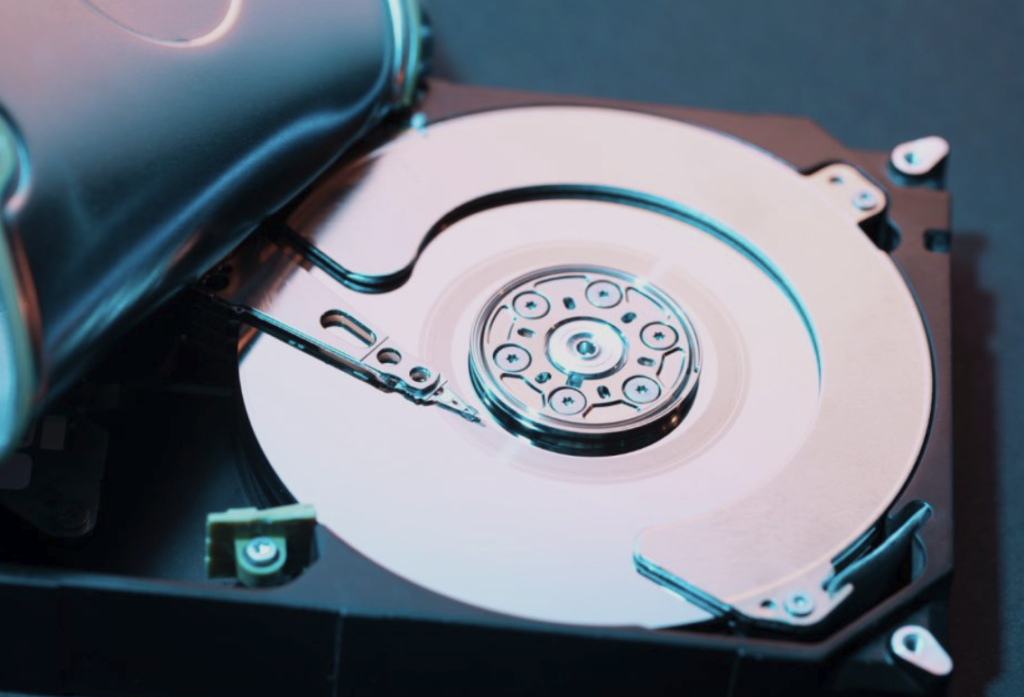
Modern drives carry a self-monitoring feature known as SMART, short for Self-Monitoring, Analysis and Reporting Technology. The drive tracks internal measures such as reallocated sectors, sectors waiting to be reassigned, read error counts, temperature and, on solid-state drives, wear levels. Operating systems and many free utilities can read these figures and summarize them as good, caution or bad. That summary is a helpful early signal and costs nothing to check.
Learn how to read the output without panicking. A single warning on a temperature value usually points to poor airflow rather than a doomed drive. Rising counts of reallocated or pending sectors, on the other hand, show that the drive is finding spots it can no longer trust, and a count that keeps growing is a reason to replace it. Manufacturers differ in how they report raw numbers, so compare a value with its own history instead of with a number you found elsewhere.
Be honest about the limits of these reports. Some drives fail abruptly with a perfectly clean SMART record, especially after a power surge or a controller fault, and some drives limp along for years with a warning. Treat the tool as a smoke detector and not as a guarantee. A good result means nothing is currently flagged, not that your files are safe.
Built-in system tools help as well. Windows includes a disk checking utility that scans for file system errors and can attempt repairs, and macOS provides a disk utility with a first aid function for the same purpose. Many drive makers also offer their own diagnostic program that tests the surface in more depth and can read the vendor-specific health data. Run these checks only after your important files are safely copied, because a repair routine moves and rewrites data and can make a bad situation worse on a damaged disk.
A simple routine helps. Check health reports once a month, look at free space, and keep notes on any odd behavior. If a drive shows a new warning, back up before you investigate further, not after. This order of events is the single habit that separates people who lose files from people who merely replace hardware.
Immediate Steps When a Drive Starts to Fail
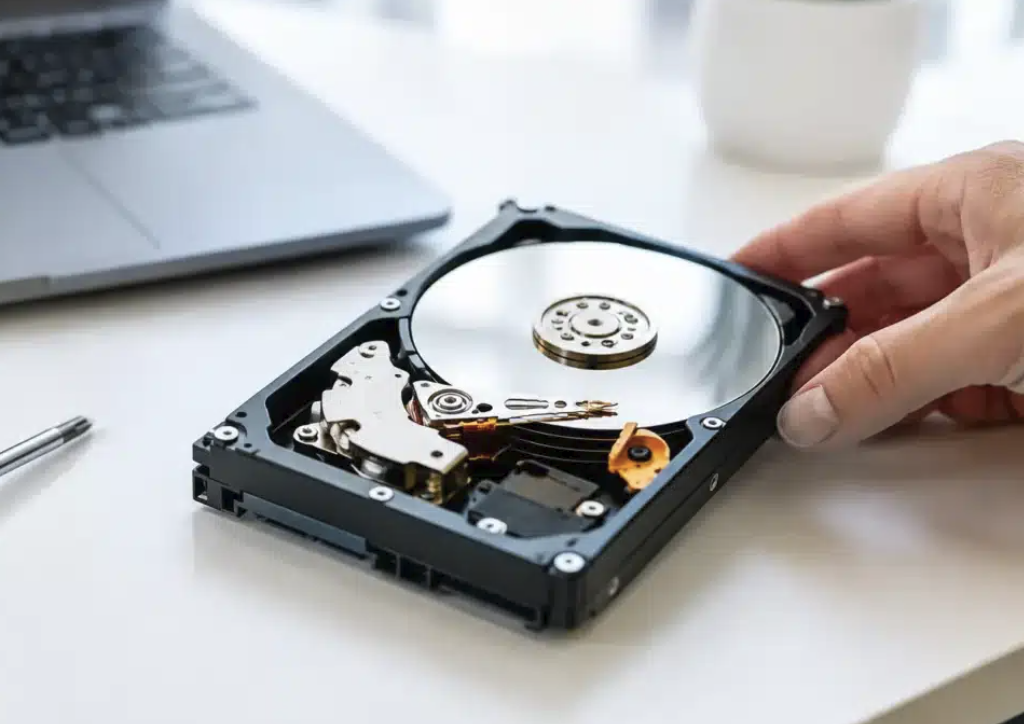
The first rule is to stop doing anything that is not rescuing data. Every extra minute of use on a failing mechanical drive risks further surface damage, and every write to any failing drive risks overwriting data that could otherwise be recovered. Close programs, stop downloads and avoid installing software. If the drive is making grinding sounds, shut the computer down properly and do not power it on again until you have decided on a plan.
Next, decide what matters most. Make a short list of the files you cannot replace, such as family photos, tax and financial records, work projects and identity documents. Copy those first, to a different drive with enough free space, and leave everything else for later. Copy files rather than moving them, because a move deletes the original after the transfer and can fail halfway on a damaged source.
If the drive still works, connect a healthy external drive and copy in order of importance. If the drive is slow or throws errors on certain files, let those files go and carry on with the rest instead of retrying them over and over. For a laptop that will not start, you can often remove the drive and connect it to another computer through a cable adapter or an enclosure. Use caution with static electricity and with the small connectors, and consult the manufacturer’s guidance for your device, since some laptops make drives hard to remove.
Avoid the temptations that make things worse. Do not run repair tools or file system checks on a drive you have not yet copied. Do not reinstall the operating system onto the same drive, because setup will overwrite much of it. Do not shake, tap, open or freeze the drive, since folklore remedies such as the freezer trick are widely advised against by data recovery professionals, and opening a mechanical drive outside a clean environment lets dust onto the platters.
If the data is important and the drive is making noises, the wise move is to pause and consider professional help. A small amount of damage can become permanent with repeated power-on attempts. Writing down the symptoms, the make of the drive and what happened beforehand will make any later conversation with a recovery service quicker and cheaper.
Backups Are the Real Recovery Plan
Recovery is a rescue effort, and the best rescue is the one you never need. A backup is simply a second copy of your files, kept somewhere that a single accident cannot reach. Without one, every drive is a gamble, and with one, a dead drive is a shopping trip. Backups protect against more than hardware faults, including theft, accidental deletion, fire, flooding and ransomware.
The commonly recommended 3-2-1 approach is easy to remember. Keep at least three copies of your data, on at least two different kinds of storage, with at least one copy stored away from the main location. For a household, that might mean the working files on the computer, a copy on an external drive kept in a cupboard and a third copy in an online backup service or a drive stored at a relative’s home. Details vary, but the principle is spreading risk across devices and places.
Automation matters more than enthusiasm. Operating systems include backup features that run on a schedule, and many online services copy chosen folders in the background. The best schedule is the one you never have to remember. After you set it up, open the backup and restore a few files to check they are readable, because an untested backup is only a hope.
Sync is not backup, and this confusion causes many losses. A folder that mirrors itself to another device or to cloud storage will also mirror a deletion or a corruption, often within seconds. Look for version history, which keeps older copies of a file so you can step back in time, and for protection that is separate from your everyday login. Also remember that an external drive left permanently plugged in shares the same risks of power surges, malware and theft as the computer next to it.
Think about encryption and privacy too. If you use disk encryption, keep the recovery key somewhere other than the encrypted drive, since without it a recovered image may be unreadable. Backups themselves can hold sensitive data, so protect them with strong passwords and keep them tidy. Finally, replace backup drives at a sensible interval, because they age like any other hardware.
Data Recovery Options and Their Limits
Recovery falls into a few broad levels, and it helps to know where your problem sits. The first is logical recovery, used when the drive is physically healthy but files were deleted, a partition was lost or the file system is damaged. The second is recovery of a drive with minor hardware trouble, which may need careful imaging. The third is physical repair in a specialist laboratory, which is needed when heads, motors or electronics are damaged.
For logical problems, many people try recovery software, and it can work well when used carefully. Such programs scan the drive for remnants of files and file system records and let you preview what they find. The key rule is to install the software on a different drive and to save recovered files to a different drive as well. If you write anything to the source disk, you risk overwriting the data you are chasing.
A more careful method is to make an image first. Imaging creates a sector-by-sector copy of the failing drive onto a healthy one, and all recovery attempts then run against the copy. This reduces stress on the original and lets you try again if a method fails. Imaging tools designed for damaged drives retry unreadable areas gently and skip them first, which helps preserve as much as possible.
When the drive makes noise, is not detected or has suffered impact, home tools are no longer the right answer. Professional recovery services work with specialist equipment and, for severe mechanical cases, controlled clean environments. Pricing, success rates and turnaround vary widely by country and provider, so ask for a written quote and what happens if nothing is recoverable. Reputable services typically evaluate the drive first and explain the likely cost before major work begins, and many do not charge when nothing can be recovered, though policies differ.
| Situation | Typical approach | Who usually does it |
| Accidentally deleted files, healthy drive | Check the recycle bin or trash, then recovery software | You |
| Lost or damaged partition | Partition recovery tool, preferably on an image | You or a technician |
| Drive with bad sectors, still detected | Imaging with a tool built for failing drives | You with care, or a technician |
| Clicking, grinding or undetected mechanical drive | Stop and seek professional evaluation | Specialist laboratory |
| Dead solid-state drive | Professional evaluation, often limited options | Specialist laboratory |
| Water or fire damage | Do not power on; contact a specialist | Specialist laboratory |
A short written log makes every later decision easier. Note the date you first saw a symptom, what the computer was doing at the time, and whether anything changed recently, such as a new cable, a system update or a power cut. Patterns appear quickly when you look back, for example freezes that happen only when one particular external drive is attached. If you eventually hand the drive to a technician, that record saves time and often money.
Honesty about the limits of recovery prevents unrealistic hopes. Some failures cannot be reversed, and recovery services themselves warn that results are never guaranteed. A mechanical drive with damaged platters may lose part of its data forever, and a solid-state drive with a failed controller can be especially hard because data is often scrambled across chips. Recovery from these drives is sometimes possible, but it usually costs more and can take longer.
Solid-state storage adds a complication that surprises many readers. A feature called TRIM tells the drive which blocks are no longer in use so that it can erase them in the background, and once that happens deleted files are generally gone for good. Encryption adds another layer, because a damaged drive that was encrypted may be unreadable without both the hardware and the key. This is the reason a good backup is worth more than a recovery plan.
Water, heat and impact require immediate caution. If a drive has been in water, do not plug it in to see whether it works, because power can cause short circuits and corrosion. If it has been through a fire or a flood, keep it in a sealed bag and ask a specialist how to proceed. A drive that has been dropped should be treated as damaged even when it seems to spin.
Cost-benefit thinking is sensible here. Compare what the data is worth to you with what the lab quotes, and remember that professional recovery can be expensive for individuals. Some files may exist elsewhere, in email attachments, messaging apps, cloud photo libraries or old devices, so search those before paying. For business or legal records, consider speaking with a professional adviser, since data protection duties and retention rules differ by country.
Do not wait for perfect information. If the lost data is irreplaceable, an early consultation with a reputable service is better than a week of experiments. If it is replaceable, a careful attempt at home with a copy of the drive is reasonable. In both cases, decide on a plan before you touch the hardware again.
Safe Disposal and Replacing a Failed Drive
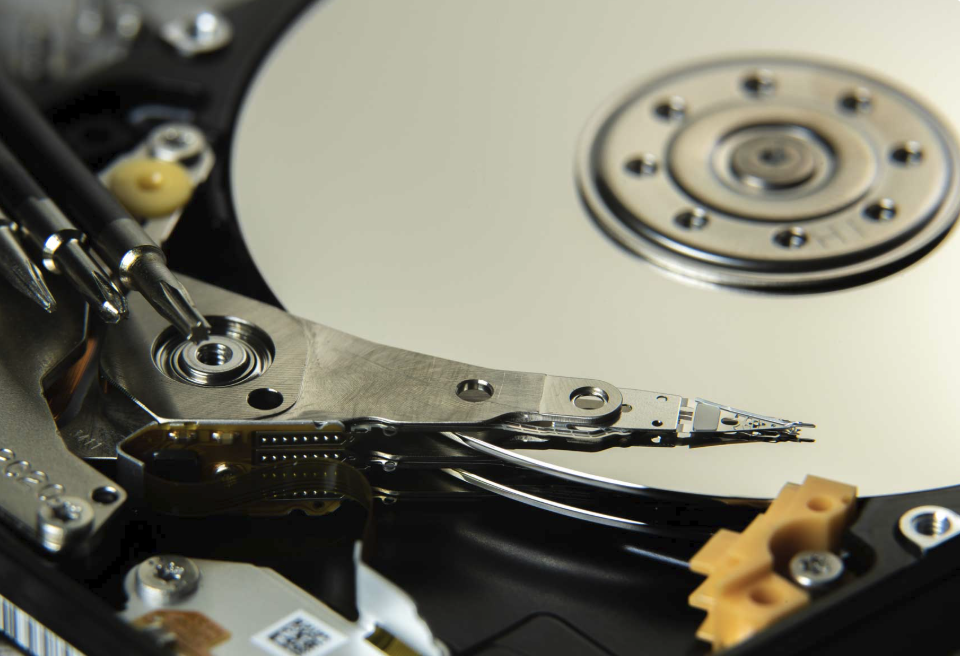
Once you have rescued what you can, replace the drive promptly and resist the urge to keep using the old one. A drive that has shown real symptoms is not trustworthy, even if a repair seems to fix it. Choosing the replacement is a matter of fitting your needs: capacity for your files plus room to grow, the connection type your computer supports, and a warranty length you are comfortable with. Specifications and prices change often, so compare current offerings from reputable sellers instead of relying on any single recommendation.
Think about which type of drive suits the job. Solid-state drives are generally quicker and quieter and suit the system drive of a modern computer. Mechanical drives still offer a lot of storage for the money and are common for backups and archives. Whichever you choose, label the install date on the drive or in a note, so that you can plan its retirement before trouble starts.
After installing the new drive, restore from your backup and then check that the files open properly. If you needed to recover files from the old drive, keep it aside until you are sure everything important has been checked. Then set up your backup schedule at once, so the new drive is never your only copy. This is the moment when many people intend to do it later, and later has a habit of becoming never.
Disposal deserves care because an old drive can hold personal data. Deleting files or formatting a drive does not reliably remove the data, and a failed drive may still be readable by a specialist. For mechanical drives, many people choose a secure erase or physical destruction through a certified recycling service. For solid-state drives, built-in secure erase functions and encryption-based erasure are common, and manufacturer guidance can help. Local electronics recycling rules differ, so check what is available in your area.
Conclusion
If you suspect a drive is failing right now, begin with the data. Stop nonessential use, shut down if the drive is noisy, and copy your most important files to a different healthy drive. Do not run repair tools, do not reinstall anything onto the failing drive and do not try home remedies. If the files are valuable and the symptoms are physical, contact a reputable recovery service before trying anything else.
If your drives seem fine today, use the calm to prepare. Set up automatic backups that follow the 3-2-1 idea, test a restore, and check drive health reports once a month. Keep recovery keys and passwords in a safe place that is separate from the computer. Spend a few minutes noting the age of every drive you own, and plan a replacement before you are forced to.
Finally, keep perspective. A failed drive is a normal event in the life of any computer, and the people who recover easily are simply those who prepared. If you are unsure about a step, especially with irreplaceable data, a business system or a damaged device, ask a qualified technician before acting. A short delay and a clear plan almost always beat a hurried guess.