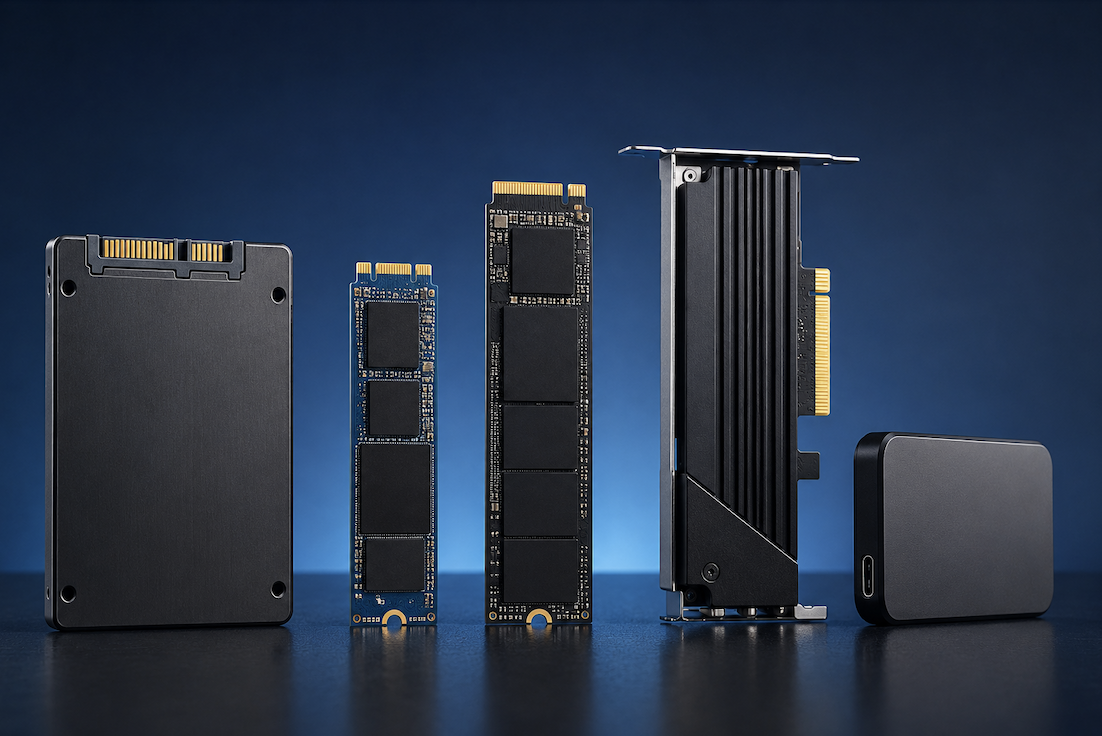
“SSD” gets used as a catch-all term, but there are meaningful differences between types that directly affect real-world speed and compatibility. Understanding these differences helps avoid buying the wrong type for your system, or overpaying for speed you won’t actually benefit from.
Why Storage Type Still Matters
Even though nearly everyone agrees SSDs are better than traditional hard drives, the specific type of SSD you choose can still make a meaningful difference, particularly for tasks like video editing, large game installations, or transferring large files regularly. For general everyday use, the difference between SSD types matters less than the basic switch from an HDD to any SSD.
SATA SSDs: The Budget-Friendly Standard
SATA SSDs use the same connection standard as traditional hard drives, which makes them widely compatible with older systems that don’t support newer storage interfaces. They’re significantly faster than a traditional hard drive but capped by the SATA interface’s maximum speed, making them the slower of the two main SSD types, though still a dramatic improvement over spinning-disk storage for most everyday tasks like boot times and application loading.
NVMe SSDs: Built for Speed
NVMe SSDs connect directly through the PCIe interface rather than the older SATA standard, allowing dramatically higher data transfer speeds. This makes a noticeable difference for large file transfers, video editing, and loading large modern games, though for basic tasks like web browsing or word processing, the difference compared to a SATA SSD is far less noticeable in daily use.
Understanding PCIe Generations
NVMe SSDs are further categorized by which PCIe generation they support, with each newer generation roughly doubling the maximum theoretical speed of the one before it. It’s important to match your chosen SSD’s PCIe generation to what your motherboard actually supports a newer, faster SSD installed in an older motherboard will still function, but it will only operate at the speed the motherboard’s older PCIe generation allows, meaning you won’t get the full performance you paid for.
Form Factors: 2.5-Inch vs M.2
SATA SSDs are typically housed in a 2.5-inch form factor, similar in shape to a traditional laptop hard drive, and connect via a cable inside the case. M.2 SSDs are a much smaller, stick-shaped format that plugs directly into a slot on the motherboard without cables, and can be either SATA or NVMe depending on the specific model. It’s worth double-checking this distinction when buying, since an M.2 SATA drive looks nearly identical to an M.2 NVMe drive but performs very differently.
QLC vs TLC vs MLC: Understanding Memory Cell Types
Beyond connection type, SSDs also differ in how many bits of data each memory cell stores, which affects both cost and long-term durability. TLC (triple-level cell) has become the common standard for most consumer SSDs, offering a reasonable balance of cost and durability. QLC (quad-level cell) is generally cheaper but has a shorter practical write-endurance lifespan, making it more suitable for storage that’s mostly read rather than frequently rewritten. MLC (multi-level cell) sits above TLC in durability and cost, and is now less common in mainstream consumer products, appearing mostly in higher-end or enterprise storage instead.
Choosing Storage for Gaming
For gaming specifically, an NVMe SSD noticeably reduces game loading times and level transition delays compared to a SATA SSD, particularly in newer, larger titles. A SATA SSD is still a meaningful upgrade over a traditional hard drive for gaming, but if budget allows, NVMe is generally worth the price difference for anyone who games regularly and values shorter loading screens.
Choosing Storage for General and Professional Use
For general everyday computing, browsing, office work, and streaming, a SATA SSD is often sufficient, and the price savings compared to NVMe can be better allocated toward other components. For professional work involving large files, such as video editing or 3D rendering, the faster transfer speeds of an NVMe SSD translate into a genuinely noticeable difference in daily workflow efficiency, making the additional cost easier to justify.
Price vs Performance Tradeoffs
NVMe SSDs generally cost more per gigabyte than SATA SSDs, and the price gap widens further for higher PCIe generations. A practical approach for a budget-conscious build is choosing a smaller, faster NVMe drive for the operating system and frequently used applications, paired with a larger, more affordable SATA SSD or even a traditional hard drive for bulk storage of files that don’t require fast access speeds.
Common Misconceptions
A common misconception is that all M.2 drives are automatically faster than 2.5-inch drives, when in reality, an M.2 SATA drive performs similarly to a 2.5-inch SATA drive the form factor alone doesn’t determine speed. Another misconception is that more total storage automatically means better value; a smaller, faster drive for your operating system and active projects, combined with more affordable bulk storage elsewhere, often serves most users better than one large, uniformly-priced drive.
How Endurance Ratings Affect Real-World Lifespan
SSDs are rated with a total-bytes-written (TBW) endurance figure, indicating roughly how much data can be written to the drive over its lifetime before reliability declines. For typical consumer use general computing, gaming, moderate file work even budget drives comfortably exceed what most
people will write over several years of normal use. This rating becomes more relevant specifically for write-intensive professional work, like continuous video recording or large-scale data processing, where a higher-endurance drive is worth the added cost.
External SSDs: A Related but Separate Category
Portable external SSDs, connected via USB, offer another storage option worth understanding separately from internal drives. Their real-world speed depends heavily on the USB standard used for the connection, not just the SSD itself an otherwise fast external SSD connected through an older, slower USB port will perform well below its rated speed. For anyone using an external SSD for regular large file transfers, checking both the drive’s and the computer’s USB specifications matters just as much as the drive’s internal speed rating.
Checking Drive Health Over Time
SSDs, unlike traditional hard drives, don’t have moving parts to physically wear out, but their memory cells do have a finite number of write cycles. Most manufacturers provide free diagnostic tools that report a drive’s remaining estimated lifespan and overall health, and checking this periodically, particularly for a drive used heavily for video editing or other write-intensive tasks, can give advance warning before a failure actually occurs.
Understanding Drive Overprovisioning
Some SSDs reserve a portion of their total capacity as spare space, not shown as usable storage, which helps maintain consistent performance as the drive fills up and ages. This is one reason two drives with the same advertised capacity can behave differently under sustained heavy use — a drive with more generous overprovisioning tends to maintain steadier performance over its lifetime compared to one with minimal spare space reserved.
Real-World Speed vs Advertised Speed
Manufacturer speed ratings represent best-case, sequential transfer speeds under ideal conditions, which rarely match the kind of everyday, mixed file usage most people actually do. Random read and write speeds — more representative of loading an operating system or running applications with many small files — are typically lower than the large, sequential-transfer numbers featured prominently in marketing. Reviews that specifically test real-world, everyday performance give a more accurate picture than the advertised peak numbers alone.
How SSD Prices Have Changed Over Time
Storage prices per gigabyte have declined significantly in recent years across nearly every SSD category, which has made larger-capacity drives far more accessible than they once were. This trend makes it worth checking current pricing rather than assuming older cost expectations still apply, since a capacity or drive type that once seemed like a premium, unaffordable option may now sit at a reasonable, mainstream price point.
Cloning vs Fresh Installation When Upgrading
When replacing an existing drive, cloning software can copy your current operating system and files directly onto the new SSD, avoiding a full reinstall of your operating system and applications. This is generally faster and more convenient than a fresh install, though a fresh install can be worth the extra time if your current system has accumulated significant clutter or performance issues you want to leave behind rather than carry over to the new drive.
How Much Storage Capacity You Actually Need
Beyond speed, capacity planning deserves its own consideration. For a primary operating-system drive, 500GB to 1TB is a reasonable range for most users once modern operating systems, updates, and common applications are accounted for. Heavy users of large game libraries, video files, or professional creative software often benefit more from planning for a larger secondary storage drive from the start, rather than upgrading again in just a year or two after underestimating how quickly storage fills up.
Upgrading an Existing System
Before purchasing a new SSD, confirm what your specific motherboard supports, since not every system has an available M.2 NVMe slot, particularly on older or budget motherboards. Most manufacturers publish detailed specifications online, and checking this before buying prevents the common mistake of purchasing an NVMe drive for a system that can only support SATA-based storage.
Final Thoughts
SATA SSDs remain a solid, budget-friendly choice for general use and older systems, while NVMe SSDs offer a meaningful speed advantage worth the extra cost for gaming, professional work, or anyone who regularly moves large files. Checking your system’s actual compatibility before buying, rather than assuming any SSD will deliver full performance, ensures you’re not paying for speed your system can’t actually use.