Most people only think seriously about backups after losing something important, a corrupted hard drive, a stolen laptop, or a phone that won’t turn on anymore. A proper backup system, set up once and left to run automatically, removes the risk entirely. Here’s how to actually build one.
How Often You Should Actually Back Up
The right backup frequency depends on how often your data changes and how much you’d be willing to lose. For most personal files, a daily or continuous automatic backup is reasonable given how inexpensive automated backup has become, while for less frequently changing archives, a weekly or monthly backup schedule may be sufficient. The key is matching the frequency to how much re-creating lost work would actually cost you in time, rather than picking an arbitrary schedule.
Backing Up Work and Personal Data Separately
If you use the same device for both personal and work files, it’s worth keeping backup destinations separate where possible, both for organizational clarity and because many employers have specific policies or tools for backing up work data that shouldn’t be mixed with a personal cloud account. Checking with your employer about their preferred backup method for work files avoids potential conflicts with company data policies.
The 3-2-1 Rule, Explained Simply
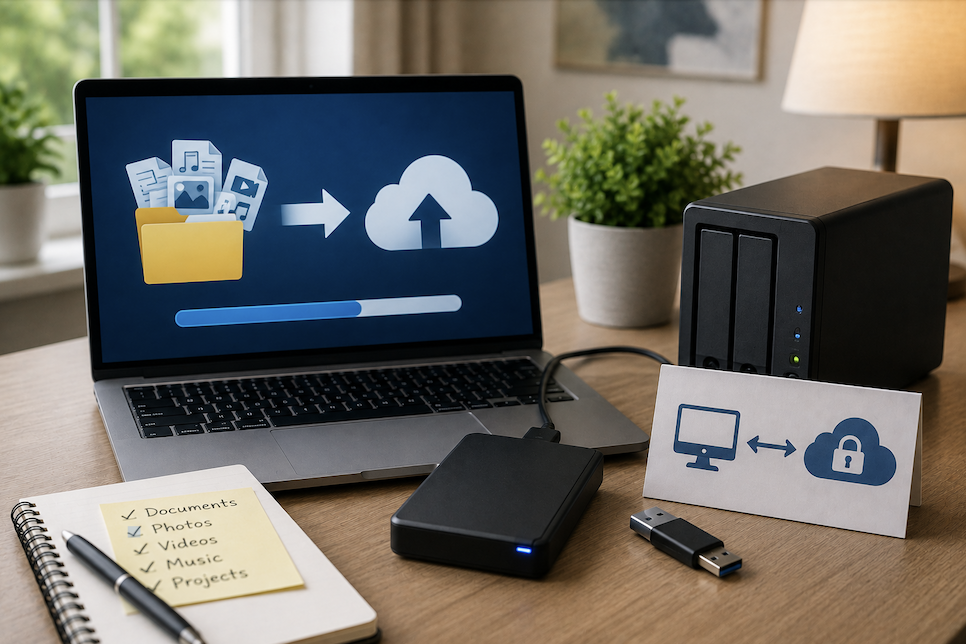
The most widely recommended backup approach is known as the 3-2-1 rule: keep three total copies of your data (the original plus two backups), store those copies on two different types of storage media, and keep at least one copy in a completely separate physical location. This structure protects against the most common failure scenarios, a single drive failing, a specific storage type failing more broadly, and physical events like fire or theft that could affect everything in one location at once.
Local Backups: Fast but Vulnerable to Physical Risk
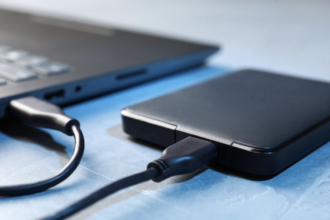
An external hard drive or a network-attached storage device kept at home offers fast backup and restore speeds and doesn’t rely on an internet connection. The tradeoff is that a local backup kept in the same location as your primary device doesn’t protect against theft, fire, or other events that could affect the whole location at once, which is exactly why the 3-2-1 rule calls for at least one copy stored elsewhere.
Cloud Backups: Convenient and Off-Site by Default
Cloud backup services automatically satisfy the off-site requirement, since your data is stored on servers physically separate from your home. The tradeoffs are a recurring subscription cost for larger amounts of data, and a restore process that depends on internet speed, which can be significantly
slower than restoring from a local backup when recovering a large volume of files.
For most people, a combination of both, a local backup for fast, everyday recovery and a cloud backup for genuine disaster protection, offers the best balance of speed and safety.
Deciding What Actually Needs to Be Backed Up
Not everything on a device needs the same level of backup priority. Irreplaceable files, photos, personal documents, financial records, creative work, deserve the full 3-2-1 treatment. Installed applications and operating system files generally don’t, since they can be reinstalled or redownloaded if needed, and backing them up mostly just adds unnecessary storage use and backup time.
Automating the Process
A backup system that depends on remembering to do it manually will eventually fail, usually right before it’s needed most. Both local backup software and cloud backup services offer automatic, scheduled backups that run in the background without requiring ongoing manual effort. Setting this up once, and confirming the schedule is actually running rather than assuming it is, is worth the fifteen minutes it typically takes.
Physical Backup Storage: Where to Actually Keep It
For the off-site portion of the 3-2-1 rule, a drive kept at a trusted family member’s house, a workplace (where appropriate and permitted), or a safety deposit box all satisfy the requirement of physical separation from your primary location. The specific location matters less than genuinely keeping it separate, a second drive stored in the same house, even in a different room, doesn’t protect against fire, flooding, or theft affecting the whole property.
Handling Backup for Older or Legacy Files
Files stored in outdated formats or on old storage media (like old external drives or memory cards) are worth migrating to current backup systems periodically, since storage media itself degrades over time and older file formats can eventually become harder to open as software evolves. A periodic review, every few years, of any old backup media sitting in a drawer prevents slowly losing access to files that were technically backed up but on hardware or formats that have since become obsolete.
Testing Your Backups Periodically
A backup that’s never been tested is not a reliable backup, corrupted backup files, incomplete transfers, and misconfigured settings are all more common than most people expect, and they’re often only discovered during an actual emergency, when it’s too late to fix. Periodically restoring a handful of test files from your backup, rather than assuming everything is working correctly, confirms the system is actually functional before you need to depend on it.
Building the Habit, Not Just the System
Even a fully automated backup system benefits from a periodic manual check, confirming the last successful backup date, verifying available storage hasn’t been exceeded, and making sure new
folders or file types you’ve started using are actually included in the backup scope. Setting a recurring reminder every few months to spend five minutes reviewing this turns backup maintenance into a small, manageable habit rather than something that’s only addressed after a problem has already occurred.
Don’t Forget Your Phone
Phones often hold irreplaceable photos and messages but get overlooked in backup planning compared to computers. Both major mobile operating systems offer built-in cloud backup options that can be enabled in settings, and confirming this is turned on, rather than assuming it already is, is worth checking directly, since it’s a common setting to have been accidentally disabled or never enabled in the first place.
Backup Security and Encryption
A backup containing sensitive personal or financial information is only as secure as the storage method protecting it. Encrypting local external drives and choosing a cloud backup provider with encryption both during transfer and while stored protects your backed-up data from unauthorized access in the event a backup drive is lost or stolen, or a cloud account is compromised. It’s also worth using a strong, unique password on any cloud backup account and enabling two-factor authentication where available, since a backup account is often overlooked as a security priority compared to email or banking accounts, despite potentially holding just as much sensitive data.
Version History vs Simple Backup
A basic backup captures a snapshot of your files at a single point in time, but some backup and sync services also offer version history, keeping earlier versions of a file even after it’s been edited or overwritten. This matters more than it might seem: a simple backup won’t help if a file becomes corrupted and that corrupted version gets backed up over the good one, whereas version history lets you roll back to an earlier, uncorrupted copy specifically.
Backing Up Shared or Family Devices
Devices used by multiple people, like a shared family computer, benefit from separate user accounts with individual backup settings, rather than one combined backup covering everyone’s files indiscriminately. This makes it easier to manage storage limits, restore an individual person’s data specifically if needed, and avoid one person’s large media files consuming the backup capacity meant for everyone.
Choosing a Cloud Provider
When comparing cloud backup services, look beyond just storage price per gigabyte. Consider upload and download speed limits, whether the service offers automatic continuous backup or requires manual syncing, how easy the restore process actually is during an emergency, and whether the company has a clear, published policy on data privacy and encryption. A slightly more expensive service with reliable automatic backup and straightforward restoration is generally a better value than a cheaper one that requires more manual effort to use correctly.
Common Backup Mistakes
Relying on a single backup method, rather than following the 3-2-1 structure, is the most common mistake, since it leaves you exposed to whichever single failure scenario that method doesn’t cover. Storing a local backup drive in the same room or same bag as the original device is another common oversight, it defeats much of the purpose of having a backup in the first place if both are lost or damaged together.
Forgetting to update backup settings after buying a new device is also common; a backup schedule set up on an old computer doesn’t automatically transfer to a replacement unless it’s specifically reconfigured.
A Simple Backup Setup Most People Can Follow
For a practical, low-maintenance system: enable automatic cloud backup for your phone’s photos and documents, use a cloud backup or sync service for your computer’s important folders, and periodically (every few months) copy a full backup to an external drive kept in a different location, like a family member’s house or a safety deposit box, for genuine disaster protection.
The Bottom Line
A reliable backup system isn’t complicated once it’s set up, it’s just easy to keep postponing until something is lost. Following the 3-2-1 rule, automating the process so it doesn’t depend on memory, and testing it periodically will protect against the vast majority of real-world data loss scenarios.