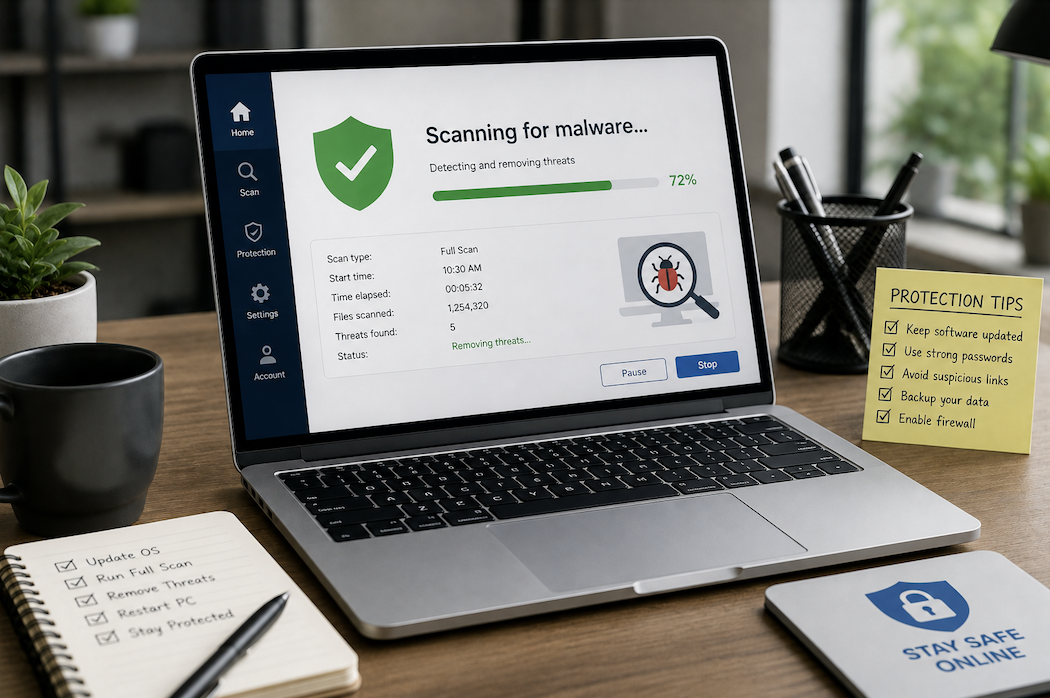
A computer that’s suddenly slower, showing unexpected pop-ups, or behaving in ways you didn’t initiate is often dealing with some form of malware. The good news is that most malware infections can be resolved using free, built-in tools without needing to pay for a specialized service. Here’s a practical, step-by-step approach.
Checking Mobile Devices Too
Malware isn’t limited to desktop computers, and phones can be affected in similar ways, often through malicious apps installed from outside official app stores. If you’re experiencing similar symptoms on a phone unexpected pop-ups, battery draining unusually fast, unfamiliar apps appearing reviewing recently installed apps and removing anything unfamiliar, along with running a reputable mobile security scan, follows a similar logic to the desktop steps above.
Understanding the Different Types of Malware
Not all malware behaves the same way, and recognizing the general category can help guide the right response. Adware primarily generates unwanted advertisements and is usually more of a nuisance than a serious threat. Spyware quietly monitors activity and can capture sensitive information like passwords, making it a higher priority to address quickly. Ransomware encrypts files and demands payment for their release, and is the most serious category, often requiring a full system wipe rather than removal alone once files have already been encrypted.
Recognizing the Signs of Infection
Common signs include a noticeable, unexplained slowdown in performance, browser homepages or search engines changing without your input, new toolbars or extensions you didn’t install, frequent pop-up ads even outside your browser, and programs opening or closing unexpectedly. Not every slowdown means malware, but a cluster of several of these signs together is a reasonable indicator that something needs investigating.
Backing Up Before You Start Removal
Before beginning any removal process, back up important personal files to a separate, disconnected storage device if possible. While most removal steps are safe, there’s always some risk when dealing with an active infection, and having a recent backup means a worst-case scenario, like needing a full reinstall, doesn’t also mean losing irreplaceable files in the process.
Step 1: Disconnect From the Internet If You Suspect Active Compromise
If you notice signs of a more serious infection, particularly anything suggesting data theft or ransomware, like files becoming inaccessible or a ransom message appearing, disconnecting from Wi-Fi or unplugging the Ethernet cable immediately can help limit further damage or data transmission while you investigate. For more routine signs like pop-ups or a slower computer, this step usually isn’t necessary before proceeding to scan.
Step 2: Boot Into Safe Mode
Safe Mode starts Windows with only essential drivers and services running, which prevents many types of malware from loading and interfering with the removal process. This can be accessed through Windows’ recovery settings, and running your scans from Safe Mode often produces more thorough results than scanning during a normal boot.
Step 3: Run Windows’ Built-In Security Scan
Windows Security, built into modern versions of Windows, includes a capable malware scanner at no additional cost. Running a full scan, rather than a quick scan, checks the entire system rather than just commonly infected locations, and while it takes considerably longer, it’s more thorough for catching malware that may have been placed in less obvious locations.
Step 4: Run a Second Opinion Scan
Following up with a reputable, free on-demand malware scanner (used specifically for scanning, separate from your primary antivirus) can catch anything the first scan missed, since different detection engines identify different threats. This is a widely recommended practice among IT professionals precisely because no single scanner catches everything, and running two different tools significantly improves overall detection.
Step 5: Check Installed Programs for Anything Unfamiliar
Review your list of installed programs (through Windows Settings) for anything you don’t recognize or don’t remember installing. Malware and unwanted bundled software often install alongside legitimate downloads, particularly from less reputable download sources, and removing anything unfamiliar after a quick search to confirm what it is is a reasonable next step after running your scans.
Step 6: Reset Your Browser Settings
Browser hijackers specifically target search engines, homepages, and installed extensions. Most browsers include a built-in reset option that restores default settings, removes unfamiliar extensions, and clears hijacked search settings without needing to fully reinstall the browser itself.
Step 7: Review Startup Programs
Some malware is designed to relaunch automatically every time your computer starts, even after seemingly successful removal. Checking the Startup tab in Task Manager for unfamiliar entries and disabling anything suspicious helps prevent this kind of persistence from undoing your cleanup efforts.
When a Clean Reinstall Is the Better Option
For particularly stubborn or severe infections, especially ransomware, rootkits, or malware that keeps reappearing despite repeated removal attempts, a clean reinstall of Windows is often more reliable than continuing to fight a persistent infection. Before doing this, back up personal files (scanning them separately for infection before restoring them later) and confirm you have your important account credentials and license keys saved somewhere outside the infected system.
Changing Passwords After a Serious Infection
If the infection appeared serious, particularly anything resembling spyware or a keylogger, it’s worth changing your important passwords (email, banking, primary accounts) from a different, confirmed-clean device after removal, since there’s a reasonable chance those credentials were captured during the infection period.
Checking Browser Extensions Individually
Beyond a full browser reset, it’s worth reviewing installed extensions one at a time, since some malicious extensions can survive a general reset if they’ve been granted broad permissions. Removing any extension you don’t specifically remember installing, and researching unfamiliar ones before assuming they’re safe to keep, closes a gap that a standard reset doesn’t always fully address.
Checking for Suspicious Scheduled Tasks
Beyond startup programs, some malware sets up scheduled tasks that relaunch it at specific intervals rather than only at startup. Reviewing Windows’ Task Scheduler for unfamiliar entries, particularly ones pointing to files in unusual locations, is a more advanced but worthwhile step after a confirmed infection, since this is a common way malware maintains persistence even after the original file has seemingly been removed.
Deciding Whether to Involve a Professional
For most home users, the steps above resolve the majority of infections without needing outside help. However, if malware is discovered on a device that handles sensitive financial or business data, or if the infection appears sophisticated and keeps returning despite a clean reinstall, consulting a professional IT security service is a reasonable step, both for thorough removal and for assessing whether any data was actually compromised during the infection period.
Understanding False Positives
Occasionally, a scanner flags a legitimate file as suspicious, particularly with certain system utilities or older software. Before permanently deleting a flagged file you’re genuinely unsure about, a quick search of the exact file name alongside your antivirus’s name can usually clarify whether it’s a known false positive or a genuine threat, avoiding the accidental removal of a file your system actually needs to function properly.
Educating Other Household Members
If multiple people use the infected device, briefly explaining what likely caused the infection an unfamiliar download, a suspicious email link, a pirated software installer helps prevent a repeat
infection from the same source. Malware often re-enters a household through the same habit that let it in the first time, so addressing the behavior, not just the infected device, matters for long-term prevention.
Verifying Removal Was Successful
After completing the removal steps, run one more full scan to confirm nothing remains, and monitor the computer’s behavior over the following days for any signs the original symptoms are returning. Malware that reappears shortly after a seemingly successful cleanup often indicates a persistence mechanism, like a scheduled task or startup entry, was missed during the initial removal process.
Prevention Going Forward
Keeping Windows and installed software updated closes many of the security gaps malware relies on to gain initial access. Downloading software only from official sources or well-known, reputable distributors, rather than third-party download sites, avoids a large share of bundled malware infections. Being cautious with email attachments and links from unfamiliar senders, and keeping your antivirus software’s real-time protection enabled rather than only scanning occasionally, round out a reasonable, low-effort prevention routine.
Final Thoughts
Most malware infections can be resolved with free, built-in tools and a methodical approach: Safe Mode, a thorough scan, a second-opinion scan, a browser reset, and a startup review. For severe or recurring infections, a clean reinstall combined with a password change afterward is the more reliable path forward, and consistent update and download habits going forward significantly reduce the odds of a repeat infection.