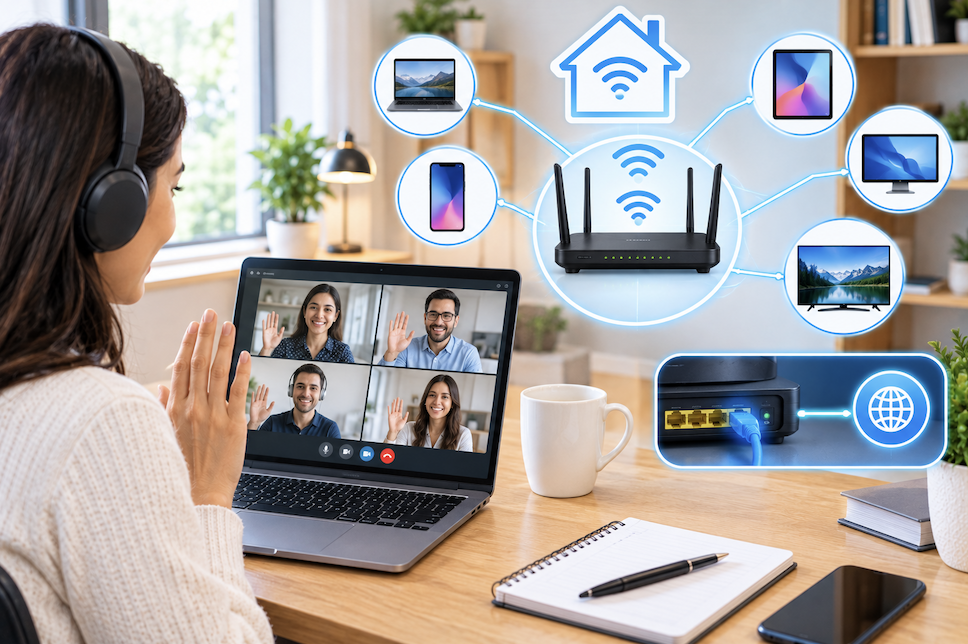
Video calls are more sensitive to network issues than most everyday internet activities, since even brief interruptions cause immediately noticeable freezing, dropped audio, or disconnections in a way that browsing or streaming often tolerates more gracefully. Setting up a network specifically with video calls in mind meaningfully reduces these frustrating interruptions.
Considering ISP Plan Limitations
Some internet plans, particularly certain cable or satellite options, have inherently limited upload speeds regardless of the advertised download speed, and checking your specific plan’s published upload speed specification, separate from the more heavily marketed download figure, reveals whether this is a fundamental plan limitation that home network optimization alone can’t fully overcome.
Why Home Networks Struggle With Video Calls Specifically
Video calls require consistent, simultaneous upload and download bandwidth throughout the entire call, unlike browsing or streaming which can tolerate brief buffering without much noticeable disruption. Home networks, and especially home internet plans, are often optimized more for download speed than upload speed, which can create a bottleneck specifically for the upload side of a video call that a download-speed-focused internet plan comparison wouldn’t reveal.
Considering a Wired Ethernet Adapter for Laptops Without a Port
For modern, thin laptops that lack a built-in Ethernet port, a USB-C to Ethernet adapter, discussed in the earlier USB-C guide, provides the wired connection option even without a native port, making the wired reliability benefit accessible to laptops that wouldn’t otherwise support it directly.
Wired vs Wireless for Video Calls
A direct Ethernet connection, discussed in earlier home network guides, provides more consistent, lower-latency performance than Wi-Fi, making it the more reliable choice specifically for important video calls where connection stability matters more than the convenience of a wireless setup. For anyone with a dedicated home office desk, running a single Ethernet cable to that location is a worthwhile one-time setup investment.
Bandwidth Requirements for Common Platforms
Most video conferencing platforms recommend a minimum of a few megabits per second for both upload and download for a standard one-on-one call, with higher resolution or group calls requiring meaningfully more bandwidth in both directions. Checking your specific platform’s published bandwidth recommendations, and comparing them against your actual measured upload and download speeds through a speed test, identifies whether your current connection has adequate headroom for video calls.
Considering Time-of-Day Network Congestion
Beyond household-level congestion, broader neighborhood-level internet congestion during peak evening hours can sometimes affect connection quality for shared infrastructure types like cable internet, making it worth noting whether call quality issues correlate more with specific times of day, which would point toward this kind of broader congestion rather than a purely home-network -side issue that the interventions in this guide can fully resolve.
Considering a Dedicated Business Internet Plan
For anyone running a business primarily from a home office with frequent, business-critical video calls, a dedicated business-tier internet plan, which often guarantees more symmetrical upload and download speeds and sometimes includes service-level guarantees, may represent a worthwhile upgrade over a standard residential plan, particularly if the upload bottleneck discussed earlier proves to be a persistent, unresolvable limitation of a standard residential connection.
Testing Your Actual Upload Speed
Since internet plans and marketing often emphasize download speed, specifically checking your upload speed through a speed test is worth doing separately, since a plan advertised as fast may still have a comparatively modest upload speed that becomes a bottleneck during video calls, which depend heavily on consistent upload bandwidth for sending your own video and audio.
Considering Call Platform-Specific Settings
Beyond general network settings, most video conferencing platforms include their own internal settings for adjusting video quality, enabling low-bandwidth or audio-only modes, and managing background processes within the app itself, worth reviewing specifically within your most-used platform rather than assuming default settings are already optimized for your specific connection quality.
Setting Up Quality of Service for Calls
As discussed in the earlier home network guide, Quality of Service settings allow prioritizing video call traffic over other household internet activity, like a large download or another device streaming video simultaneously, reducing the chance that unrelated household internet activity disrupts an important call in progress.
Router Placement for a Home Office Specifically
If a home office is located far from the router, the general router placement guidance from earlier networking guides becomes particularly relevant, since a weak Wi-Fi signal in the specific room where video calls happen undermines even an otherwise strong overall internet connection. Extending coverage to the home office specifically, whether through repositioning the router, a mesh system, or simply running an Ethernet cable as discussed earlier, addresses this location -specific weak point.
Reducing Network Congestion During Important Calls
Before an important call, checking that other household members and devices aren’t simultaneously running large downloads, updates, or high-bandwidth streaming reduces competition for available bandwidth during the call itself. Communicating this need to other household members ahead of a particularly important call, similar to the household boundary-setting discussed in the earlier home office guide, is a practical, low-tech solution alongside the QoS settings discussed above.
Preparing for Scheduled Network Maintenance or Outages
Checking with your internet provider about any scheduled maintenance windows before a particularly important call, and having the mobile hotspot backup discussed earlier tested and ready beforehand rather than only considered in the moment of an actual failure, reduces the stress and scramble of an unexpected connectivity issue during a high-stakes call.
Setting Up a Backup Connection Option
A phone’s mobile hotspot feature provides a useful backup connection if a home internet connection unexpectedly fails during an important call, and knowing in advance how to quickly switch to this backup, rather than discovering how during an actual connection failure, saves valuable time when it matters most.
Considering Noise-Cancelling Headphones for Call Audio Quality
Beyond network stability, pairing a reliable network setup with the noise-cancelling headphones discussed in an earlier guide, specifically checking for strong microphone performance during calls as covered there, addresses the audio quality side of video calls that network improvements alone don’t directly solve.
Choosing a Webcam and Microphone for Reliable Calls
As covered in the earlier dedicated webcam guide, pairing a good network setup with a quality webcam and separate microphone produces a noticeably more professional overall call experience than network improvements alone, since audio and video quality are separate factors from connection stability that both contribute to overall call quality.
Testing Your Setup Before Important Calls
Most video conferencing platforms offer a test call or meeting feature specifically for checking audio, video, and connection quality before an actual important call begins. Using this specifically before high-stakes calls, rather than assuming the setup works based on previous, less critical calls, catches any new issues that may have developed since the last time the setup was actively used.
Considering a Dedicated Network for Video Calls
For anyone with a more advanced router supporting multiple network segments, dedicating a separate network specifically for work devices, similar in concept to the guest network discussed in earlier home network guides, can help isolate video call traffic from general household network activity, though this is a more advanced setup than most home offices require.
Managing Multiple Simultaneous Video Calls in a Household
For households with more than one person regularly on video calls simultaneously, whether for work or school, checking that total available bandwidth supports multiple concurrent calls, rather than assuming a single-call bandwidth check covers this scenario, avoids an unpleasant surprise when multiple important calls happen to overlap.
How Video Quality Settings Affect Bandwidth
Most video platforms allow manually adjusting video quality, and temporarily reducing your own video quality during a call experiencing connection strain can meaningfully improve stability, sometimes trading a slightly less sharp video image for a smoother, uninterrupted call experience overall, a reasonable tradeoff during a connection-constrained situation.
Keeping Router Firmware Updated for Call Stability
As discussed in earlier Wi-Fi troubleshooting guides, outdated router firmware can contribute to connection instability, and keeping firmware updated specifically supports the kind of consistent, reliable connection that video calls depend on more heavily than less real-time-sensitive internet activities.
Considering a Wired Backup Even With a Primarily Wireless Setup
Even for a home office primarily using Wi-Fi day to day, keeping a spare Ethernet cable accessible specifically for particularly important calls provides a readily available fallback option, similar in spirit to the mobile hotspot backup discussed earlier, without requiring a permanently wired setup for daily use if that’s not otherwise necessary or practical for your specific desk layout.
Considering Wi-Fi 6 for Households With Multiple Simultaneous Users
As covered in the earlier Wi-Fi 6 guide, households with several people frequently on calls or otherwise using bandwidth simultaneously may see a more noticeable practical benefit from upgrading to Wi-Fi 6 specifically because of its improved handling of multiple simultaneous connections, which directly addresses the kind of household bandwidth competition that can disrupt video calls.
Considering Battery Backup for Networking Equipment
A basic uninterruptible power supply (UPS) keeping a router and modem powered briefly during a short power interruption can prevent a call from being disrupted by a momentary outage that would otherwise immediately knock out the entire home network, offering meaningful protection for anyone in an area prone to brief, occasional power fluctuations.
Common Home Office Network Mistakes
Relying entirely on Wi-Fi for an important video call setup without testing whether a wired connection is feasible and would provide more stability is a common and easily correctable mistake. Only checking download speed while ignoring upload speed specifically, discussed earlier, is another common oversight given how critical upload bandwidth is for video calls specifically compared to other everyday internet activities.
Considering Background App Management During Calls
Beyond network-level congestion, closing unnecessary applications on the calling device itself, particularly ones syncing large files or running updates in the background, frees up both local system resources and network bandwidth simultaneously, addressing a device-side contributor to call quality issues that’s separate from, but complementary to, the network-focused interventions covered throughout the rest of this guide.
Building a Pre-Call Checklist
For particularly important calls, a quick pre-call routine, confirming wired connection where possible, closing unnecessary bandwidth-heavy applications, testing audio and video through the platform’s test feature, and having a backup hotspot plan ready, covers the practical steps discussed throughout this guide in one efficient final check before the call begins.
Considering Call Recording and Bandwidth Impact
For calls that also involve local recording, whether through the platform itself or a separate screen recording tool, checking that this additional recording process doesn’t meaningfully compete with the call’s own bandwidth and system resource needs, particularly on an already resource-constrained device, avoids a recording feature inadvertently degrading the live call quality it’s meant to be capturing.
Considering a Second Internet Connection as Ultimate Redundancy
For anyone whose work depends heavily on uninterrupted video call access, maintaining a completely separate secondary internet connection, such as a dedicated mobile data plan distinct from a personal phone’s hotspot, provides a more robust backup than relying on a phone hotspot alone, particularly useful during an extended primary outage rather than just a brief interruption.
A Final Word on Setting Expectations With Others
For anyone whose work depends on video calls, briefly communicating realistic expectations to frequent call partners, such as a household member’s tendency toward occasional connection hiccups, reduces the pressure of achieving flawless reliability and normalizes brief, occasional interruptions as a limitation of home internet infrastructure rather than a personal failing to be embarrassed about.
Considering International or Long-Distance Call Quality Factors
For calls involving participants in distant geographic locations, some call quality variability stems from routing and infrastructure entirely outside your own home network’s control, meaning even a perfectly optimized local setup can’t fully eliminate quality variation caused by factors on the other end of a long-distance connection.
Final Thoughts
A reliable home office network for video calls comes down to prioritizing a wired connection where feasible, confirming adequate upload bandwidth specifically rather than download speed alone, and setting up QoS to prioritize call traffic during household bandwidth competition. Testing your setup before important calls and having a mobile hotspot backup ready addresses the remaining risk that even a well-optimized network can’t fully eliminate.
You May Like- High Tech Homes: Merging Decoration