A Wi-Fi connection that suddenly stops working or becomes unreliable is one of the more common everyday tech frustrations, and the fix is often simpler than it initially seems. Working through these steps in order, rather than jumping straight to a full router reset, usually resolves the issue faster and with less disruption.
Checking for Recent Changes Before the Problem Started
Thinking through what changed shortly before the connectivity issue began a new device added to the network, a router setting adjusted, a new smart home device installed can quickly point toward a likely cause rather than troubleshooting blindly. A newly added device drawing significant bandwidth, or a setting changed during a previous troubleshooting attempt, is a common and often overlooked culprit.
Start With the Basics: Restart Everything
Before deeper troubleshooting, restarting both your router and the affected device resolves a surprising number of connectivity issues, since it clears temporary software glitches on both ends of the connection. Powering the router off, waiting about thirty seconds, and powering it back on gives it a genuine fresh start rather than just toggling Wi-Fi off and on within the device’s settings alone.
Using a Speed Test to Quantify the Problem
Running a speed test and comparing the results against your subscribed internet plan’s advertised speed gives an objective baseline for how significant the problem actually is, rather than relying purely on subjective impressions of a “slow” connection. Running this test at different times of day can also reveal whether the issue is consistent or tied to peak usage hours, which points toward different likely causes.
Determining If the Issue Is Device-Specific
Checking whether other devices on the same network are also experiencing problems is one of the most useful early diagnostic steps, since it immediately narrows the problem to either a single device or the network as a whole. If only one device is affected while others connect and work normally, the issue is more likely related to that specific device’s settings or hardware, rather than the router or internet connection itself.
Checking for Bandwidth-Heavy Background Activity
A device or application consuming significant bandwidth in the background, like a large software update downloading or a device backing up to the cloud, can make the whole network feel slow even though nothing is actually malfunctioning. Checking your router’s connected devices list for unusual activity, where available, or simply pausing obvious large downloads temporarily, helps rule out this less obvious cause before assuming a deeper technical problem.
Checking Router Status Lights
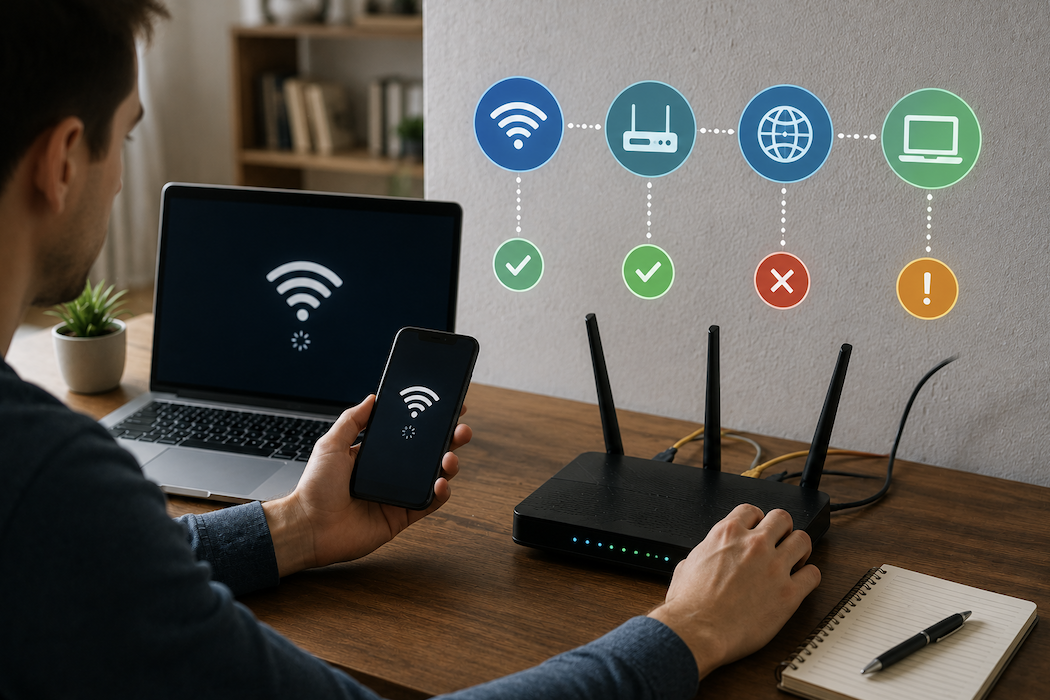
Most routers use status lights to indicate internet connectivity, and checking whether the internet or WAN light shows a normal, steady connection versus an error state or no light at all gives a quick visual indication of whether the problem lies between the router and your internet provider, as opposed to between the router and your devices.
Checking for Router Overheating
Routers left running continuously in an enclosed space, like inside a cabinet or stacked with other electronics, can overheat and become unstable, leading to intermittent connectivity drops that aren’t obviously related to any software issue. Ensuring the router has adequate open airflow around it, rather than being tucked into a closed space, is a simple physical check worth considering, particularly if problems seem to worsen the longer the router has been running.
Assessing Signal Strength Issues
A device showing full signal bars but still experiencing slow or dropped connections suggests a different underlying issue than a device showing weak signal strength in the first place. Checking your device’s displayed signal strength and testing whether moving closer to the router meaningfully improves the connection helps distinguish a genuine signal strength or router placement issue from a different type of problem entirely.
Checking Which Wi-Fi Band You’re Connected To
If your router broadcasts both 2.4GHz and 5GHz bands, checking which one your device is currently connected to can help diagnose the issue the 2.4GHz band travels further but is more prone to interference and congestion, while 5GHz offers faster speeds at shorter range. Manually connecting to the alternate band temporarily can help determine whether band-specific congestion is contributing to the problem.
Identifying Sources of Interference
Physical obstructions like walls and large appliances, along with electronic interference from microwaves, older cordless phones, and neighboring Wi-Fi networks competing for the same channel, can all degrade connection quality even when the router itself is functioning correctly. Testing the connection at different times of day and near versus far from potential interference sources, helps identify whether interference is a contributing factor.
Checking for ISP Outages
Before assuming the problem lies within your own home network, checking your internet provider’s outage status, either through their app, website, or by calling customer service, rules out a broader service outage affecting your whole area rather than an issue specific to your equipment. This step can save considerable troubleshooting time if the actual cause is entirely outside your control.
Diagnosing Intermittent vs Constant Problems
A connection that drops intermittently but otherwise works fine points toward a different set of likely causes interference, overheating, or a specific device’s power-saving settings disconnecting Wi-Fi to save battery than a connection that has stopped working entirely, which points more toward a router, ISP, or configuration issue. Identifying which pattern you’re actually experiencing before troubleshooting helps focus your efforts on the more likely relevant causes.
Understanding DNS-Related Issues
Some connectivity problems present as “connected but can’t browse” symptoms, which can indicate a DNS issue rather than a genuine connection failure. DNS translates website names into the numerical addresses your device actually uses to connect. Switching to a different, reputable public DNS server in your device or router settings can resolve this specific type of issue when your internet connection itself is otherwise working normally.
Resolving IP Address Conflicts
Occasionally, two devices on the same network can end up assigned the same internal IP address, causing intermittent connectivity issues for one or both devices. Restarting the affected device, which typically causes it to request a fresh IP address from the router, usually resolves this relatively uncommon but genuine cause of connectivity problems.
Documenting Working Settings Before Major Changes
Before attempting more involved troubleshooting steps like a firmware update or factory reset, noting your current network name, password, and any custom settings you’ve configured makes restoring your setup afterward considerably faster, rather than trying to remember configuration details after the fact.
Updating Router Firmware
Outdated router firmware can contain unresolved bugs affecting connection stability, and checking for available firmware updates through your router’s app or web interface, then installing any available update, sometimes resolves connectivity issues that a simple restart alone doesn’t fix, particularly for issues that have been recurring rather than a one-time glitch.
Resetting Network Settings on Your Device
If the problem appears isolated to a single device despite the router functioning normally for other devices, resetting that specific device’s network settings, which clears saved Wi-Fi passwords and other network configuration back to default, can resolve corrupted network settings without needing a full device reset or factory router reset.
When to Factory Reset Your Router
A full factory reset, which erases all router settings including your Wi-Fi name and password back to manufacturer defaults, should generally be a later step after the above troubleshooting hasn’t resolved the issue, since it requires reconfiguring the entire router from scratch afterward. This is more appropriate for a router that seems fundamentally unstable or corrupted rather than a typical, isolated connectivity hiccup.
Testing With a Direct Ethernet Connection
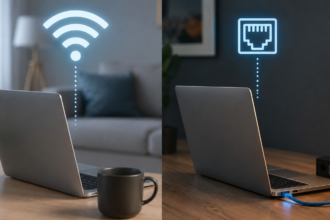
Connecting a device directly to the router with an Ethernet cable, where possible, helps determine whether an issue is specifically related to the wireless connection or reflects a broader problem with the internet connection itself. If the wired connection works normally while Wi-Fi continues to struggle, that clearly points toward a wireless-specific issue rather than an internet service problem.
Keeping a Simple Troubleshooting Log
For recurring, hard-to-diagnose issues, briefly noting when problems occur, which devices are affected, and what troubleshooting steps have already been tried helps identify patterns over time and avoids repeating the same ineffective steps if the issue returns weeks later, particularly useful information to have on hand if the issue eventually does require contacting your ISP.
Checking Ethernet Cable Condition on Wired Connections
If using a direct Ethernet connection for testing as described above, a damaged or low-quality cable can itself be the source of connectivity problems, independent of the router or wireless network entirely. Trying a different, known-good cable rules this out as a contributing factor before concluding the issue lies elsewhere.
Deciding When to Call Your ISP
If you’ve worked through the router-side troubleshooting steps above without success, and particularly if a direct Ethernet connection also shows problems, contacting your internet service provider becomes the more appropriate next step, since the issue may lie with equipment or infrastructure outside your home network entirely, beyond what home troubleshooting can resolve.
Common Wi-Fi Troubleshooting Mistakes
Jumping straight to a full factory router reset without first trying simpler steps like a basic restart wastes time reconfiguring settings that a simpler fix would have resolved. Assuming a problem is the router’s fault without first checking whether it’s isolated to a single device is another common mistake that can lead to unnecessary router troubleshooting or replacement when the actual issue was specific to one device all along.
Conclusion
Working through Wi-Fi troubleshooting in order restart first, determine whether the issue is device-specific or network-wide, check for interference and outages, then move to more involved steps like firmware updates or a factory reset resolves most connectivity issues without unnecessary escalation. Contacting your ISP becomes the reasonable next step once home-side troubleshooting has been genuinely exhausted.