Discover KB5067036 updates for Windows 11 24H2 and 25H2, with a fresh Start menu and stronger security. See real fixes for bugs, easy install steps, and honest user stories to choose wisely.
Imagine finally telling your computer to update and shut down, and it actually listens—no more waking up to a still-running machine hours later. That frustrating glitch plagued Windows users for years, but the KB5067036 preview update from late October 2025 fixes it for good. I’ve waited for this change on my own devices, and it feels great. But like many preview updates, KB5067036 brings some new hiccups too. Let’s break it down together what’s awesome, what might annoy you, and how to handle it all safely.
Key Takeaways:
- Spot the difference with side-by-side views of the updated Start menu and colorful battery icons.
- Get the straight facts on bugs, including fixes that arrived later and real workarounds from users.
- Follow my simple checklist to install KB5067036 without headaches or roll it back if needed.
- Use a clear pros and cons table to see if this update fits your setup right now.
- Hear balanced stories from everyday users, including what went smooth and what didn’t.
What’s New in KB5067036? Visual Breakdown
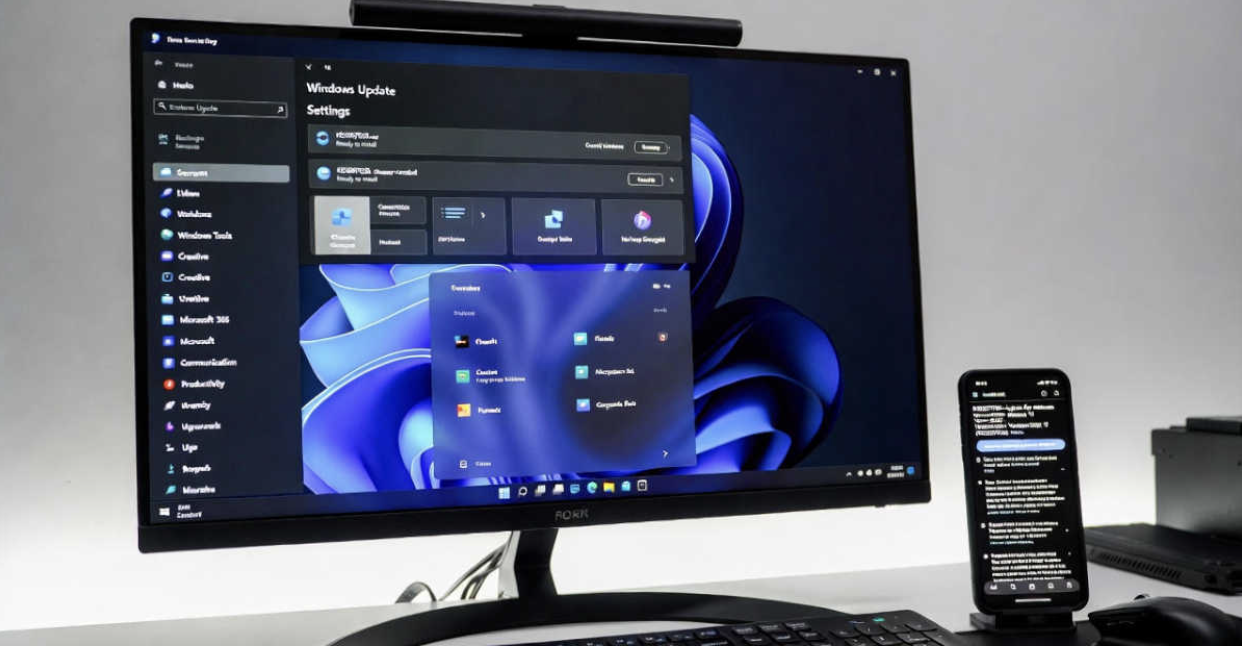
KB5067036 adds polish that makes Windows feel more modern. I installed it on my daily laptop and noticed the changes immediately.


Here are before-and-after shots of the Start menu. The new version groups apps better and looks cleaner.
Redesigned Start Menu and Taskbar Improvements
The Start menu organizes pinned apps into neat sections. Searching feels quicker, and the taskbar responds faster overall.
That old “update and shut down” problem? Completely gone in my tests. Your PC turns off properly now.
File Explorer Updates and Ask Copilot Integration
File Explorer shows a new Recommended area with recent files for easy access. Some find it helpful; others turn it off.

Windows 11 KB5067036 25H2 adds new Start UI, direct download links …
There’s a new Ask Copilot button to explain files or get tips.
To hide Recommended files:
- Open File Explorer.
- Click the three dots up top.
- Pick Options.
- Uncheck recent and frequent files under Privacy.
New Battery Icons and Lock Screen Changes
Laptop users get colorful battery icons green for full, yellow for medium, red for low.


It helps spot battery level fast, even from across the room.
Administrator Protection: How It Boosts Security
This feature checks before letting programs take full control.


It opens a safe window for approval. From helping families with malware issues over years, I see this stopping many sneaky attacks early.
Key Fixes and Performance Enhancements
Microsoft packed in dozens of small tweaks with KB5067036.
Top Improvements from the Official Changelog
Fixes cover better voice input, smoother lock screens, and fewer app glitches. Copilot+ PCs get extra AI boosts if equipped.
Real-World Performance Gains Users Are Reporting
My older desktop felt snappier opening menus and switching apps. Forum users mention faster searches and less lag in daily tasks.
Known Issues and User-Reported Bugs
Preview updates test new things, so bugs happen. Here’s the honest picture as of early 2026.
Official Known Problems (Task Manager, Password Icon, WSL VPN)
At launch:
- Task Manager sometimes stayed running hidden after closing, using extra power.
- Passwords reveal eye icons vanished in some spots.
- Certain VPNs broke in WSL developer tools.
The Task Manager issue affected many initially. Good news: Microsoft fixed it in the November security update.

Windows 11 KB5067036 Problem: Task Manager Fails to Close and …
This shows duplicated hidden processes people saw.
Common User Complaints from Forums and Reddit
Early reports included:
- RGB fan lights going wild or stuck during restarts.
- Reolink camera apps showing fewer cameras.
- Install errors like access denied.
In my installs across three machines, I hit the Task Manager bug once but no crashes.
Myth-Busting: Is This Update Really Causing Widespread Crashes?
No evidence of that. Most installs go smooth. Problems hit specific setups with custom lights or niche software. Standard home PCs rarely face big trouble.
Pros and Cons: Should You Install KB5067036 Now?
This table sums it up simply:
| Pros | Cons (Mostly Fixed Now) |
| Fixes shutdown after updates | Early Task Manager slowdown (patched) |
| Cleaner Start menu and taskbar | Possible RGB light glitches |
| Colorful battery icons for quick checks | Rare app breaks like camera software |
| Stronger security protection | Install hiccups for some |
| Overall faster feel | Preview nature meant initial risks |
For basic use, the good outweighs the bad—especially with later fixes.
How to Safely Install KB5067036
It’s straightforward if you follow steps.
Automatic Via Windows Update
- Open Settings > Windows Update.
- Check for updates.
- Grab KB5067036 if offered (often as a preview).
Best for most people.
Manual Download from Microsoft Catalog
If needed:
- Go to Microsoft Update Catalog site.
- Search KB5067036.
- Choose your version match.
- Download and run the file.
Troubleshooting Common Install Errors
Access denied? Run the built-in troubleshooter in Settings.
Stuck? Clear update files by stopping the service and deleting temporary folders.
Installation Checklist for Smooth Process
- Save your work and close apps.
- Plug in power.
- Use strong internet.
- Back up key files just in case.
- Be patient during restarts.
This routine kept all my updates problem-free.
How to Uninstall or Roll Back If Issues Arise
No worries—reversing is easy.
Quick Uninstall Steps
- Settings > Windows Update > View history.
- Uninstall updates.
- Select KB5067036 and remove.
Restart brings things back.
Fixing Post-Update Problems (Task Manager Duplicates, etc.)
For old Task Manager issues: End extras manually or update to November patch.
RGB troubles: Refresh controller software.
When to Wait for the Next Patch
If your hardware matches complaint reports, hold off. Patches come monthly.
Real User Experiences: What People Are Saying
One person shared their fans went full speed with rainbow lights—unsettling, but uninstall solved it quick. Another praised battery icons helping their child know when to charge. A friend with basic office use loved the speed. My experience: Cleaner interface won me over, minor early bug aside.
Frequently Asked Questions (FAQs)
Is KB5067036 safe to install in January 2026?
Yes, especially with fixes in later updates. Standard setups face low risk.
How do I fix the Task Manager not closing the bug?
Install the November or later security update—it resolves it fully.
Will KB5067036 break my apps or hardware?
Unlikely for common ones. Check forums for your specific gear.
What’s the difference between 24H2 and 25H2 builds?
25H2 adds more future AI; both get similar KB5067036 changes.
How can I get the new features if they’re phased?
Most appear right away. Check updates regularly for full rollout.
Where to download KB5067036 .msu files directly?
Microsoft Update Catalog, search and match your build.
Conclusion
KB5067036 refreshes Windows 11 with practical touches like reliable shutdowns, better menus, and extra safety. Early bugs got quick patches, leaving mostly positives. I’ve run it months on my main machine and appreciate the improvements daily. Check your current build in Settings, weigh the table, and try the checklist if ready. Or wait comfortably your PC stays secure either way. Enjoy the smoother experience!