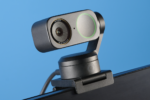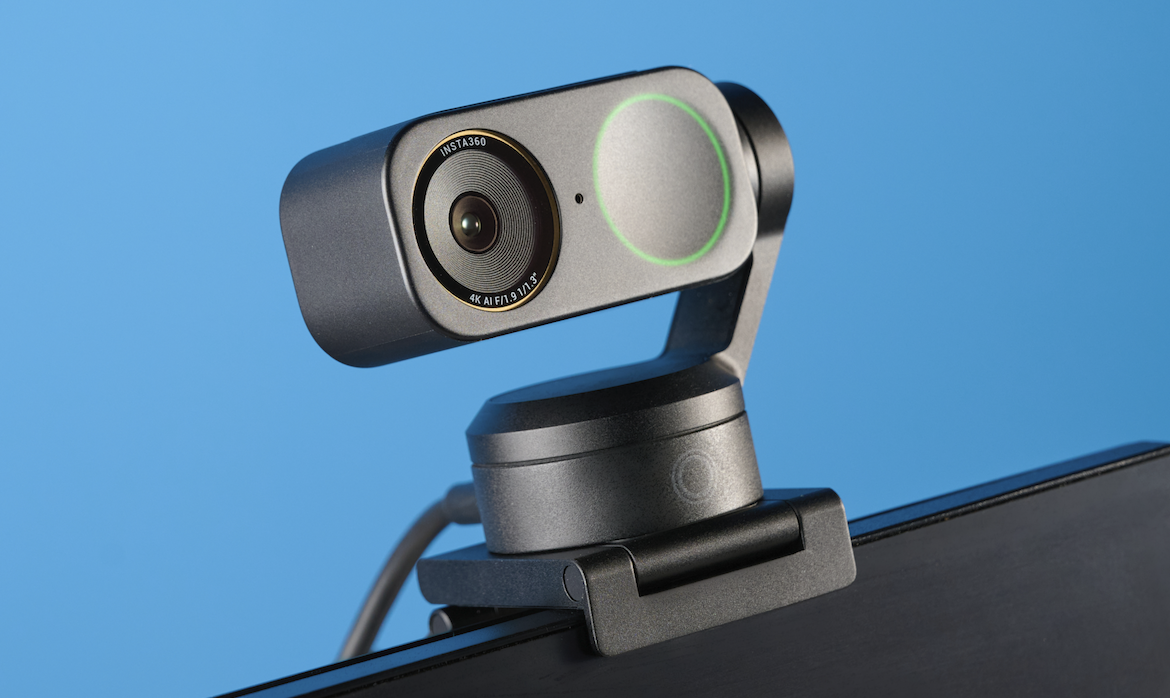
The camera built into most laptops was designed as an afterthought, tucked into a thin bezel where it competes with battery life, cost, and screen thickness for engineering priority. As video calls became a routine part of work and personal life, that afterthought camera started to feel like a real limitation, producing a grainy, poorly lit picture that undersells how a person looks on screen in practice.
A dedicated external webcam addresses this gap directly, and choosing the right one depends on resolution, lighting performance, framing, audio, and how it fits into an existing desk setup.
Resolution and Low-Light Performance
Resolution numbers on webcam packaging can be misleading without context, since a webcam’s sensor size and lens quality affect real image clarity as much as the pixel count alone. A larger sensor captures more light per pixel, producing a cleaner image in dim conditions than a smaller sensor claiming the same resolution on paper. This is why two webcams both advertised at the same resolution tier can look noticeably different once tested side by side in typical home lighting rather than a bright, evenly lit studio.
Low-light performance matters more than most buyers initially expect, since home offices and bedrooms converted into workspaces rarely have the even, bright lighting of a professional studio. A webcam that performs well only in bright conditions can leave a caller looking dim or washed out during an evening call or in a room with a single overhead light rather than dedicated task lighting near the desk.
- Sensor size: Larger sensors capture more light per pixel, improving image clarity in dim rooms compared to smaller sensors at the same resolution.
- Aperture rating: A wider aperture lets in more light, generally improving low-light performance similar to how camera lenses work in photography.
- Automatic exposure adjustment: Higher-quality webcams adjust brightness and contrast dynamically as lighting conditions change during a call.
- Noise reduction processing: Reduces the grainy appearance common in webcam footage captured under dim lighting, though overly aggressive processing can soften fine detail.
Testing a webcam under the specific lighting conditions where it will be used in practice, rather than relying solely on a manufacturer’s demo footage shot under ideal studio lighting, gives a far more accurate sense of how it will perform for daily video calls.
Frame rate is a related spec that’s easy to overlook next to headline resolution numbers, but it affects how natural motion looks during a call. A webcam capped at a lower frame rate can make hand gestures or head movement appear slightly choppy, an effect more noticeable during a presentation involving physical demonstration than during a still, mostly seated conversation. Most current webcams support a frame rate smooth enough for typical calls, though achieving that smoothness in practice depends on both the connected computer’s processing power and the video calling platform’s own bandwidth allocation during a given call, which can vary based on how many other participants are also sharing video simultaneously.
Color accuracy separates budget and premium webcams in ways that show up most clearly under mixed or unusual lighting, such as a desk lit by a cool-toned monitor alongside warm ambient room lighting. Cheaper sensors and processing chips tend to struggle more with this kind of mixed lighting, sometimes producing a slightly unnatural skin tone that a pricier model with better white balance handling avoids. This difference is subtle enough that it rarely shows up in a quick specification comparison, making hands-on testing or detailed review footage more valuable than a features list alone.
Field of View and Framing Options
A webcam’s field of view determines how much of a room and how many people can fit comfortably into frame during a call. A narrow field of view, common on many budget webcams, keeps the background tightly cropped around a single person’s head and shoulders, which works well for individual calls but struggles when two people need to share a frame from the same desk.
Wider field of view options, increasingly common on premium webcams, capture more of a room, useful for small group calls or presentations involving a whiteboard or physical product just out of a narrow frame’s reach. Some premium models include adjustable digital zoom or a mechanical pan feature, letting a user reframe the shot without physically repositioning the camera itself.
- Narrow field of view: Keeps a tight, professional-looking frame around a single person, minimizing background distraction.
- Wide field of view: Captures more of a room, useful for group calls or when presenting physical objects alongside a speaker.
- Digital zoom and crop: Lets a user adjust framing within the sensor’s captured area without moving the physical camera.
- Auto-framing features: Some premium webcams automatically track and recenter a subject as they move within the frame during a call.
Buyers who frequently share a desk with a colleague or family member for calls should prioritize wider field of view options, while those who primarily take individual calls from a private office may prefer the tighter, more polished look a narrower field of view naturally produces.
Camera distance and lens distortion interact in ways that matter most for anyone concerned about how their face appears on screen. A wide-angle lens positioned too close to a face can introduce a mild fisheye distortion, subtly exaggerating the size of features nearest the lens, an effect familiar to anyone who has taken an unflattering close-up selfie with a phone’s wide front camera. Positioning a webcam slightly farther away and relying on digital zoom or cropping to achieve the desired framing generally produces a more natural, less distorted result than placing a wide-angle lens as close as possible to compensate for a small desk.
Some webcams marketed toward professional presenters include a mechanical or motorized pan and tilt function, letting a user reposition the frame remotely during a call without leaning awkwardly into view to adjust a fixed camera by hand. This feature adds cost but proves quite useful for anyone regularly presenting to a whiteboard, product, or secondary display positioned outside a fixed camera’s default frame.
Microphone Quality Versus External Audio
Nearly every standalone webcam includes a built-in microphone, but audio quality across these built-in microphones varies substantially and rarely matches even a modest dedicated external microphone. Built-in webcam microphones sit farther from a speaker’s mouth than a headset or desk microphone would, picking up more room echo and background noise, especially in a space with hard floors and few soft furnishings to absorb sound reflections.
For anyone whose work involves frequent presentations, client calls, or recorded video content, investing in a separate microphone alongside a webcam upgrade often improves perceived call quality more than the camera upgrade alone, since viewers and listeners tend to forgive a slightly soft picture far more readily than they tolerate muffled, echoey, or inconsistent audio.
- Built-in webcam microphones: Convenient but generally pick up more room echo and background noise than a dedicated external microphone.
- USB desk microphones: Offer a noticeable audio quality improvement for a modest additional cost, sitting closer to a speaker’s voice.
- Headset microphones: Provide the most consistent audio by staying a fixed close distance from the mouth regardless of head movement.
- Software noise suppression: Many video calling platforms now include built-in background noise filtering, though it works best combined with reasonably clear source audio.
Rooms with hard surfaces and minimal soft furnishings tend to produce more audio echo regardless of microphone quality, and simple fixes like adding a rug, curtains, or a few soft furnishings near the call setup can noticeably improve perceived audio quality alongside any hardware upgrade.
Software Features That Improve Call Quality
Modern webcams increasingly rely on companion software to unlock features beyond what the raw hardware provides, including background blur, virtual background replacement, and automatic framing adjustments. Some of these features run directly through the webcam’s own software, while others are built into video calling platforms themselves and work with any connected camera regardless of brand.
Background blur and replacement software has become nearly standard across both dedicated webcam software and mainstream video calling platforms, letting users obscure a messy room or maintain some privacy about their real location without needing an elaborate physical backdrop. Processing-intensive features like these do place additional demand on a computer’s processor, and older or lower-powered machines may experience some lag or reduced frame rate when combining several software effects simultaneously during a call.
- Background blur: Softens the visible background behind a speaker, reducing distraction and obscuring a cluttered or private space.
- Virtual backgrounds: Replaces the real background entirely with an image or video, requiring more processing power than simple blur.
- Auto white balance correction: Adjusts color temperature automatically to avoid an unnatural blue or orange tint under mixed lighting sources.
- Frame rate and resolution scaling: Some software automatically reduces resolution or frame rate to maintain smooth video during network congestion.
Households sharing a single computer for multiple family members’ calls should confirm that any specialized webcam software supports quick profile switching, since manually reconfiguring settings before every call becomes tedious quickly in a busy household.
Mounting Options for Different Desk Setups
How a webcam physically attaches to a monitor or desk setup affects both convenience and the resulting camera angle during calls. Most standalone webcams include a simple clip designed to sit atop a laptop screen or external monitor, a straightforward solution for most standard setups, though monitors with an unusually thick top bezel or a curved screen can sometimes complicate a snug fit.
Tripod mounting, supported by most webcams through a standard threaded mount, offers more flexible positioning for setups involving multiple monitors, a monitor arm without a flat top edge, or a desired camera angle from slightly below or to the side of a primary screen rather than directly above it. This flexibility especially benefits streamers, content creators, or anyone giving frequent presentations who wants precise control over framing beyond what a simple monitor clip allows.
- Monitor clip mounts: The standard, simplest mounting option, fitting most external monitors and many laptop screens directly.
- Tripod thread compatibility: Allows attachment to a separate tripod or flexible arm for more precise camera positioning.
- Monitor arm compatibility: Some monitor arms lack a flat top edge suited to a standard clip, requiring a separate mounting solution.
- Multi-monitor setups: Camera placement relative to which screen a person looks at most during calls affects how natural eye contact appears on camera.
Eye contact considerations deserve attention in multi-monitor setups, since a camera mounted on a secondary monitor rather than the primary screen a person looks at during a call can make eye contact appear consistently off, an effect worth testing and adjusting for before a series of important calls rather than discovering it live. Positioning the video call window itself directly beneath the camera on the primary monitor, rather than off to one side, is a simple adjustment that noticeably improves how natural eye contact looks to other participants without any additional hardware purchase.
Budget Versus Professional-Grade Cameras
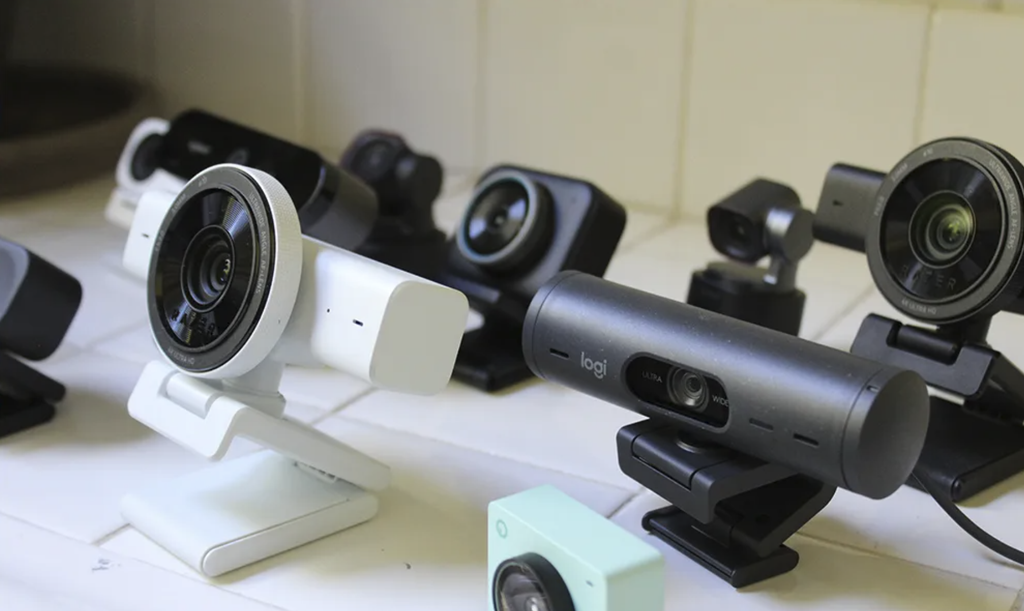
Entry-level standalone webcams already offer a worthwhile upgrade over most built-in laptop cameras, delivering sharper resolution and better low-light handling at a relatively modest price point. These budget options suit most casual and moderate video call needs well, especially for anyone whose calls happen in reasonably well-lit rooms without a heavy reliance on advanced framing or background features.
Professional-grade webcams and dedicated camera-to-webcam adapter setups, which route a full standalone camera’s video feed into a computer as if it were a webcam, represent a substantial step up in image quality, offering the kind of shallow depth of field and color accuracy associated with dedicated photography and videography equipment. This tier appeals most to streamers, video professionals, and anyone whose income depends partly on how polished their on-camera presence looks, where the investment in image quality pays for itself through professional presentation.
- Entry-level webcams: A worthwhile upgrade over built-in laptop cameras at a modest price, suited to typical daily video call needs.
- Mid-range dedicated webcams: Add better low-light performance, wider field of view options, and improved built-in microphones.
- Camera-to-webcam adapters: Route a standalone camera’s feed into a computer, delivering professional image quality for streaming or content creation.
- Lighting equipment pairing: Even a modest webcam looks substantially better paired with a simple ring light or desk lamp positioned to evenly illuminate a face.
Buyers uncertain which tier fits their needs should weigh how often video calls happen and how much a polished on-camera appearance matters professionally, since a casual user making occasional family video calls has little practical need for the same equipment a full-time streamer or on-camera professional might justify.
Final Thoughts
Upgrading a webcam pays off most clearly when paired with attention to lighting and audio rather than treated as a single isolated purchase. Resolution and field of view matter, but a well-lit room and a decent microphone often improve perceived call quality more than chasing the highest resolution sensor available. Mounting flexibility and software features like background blur add convenience once the fundamentals of light and sound are addressed.
Matching the investment to real usage, whether occasional family calls or frequent professional presentations, ensures the upgrade delivers real value rather than unused premium features.
A thoughtfully chosen webcam, lighting setup, and microphone combination transforms video calls from a source of mild embarrassment into a polished, professional experience. Small, deliberate upgrades made in the right order tend to outlast whatever hardware trend happens to be popular at the time of purchase.
Frequently Asked Questions
Do I need a separate microphone if my webcam already has one built in?
A built-in webcam microphone works adequately for casual calls, but a separate headset or desk microphone noticeably improves clarity and reduces background echo for anyone on frequent or important calls.
How much does lighting affect webcam image quality?
Lighting affects image quality enormously, often more than the camera hardware itself, since even a modest webcam looks substantially better with a simple front-facing light source than a premium webcam does in poor, uneven lighting.
Can external webcams work with tablets and phones as well as computers?
Most standalone USB webcams are designed primarily for computer use, though some newer models support connection to tablets or phones with compatible ports, and dedicated adapter software exists for specific combinations.
Do higher resolution webcams always look better on video calls?
Not necessarily, since most video calling platforms compress video substantially to save bandwidth, meaning sensor quality, lighting, and lens sharpness often matter more to the final perceived image than raw resolution alone, and a lower-resolution camera with a better sensor can outperform a higher-resolution one in practice.
Is it worth buying a webcam with a physical privacy shutter?
A physical privacy shutter offers a simple, reliable way to block the camera when not in use, appealing to anyone who wants a guaranteed physical solution rather than relying solely on software-based camera permissions that can occasionally be overridden or misconfigured.
How do I know if my computer can handle background blur and other webcam software features?
Testing a feature briefly during a low-stakes call reveals whether a computer’s processor struggles, showing up as lag, reduced frame rate, or a delay between video and audio when several software effects run simultaneously.