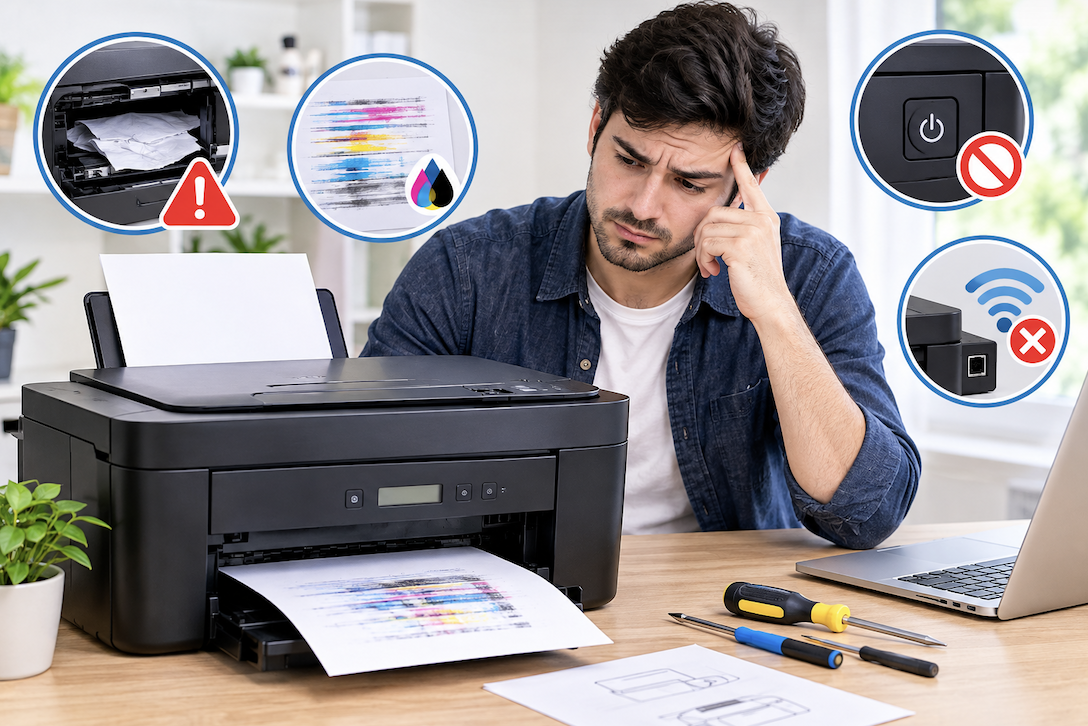
Printer problems remain one of the more persistently frustrating everyday tech issues, often occurring at the least convenient moment. Most common printer problems fall into a handful of categories with well-established fixes, and working through them systematically resolves the majority of issues without needing a service call.
Print Quality Issues: Streaks and Fading
Streaky or faded printouts most commonly indicate low ink or toner levels, clogged print nozzles on inkjet printers, or a nearly depleted toner cartridge on laser printers. Running the printer’s built-in cleaning cycle, available through its software or control panel, often resolves nozzle clogs on inkjet printers specifically, while checking actual ink or toner levels rules out simple depletion as the underlying cause before assuming a more complex issue.
Diagnosing Faded Print on Laser Printers Specifically
For laser printers, faded print can also result from a worn transfer roller or a toner cartridge that’s been shaken or handled improperly during a recent replacement, in addition to simple toner depletion. Gently rocking a toner cartridge side to side, following the manufacturer’s specific guidance, can redistribute remaining toner evenly and temporarily improve print quality until a genuine replacement becomes necessary.
Print Quality Issues: Color Problems
Colors printing incorrectly or with an unexpected tint often indicates one specific ink cartridge running low while others remain fuller, creating an imbalanced color mix, or in some cases a cartridge that’s been sitting unused long enough for ink to partially dry within the print head. Running a nozzle check pattern, available in most printer software, identifies which specific color is causing the issue before replacing cartridges unnecessarily.
Resolving Paper Jams
When clearing a paper jam, always follow the manufacturer’s specific removal instructions and pull paper gently in the direction of normal paper travel, rather than yanking it backward, which can tear the paper and leave fragments that cause repeated jams afterward. Checking for small torn paper fragments remaining inside the printer after a jam, using a flashlight to look inside the paper path, prevents this common cause of recurring jam issues.
Understanding Why Paper Type Matters for Jams
Paper that’s too thin, too thick, damp from humidity exposure, or simply low quality with inconsistent thickness can jam more frequently than a printer manufacturer’s specifically recommended paper type and weight range, making paper choice itself worth reconsidering for anyone experiencing frequent, otherwise unexplained jams.
Preventing Paper Jams
Using paper within the printer’s specified weight and type range, avoiding overfilling the paper tray beyond its indicated maximum, and fanning a new ream of paper before loading it to separate sheets that may be stuck together from packaging all reduce the likelihood of jams occurring in the first place, addressing the problem preventively rather than only after it occurs.
Printer Not Responding or Showing Offline
A printer showing as offline despite being powered on often indicates a connectivity issue between the computer and printer rather than an actual printer malfunction. Restarting both the printer and the computer, similar to the basic first-step troubleshooting approach covered in the earlier Wi-Fi troubleshooting guide, resolves a surprising number of these apparent offline issues by clearing temporary connection glitches on either end.
Troubleshooting Wireless Printer Connectivity
For wireless printers specifically, confirming the printer remains connected to the correct Wi-Fi network through its own control panel, rather than assuming it’s still connected from initial setup, catches situations where a router restart or network change has disconnected the printer without an obvious indication on the computer side. Printers occasionally need to be manually reconnected after a router replacement or a significant network configuration change.
Checking IP Address Conflicts for Network Printers
Similar to the IP address conflict issue discussed in the earlier Wi-Fi troubleshooting guide, a network printer can occasionally end up with a changed IP address after a router restart, which breaks the connection if the computer’s printer settings still reference the old address. Reconfiguring the printer using its current IP address, or setting a static IP address specifically for the printer to prevent this from recurring, resolves this particular connectivity issue.
Understanding Firmware Updates for Printers
Beyond driver updates on the connected computer, many printers also have their own internal firmware that can be updated separately, sometimes resolving connectivity or feature issues that a driver update alone doesn’t address. Checking the printer manufacturer’s support page for firmware updates specifically, in addition to driver updates, covers this often-overlooked update category.
Driver Problems and How to Resolve Them
Outdated or corrupted printer drivers can cause a range of issues from failed print jobs to incorrect formatting, and downloading the latest driver directly from the printer manufacturer’s website, rather than relying solely on whatever driver initially came bundled with the printer or operating system, resolves many of these underlying software-level issues.
Completely Reinstalling Printer Software
When driver updates alone don’t resolve a persistent issue, fully uninstalling the printer software and driver, restarting the computer, then reinstalling fresh from the manufacturer’s current installation package often resolves deeper software corruption issues that a simple driver update doesn’t fully address.
Addressing Printer Error Codes
Many printers display a specific error code or message on their control panel or through connected software when something goes wrong, and searching for that exact code alongside the printer model, similar to the specific-error-search approach recommended in earlier computer troubleshooting guides, typically leads to a documented, manufacturer-specific solution faster than general troubleshooting alone.
Managing Ink and Toner Issues
For inkjet printers left unused for extended periods, ink can dry within the print head, causing quality issues that a cleaning cycle, sometimes needing to be run multiple times, can often resolve. For anyone who prints infrequently, printing a simple test page every couple of weeks keeps ink flowing through the print head and prevents this specific drying issue from developing in the first place.
Understanding Third-Party Ink and Toner Considerations
Third-party or refilled ink and toner cartridges offer cost savings but can sometimes cause compatibility issues, inconsistent print quality, or in rare cases printer damage, depending on the specific manufacturer and cartridge quality. If print quality issues began after switching to a third-party cartridge, testing with an original manufacturer cartridge helps confirm whether the cartridge itself is the source of the problem.
Addressing Slow Print Speeds
A printer that’s technically working but printing unusually slowly can sometimes be resolved by checking the selected print quality setting, since higher-quality settings inherently take longer, or by confirming the printer isn’t processing a large, complex document that legitimately requires more processing time rather than indicating an actual malfunction.
Clearing a Stuck Print Queue
A stuck print job in the print queue can block subsequent print attempts entirely, even for documents unrelated to the stuck job. Clearing the print queue through the operating system’s printer settings, and in more stubborn cases restarting the print spooler service specifically, resolves this common cause of a printer appearing to not respond at all despite otherwise functioning normally.
Restarting the Print Spooler Service
The print spooler is a background service managing the flow of print jobs, and restarting this specific service, rather than the entire computer, can resolve stuck queue issues more quickly when a full restart isn’t convenient. This is accessible through the operating system’s services management panel and represents a more targeted fix than a full system restart for this specific type of issue.
Cleaning Print Heads on Inkjet Printers
Beyond the software-based cleaning cycle already discussed, some inkjet printers allow the print head to be manually removed and cleaned with water or isopropyl alcohol for more stubborn clogs that a standard cleaning cycle doesn’t fully resolve. Checking your specific printer’s manual for manufacturer-approved manual cleaning instructions, rather than improvising, avoids accidentally damaging a component not designed for casual manual handling.
Handling Mobile Printing Issues
For printing directly from a phone or tablet, confirming both the printing device and printer are connected to the same Wi-Fi network, and that any required manufacturer printing app is updated to its current version, resolves many mobile-specific printing failures that don’t affect printing from a computer on the same network.
Addressing Scanner and Multi-Function Printer Issues
For all-in-one printers that also scan, issues specific to scanning, like a scanner not detected by the computer despite the printer function working normally, often stem from separate driver components specifically for the scanning function, which is worth checking independently from the printing driver when troubleshooting a multi-function device.
Considering Environmental Factors Affecting Printer Performance
Extreme humidity or very dry conditions in a printer’s storage location can affect both paper handling (causing jams from curled or overly dry paper) and ink drying behavior, making a printer’s physical location, similar to the environmental considerations discussed for other electronics throughout earlier guides, worth considering if problems seem to correlate with seasonal humidity changes rather than any specific software or hardware fault.
Checking Physical Connections
For wired printer connections specifically, testing with a different USB cable and port rules out a faulty cable or port as the source of connectivity problems, similar to the cable-testing troubleshooting approach discussed in earlier external drive and USB-C guides.
Common Printer Troubleshooting Mistakes
Attempting to force a paper jam clear by pulling paper against its normal feed direction is a common mistake that often makes the situation worse by tearing paper and leaving fragments behind. Assuming a printer is broken and needs replacement without first trying basic troubleshooting steps like driver updates and print queue clearing is another common and often premature conclusion, given how many printer issues stem from software rather than genuine hardware failure.
When to Consider Replacing vs Repairing a Printer
For a printer experiencing a hardware failure, like a broken paper feed mechanism, getting a repair quote and comparing it against the cost of a comparable new printer helps determine whether repair genuinely makes financial sense, since budget printers in particular are sometimes priced low enough that replacement costs little more than a significant repair would.
Backing Up Printer Settings and Configurations
For printers with extensive custom configuration, like specific network settings or saved presets, checking whether the printer’s software allows exporting these settings provides a useful backup before attempting a full software reinstall, similar in principle to backing up configuration data before a computer clean install discussed in an earlier guide, saving reconfiguration time afterward.
Maintaining a Printer to Prevent Future Issues
Keeping a printer in a clean, dust-free location, using it at least occasionally rather than leaving it unused for extended periods (which contributes to the ink-drying issue discussed earlier), and keeping drivers updated proactively rather than only when a problem arises all reduce how frequently the troubleshooting steps in this guide become necessary in the first place.
Considering a Printer’s Total Cost of Ownership
Beyond the initial purchase price, factoring in the ongoing cost of replacement ink or toner cartridges over the printer’s expected lifespan gives a more complete cost picture, since some budget printers with a low upfront price carry disproportionately expensive replacement cartridges that make the true long-term cost considerably higher than a slightly pricier printer with more affordable ongoing supplies.
Building a Simple Printer Troubleshooting Routine
When a printer issue arises, working through a consistent sequence, restart both devices, check ink and paper levels, clear the print queue, confirm network connection, then check for driver or firmware updates — resolves most issues faster than randomly trying different fixes without a systematic approach, similar to the methodical troubleshooting sequences recommended throughout earlier Wi-Fi and malware troubleshooting guides.
Considering a Second Printer for Specific Needs
For households with mixed printing needs, such as occasional high-quality photo printing alongside frequent everyday document printing, a lower-cost, low-maintenance printer for daily documents paired with an occasional-use specialty printer for photos can sometimes offer better overall value and reliability than expecting a single printer to handle both tasks equally well.
Recognizing When Multiple Issues Are Compounding
Occasionally what appears to be a single printer problem is actually two separate issues occurring together, such as a connectivity problem masking an underlying low-ink warning that would otherwise have been immediately obvious. Addressing one issue at a time and retesting after each fix, rather than assuming a single fix should resolve everything at once, helps identify compounding issues that a single troubleshooting attempt might otherwise miss.
Conclusion
Most printer problems trace back to a handful of common causes low or dried ink, driver issues, a stuck print queue, or a simple connectivity glitch, all addressable through the systematic troubleshooting steps covered throughout this guide before assuming a printer needs replacement. Working through basic steps like restarting devices and checking driver updates first resolves the majority of issues without needing a service call or premature replacement.
Read more about TechNewWeb