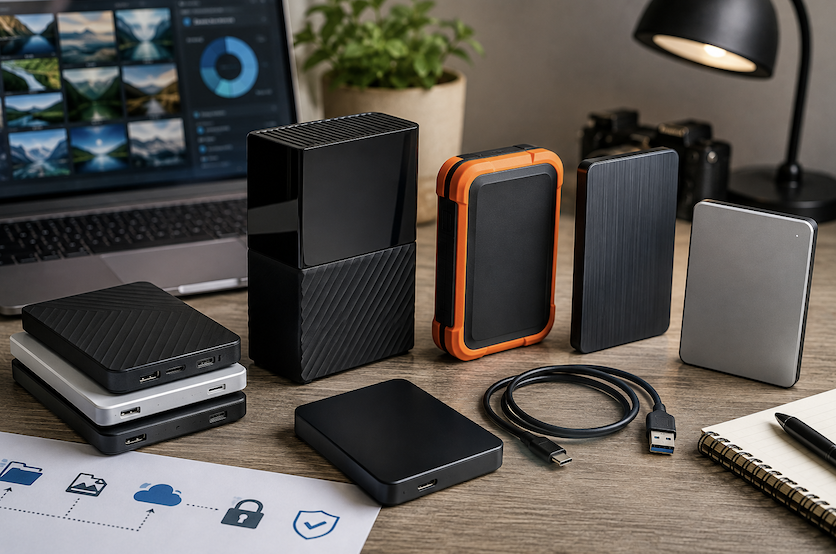
An external hard drive remains one of the most straightforward, reliable ways to maintain a local backup, but the range of available options different drive types, connection standards, and durability ratings makes it easy to choose the wrong one for your specific needs. Here’s how to think through the decision.
Understanding Drive Speed Ratings
HDD speed is often listed as a rotational speed measured in RPM, with higher RPM generally indicating faster data access, though still considerably slower overall than any SSD. SSD speed is typically listed as a read/write speed in megabytes per second, and checking this figure against your connection type’s maximum supported speed (discussed below) ensures you’re not paying for SSD performance your connection can’t actually deliver in practice.
External HDD vs External SSD
Traditional external hard disk drives (HDDs) offer significantly more storage capacity per dollar than external SSDs, making them the more budget-friendly choice for large backup volumes. External SSDs offer considerably faster transfer speeds and better durability against drops and physical shock, since they contain no moving parts, but at a meaningfully higher cost per gigabyte, particularly at larger capacities.
Which Type Makes Sense for Backup Use Specifically
For a backup drive that mostly sits connected occasionally for scheduled backups rather than being carried around daily, an HDD’s lower cost per gigabyte often makes more practical sense, since backup speed matters less than for a drive used for active daily work. For a portable drive that travels frequently or needs to withstand more physical handling, an SSD’s durability advantage becomes more relevant despite the higher cost.
Accounting for Growth Over the Drive’s Lifespan
Data volume tends to grow steadily over time as photo and video files increase in resolution and personal archives accumulate, so budgeting for growth rather than your exact current usage avoids needing a replacement drive sooner than expected. A general guideline of planning for your data volume roughly two to three years into the future, rather than only your current needs, tends to provide a more realistic buffer.
Planning Your Capacity Needs
Rather than guessing at a capacity, checking your current total data volume across the devices you’re backing up gives a concrete starting point, and it’s generally worth choosing a drive with at least double your current data volume to accommodate growth over the drive’s useful lifespan without needing a replacement within just a year or two.
Cable Quality and Length Considerations
A cheap or overly long USB cable can sometimes fail to deliver the connection standard’s full rated speed, even when both the drive and computer support it. Using the cable included with the drive, or a certified replacement specifically rated for the connection standard in question, avoids this often-overlooked bottleneck that has nothing to do with the drive’s actual capability.
Connection Types: USB-A, USB-C, and Thunderbolt
USB-A remains widely compatible with older computers but is limited in maximum transfer speed compared to newer standards. USB-C offers faster transfer speeds and has become the standard connection on most modern laptops and desktops. Thunderbolt, available on many newer computers, offers the fastest transfer speeds of the three, though it typically comes at a price premium and matters most for large, frequent transfers rather than typical periodic backup use.
Portable vs Desktop Drives
Portable drives are smaller, bus-powered (drawing power directly from the connected computer without a separate power adapter), and convenient for travel, but generally offer less total capacity than desktop drives at a comparable price point. Desktop drives require their own power adapter and are meant to stay in one location, but typically offer more storage capacity and, in some cases, better long-term reliability for continuous, stationary use.
Durability and Drop Resistance
For a backup drive that travels or gets handled frequently, checking for a rated drop resistance or rugged, shock-resistant casing is worth prioritizing, particularly for external SSDs marketed specifically for portable, rugged use. A drive that stays permanently connected in one location has less need for this kind of physical durability rating, making it a lower priority for a purely stationary backup setup.
NAS Devices as an Alternative to a Simple External Drive
A network-attached storage (NAS) device offers a more advanced alternative to a basic external drive, allowing backup access from multiple devices over your home network without needing to physically connect a cable each time, and often supporting RAID redundancy as a built-in feature rather than an add-on. This represents a bigger investment and more setup complexity than a simple external drive, making it more suitable for households with multiple people or devices needing shared backup access, rather than a single-user, single-device backup need.
RAID Options for Extra Protection
Some external drive enclosures support RAID configurations, using multiple drives together to provide redundancy if one drive fails data remains accessible on the other. This adds meaningful protection against a single drive failure but comes at a higher cost and setup complexity than a single external drive, making it more relevant for anyone with a particularly large or critical amount of data to protect, rather than a typical home backup use case.
Software vs Hardware Encryption
Software-based encryption, applied through your operating system’s built-in disk encryption tools, works on virtually any external drive without needing specialized hardware, though it typically adds some performance overhead during file transfers. Hardware encryption, built directly into certain drives, generally performs faster since the encryption processing happens on a dedicated chip rather than relying on your computer’s processor, making it worth the added cost for anyone regularly transferring large amounts of sensitive data.
Encryption Features Worth Considering
Some external drives include built-in hardware encryption, protecting data automatically without relying on separate software. This is particularly worth prioritizing for a portable drive that might be lost or stolen, since hardware encryption protects the data even if the physical drive ends up in someone else’s hands, in a way that an unencrypted drive simply cannot.
Compatibility Between Mac and PC
External drives sometimes come pre-formatted for one operating system, requiring reformatting (which erases existing data) to work fully with the other. For anyone using both Mac and PC devices, checking for a drive formatted in, or manually reformatting to, a cross-compatible file system avoids this compatibility friction, though it’s worth confirming which cross-compatible format best supports the specific file size and feature needs of your particular backup use case.
Noise and Heat Considerations
Traditional HDDs, having moving mechanical parts, produce some operating noise and generate more heat than SSDs, which can be a minor but noticeable factor for a drive kept in a quiet home office or bedroom. SSDs run silently and are cooler, which is worth factoring in in addition to the durability and cost considerations already discussed if the drive will be running continuously in a noise-sensitive space.
Considering Manufacturer Reputation and Reliability Data
Some drive manufacturers publish or have independently reported annualized failure rates across their product lines, which can offer a useful data point beyond marketing claims when comparing otherwise similar drives. While no single data source is perfectly comprehensive, checking for this kind of independent reliability information, where available, adds a more objective factor to the decision beyond price and specifications alone.
Warranty Considerations
External drive warranties vary from one to five years depending on the manufacturer and product tier, and a longer warranty is generally a reasonable indicator of a manufacturer’s confidence in the drive’s reliability. Registering the product after purchase and retaining the original receipt ensures you can actually make use of the warranty if a failure does occur within the covered period.
Drive Lifespan and When to Replace It
External drives, particularly HDDs with moving parts, don’t last indefinitely, and most manufacturers rate their drives for a specific number of expected operating hours before failure risk increases meaningfully. Treating a backup drive as a component that should be proactively replaced every several years, rather than used until it actually fails, avoids the worst-case scenario of a drive failing exactly when you need to rely on it most.
Testing a New Drive Before Relying on It
Before trusting a new external drive with your only backup copy, running a full read/write test and transferring a sizable amount of data to confirm the drive performs as expected catches early manufacturing defects while you’re still within the return window, rather than discovering a problem months later when you actually need to rely on the backup.
Labeling and Organizing Multiple Backup Drives
For anyone maintaining more than one backup drive as part of a 3-2-1 strategy, clearly labeling each drive with its purpose and the date of its most recent full backup prevents confusion about which drive holds the most current data, particularly important in a household with multiple people who might need to access or update the backups.
Enterprise-Grade Options for Critical Data
For anyone backing up particularly critical or irreplaceable data, enterprise or NAS-rated drives, designed for continuous operation and rated for a higher number of operating hours than standard consumer drives, offer additional reliability at a higher cost. This tier is generally unnecessary for typical home use but worth knowing about for anyone with genuinely mission-critical backup needs.
Common External Drive Mistakes
Relying on a single external drive as your only backup, kept in the same location as your primary device, violates the 3-2-1 backup principle covered in earlier guides and leaves you exposed to theft, fire, or other events affecting both copies simultaneously. Buying based on capacity and price alone, without considering connection speed or drive type suited to your actual use pattern, is another common oversight that leads to a slower or less durable drive than genuinely necessary.
Conclusion
For most home backup needs, an external HDD offers the best value for the storage capacity required, while an SSD makes more sense for a frequently traveled, actively used portable drive. Whichever type you choose, treating it as one part of a broader 3-2-1 backup strategy, rather than your only backup copy, remains the most important overall principle.