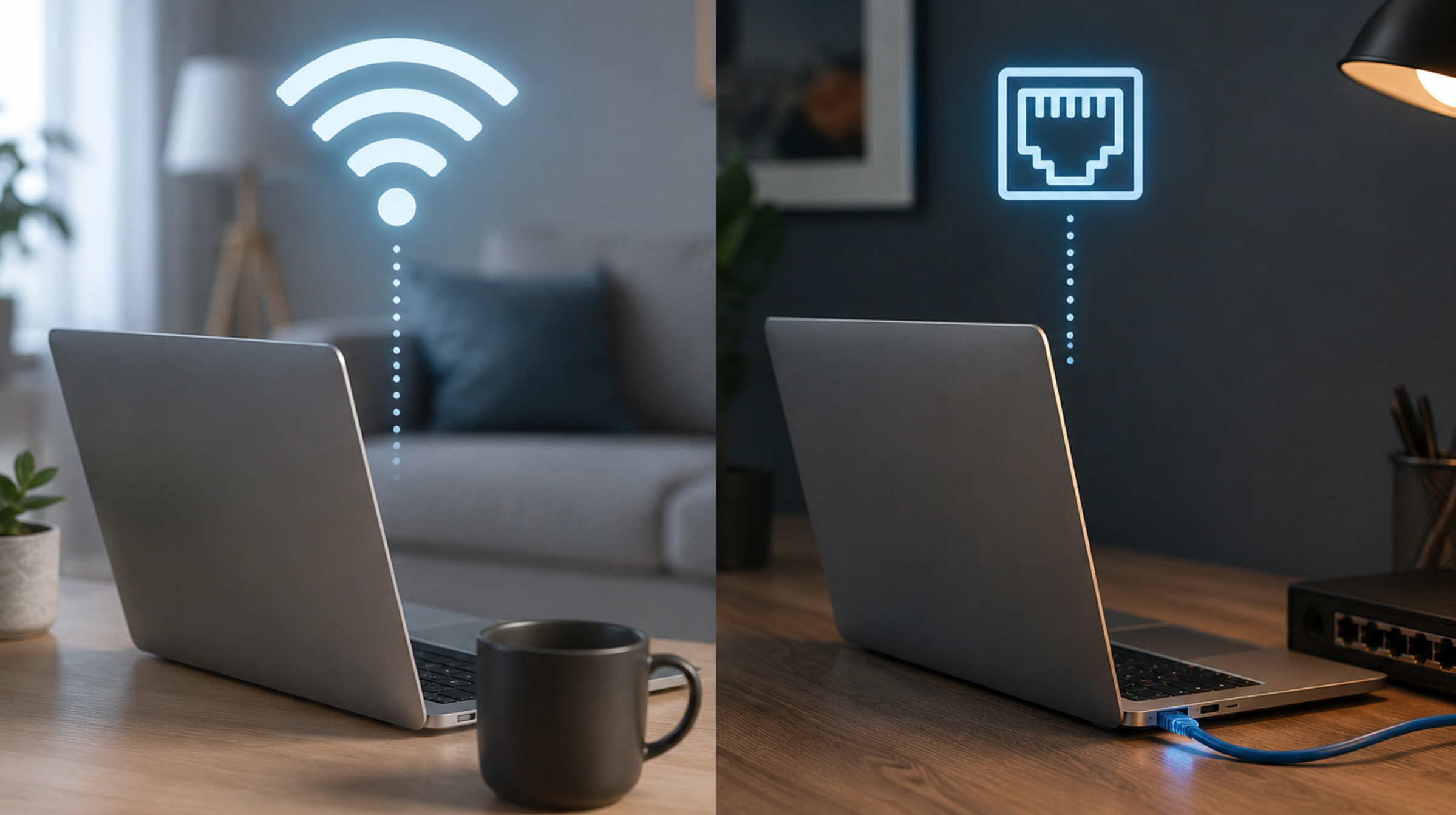
Almost every device in a modern home can join a wireless network, so a network cable can look like a relic. Yet the choice between a wire and the air still shapes how smooth your video calls, games and downloads feel, and it costs very little to get right.
In this article we will explore how the two connection types differ, which situations favor a cable, where Wi-Fi is the sensible pick, and how to add wired links to a home without a messy renovation.
Radio Waves Share Space and Wires Do Not
Wi-Fi works by sending data as radio signals through a limited slice of shared spectrum. Every device in range that uses the same channel must take turns, because two transmitters talking at once garble each other. Your own phone, laptop and television compete for airtime, and so do the networks in the flats or houses around you. A wired connection avoids this contest, since the signal travels inside the cable and does not collide with anyone else’s traffic.
Wireless signals also weaken as they pass through walls, floors, mirrors, water tanks and metal appliances. Dense materials such as brick, concrete and stone absorb more than thin plasterboard, and the higher-frequency bands that offer faster speeds generally lose strength more quickly over distance. This is why a device can show full bars in one corner of a room and struggle a few steps away. A cable has no such problem within its length limit, which for common twisted-pair Ethernet is commonly cited as about one hundred meters per run.
Interference is the third factor. Microwave ovens, baby monitors, cordless phones, Bluetooth accessories and neighboring routers can all disturb the bands that Wi-Fi uses, especially the older and more crowded 2.4 GHz band. Modern routers try to dodge trouble by choosing quieter channels, but they cannot remove the source. A wired device simply ignores the noise, which makes it a calm anchor in a busy home network.
None of this means Wi-Fi is poor. It is a remarkable technology that handles dozens of devices at once with no wiring at all. The point is that radio is a shared, variable medium, and a cable is a dedicated, predictable one. When predictability is what you need, the difference becomes easy to feel.
Another difference is how each connection handles many devices at once. A router spreads its radio attention across every connected gadget, so ten active devices each get a slice of the available airtime, and slow or distant ones can drag the shared channel down. A wired port is dedicated to one device and does not take airtime from the others. Moving a few heavy users onto cables therefore tends to help even the devices that stay wireless, because the air becomes less crowded for them. This knock-on effect is one of the least appreciated reasons to wire up your busiest machines.
Latency and Consistency Matter More than Top Speed
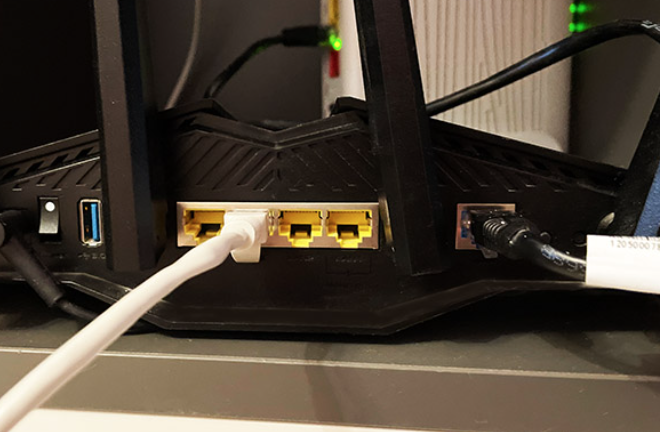
Most people judge a connection by its speed, but speed describes how much data moves per second, not how quickly each small piece arrives. Latency is the delay between sending a message and receiving a reply, and it shapes how responsive things feel. Jitter is the variation in that delay from one moment to the next. A connection can have high speed and still feel sluggish if latency or jitter spikes at the wrong time.
Wi-Fi adds small and unpredictable delays because devices wait for a clear channel and sometimes resend data that was lost. These pauses are brief, and for browsing or watching a buffered video you will never notice them. For a live video meeting, a fast online game or a remote session on another computer, a sudden pause of a few hundred milliseconds can freeze a face, cause a rubber-band effect or drop a call. A cable tends to deliver delay that is both lower and far steadier.
Consider what happens in a typical evening. One person streams a film, another downloads a large update, and a third joins a video call. Over Wi-Fi these tasks fight over airtime, and the call is usually the first to suffer because it needs a constant trickle of timely data. Putting the call device on a cable removes it from the contest, even if the other devices stay wireless.
A simple way to test this at home is to run a speed and latency check from the same spot on Wi-Fi and then on a cable. Pay attention to the delay and the stability of repeated runs, not only the download figure. If the wired results are steadier, you have found a practical reason to keep that device plugged in. Many testing tools show a loaded latency figure, which measures delay while the line is busy, and that number is often the most telling one.
It also helps to be wary of the speed figures printed on router boxes. Those numbers describe a theoretical maximum under ideal conditions, usually with one device close to the router and no interference. Your real wireless result will be lower, and it will move up and down through the day. A wired link usually lands much closer to what the port is rated for, which makes planning easier. When you compare options, trust your own measurements taken at the spot where the device lives, and repeat them at different times, such as a quiet morning and a busy evening.
Upload speed deserves a mention too. Video calls, cloud backups and photo sharing all send data out of your home, and many broadband plans offer far less upload capacity than download capacity. Over Wi-Fi, a weak signal can cut that already modest figure further. A cable lets the upload side of your plan reach the device in full, which can shorten backups and make shared screens look sharper.
Home Offices, Gaming Rigs and Streaming Boxes Benefit Most
The best candidates for a cable are devices that stay in one place and do demanding work. A desktop computer in a home office is the classic example, since it sits on the same desk every day and often handles video meetings, large file transfers and cloud backups. A games console or gaming computer is another, because competitive play rewards low and steady delay. A television or streaming box that plays high-quality video also benefits, since a wire removes the risk of buffering during busy hours.
Network storage and home servers deserve special mention. If you keep photos, documents or media on a small storage device at home, every transfer to or from it crosses your network. A wired link lets large copies finish faster and more predictably, and it keeps backup jobs from disturbing everyone else’s wireless traffic. The same goes for printers and shared drives that many family members use.
Smart-home hubs, security cameras and doorbells vary. Some cameras and wired doorbells can use a cable that also carries power, a feature called Power over Ethernet, which can simplify installation and make the camera more reliable than a wireless one that drops off a weak signal. Others are wireless by design and cannot use a cable at all. Check what each device supports before planning your wiring.
The router and any extra access points are the final group. A wireless access point works best when it connects back to the router by cable, because that link, known as the backhaul, carries the combined traffic of every device attached to it. A wired backhaul leaves all of the radio capacity for your phones and laptops, while a wireless backhaul spends part of that capacity on talking to the router.
Working from home raises the stakes further. A dropped connection during a presentation or a large upload that stalls at ninety percent costs time and patience, and a cable removes much of that risk. If your employer provides a laptop, a small dock or adapter with an Ethernet port can give you a wired link without changing the computer at all. Many laptops now lack a built-in network port, but inexpensive adapters that connect through a USB port are widely sold. Check which type of connector your laptop offers and buy an adapter that matches it.
Households with several remote workers or students should think about the combined load. When two or three people join video calls at once, a wired connection for each fixed workstation keeps the wireless airtime free for phones and tablets. A short test during a normal busy hour will show whether the arrangement holds up. If it does not, the next step is usually a wired access point instead of faster equipment.
Wi-Fi Remains the Better Choice for Many Devices
It would be a mistake to chase wires everywhere. Phones, tablets and laptops move around, and part of their value is that you can carry them from the sofa to the garden. Forcing a cable onto them would defeat the purpose. Most of these devices also run tasks that tolerate small delays, such as reading, browsing, messaging and watching video with a buffer.
Wi-Fi is also the practical answer in rental homes, listed buildings and any place where drilling is not allowed. It suits small gadgets such as smart plugs, bulbs, speakers and sensors, which send tiny amounts of data and would be absurd to wire. For visitors, wireless access is the only realistic option, and it is the reason a guest network is worth setting up.
Another point in favor of Wi-Fi is that the technology keeps improving. Newer generations handle many simultaneous devices more gracefully and make better use of the spectrum than older ones. A well-placed, reasonably modern router can give excellent results for everyday use, and many households never need more. The aim is to be selective, not to abandon wireless.
A sensible rule is to ask two questions about each device. Does it stay put, and does it do work where delay or dropouts would annoy you? If the answer to both is yes, consider a cable. If either answer is no, let it use the air and save your effort for the devices that will repay it.
Convenience counts for a great deal in daily life, and a connection that people will use is better than a perfect one that nobody wants to set up. A cable that trips someone in a hallway, or a laptop tied to one desk, is a poor trade. If you share your home with others who are not interested in networking, simple wireless access that works everywhere is a kindness to them. Put effort into good router placement, which means a central, raised, open position away from large metal objects and thick walls. A well-placed router often fixes complaints that people blame on the internet plan.
Cable Categories and Connectors Decide What you Receive
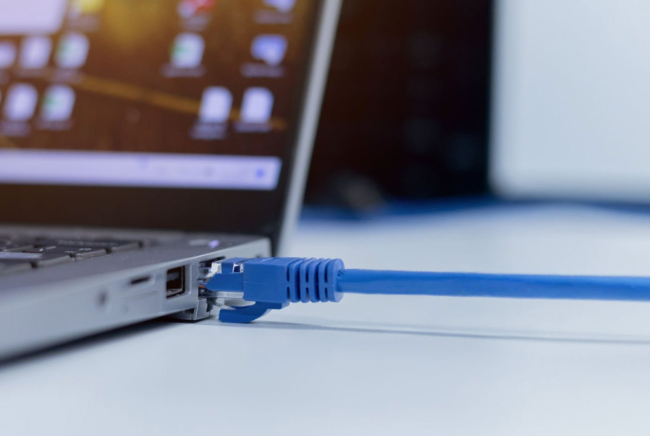
Ethernet cables are sold in numbered categories, and the number tells you which speeds and frequencies the cable is designed to carry. Category 5e is a long-standing standard that supports gigabit speeds over typical home distances. Category 6 supports gigabit over a full run and can carry faster rates over shorter distances, while category 6a is built for ten-gigabit speeds over the full length.
Higher categories also tend to have better shielding against interference, though for most homes a good category 5e or 6 cable is plenty.
The table below summarizes the common categories using widely published, general figures. Treat the speeds as the ratings the cable is designed to support, since real results also depend on the equipment at each end. Prices and availability differ by country, so compare what your local shops stock.
| Cable category | Commonly supported speed | Typical use at home |
| Category 5e | Up to 1 Gbps | Everyday devices, older installations |
| Category 6 | 1 Gbps, and higher over short runs | Good default for new runs |
| Category 6a | Up to 10 Gbps over full length | Future-minded wiring, home offices |
| Category 7 and above | Higher-frequency ratings, often shielded | Specialist cases, rarely needed |
Beyond the cable, check each part of the chain. Your router, switch or wall jack may have ports limited to a lower speed than the cable can carry. Some older devices have ports that top out at a fraction of a gigabit, which is fine for slow internet plans but can become a bottleneck on faster ones. A wired link runs at the speed of its slowest component.
Quality matters more than people expect. Pure copper cables are the recommended choice for in-wall work, while very cheap copper-clad aluminum cables can be less reliable and may not meet the standard. For a patch cable that simply connects a computer to a wall socket, buy a reputable one with snug connectors, and replace any with a cracked clip or a bent plug. For long in-wall runs, consider having a professional certify the cable with a test tool.
Length and routing matter as well. Keep each run within the commonly cited limit of about one hundred meters, and avoid sharp bends, tight staples and kinks, which can damage the twisted pairs inside. Do not coil excess cable tightly behind a desk; a loose loop is better. If you must cross a mains cable, do so at a right angle instead of running side by side for a long distance. Finally, remember that many modern connectors have a small plastic clip, so handle them gently and replace a cable whose clip has snapped, since a loose plug causes dropouts that are hard to trace.
How to Run a Cable Without Ripping Up the House
Start with a plan on paper. Mark the router location, then list the devices that deserve a cable and the route each would take. Prefer short, simple paths that follow existing lines, such as along a skirting board, through a loft or under a floor. Measure the length and add a margin, remembering that twisted-pair Ethernet has a commonly cited limit of about one hundred meters per run.
Next, choose the right style of installation for your home. Slim flat cables can pass under a door or along a wall edge in a rental, and adhesive cable clips hold them in place without damage. In a home you own, running cable inside walls or conduit looks tidier and lasts longer, but it calls for care around pipes and electrical lines, so hire a qualified installer if you are unsure. Keep network cables apart from mains wiring where possible to avoid interference and to stay safe.
Then fit the ends. Many people buy ready-made cables with connectors attached, which avoids the need for crimping tools. If you terminate cable yourself at wall sockets, follow the color order printed on the socket and test each run before you close up the wall. A cheap cable tester pays for itself by revealing a miswired pair that would otherwise cause baffling slowdowns.
Finally, connect through a switch if you need more ports than the router offers. A small unmanaged switch is a simple box that expands one wall socket into several, and it needs no setup. Label both ends of every cable so you can trace it years later. Test the result by running a speed and latency check from a wired device, and keep notes of what you find for future comparison.
Think about where cables will be seen, and about the future. Running a spare cable alongside the first one costs little at the time and saves a lot of trouble if you later add a camera, an access point or another desk. Leave a little slack at each end so you can re-terminate a connector if it fails. In flats, check your lease or ask the landlord before fixing anything to walls, and favor removable clips. If your route passes through a fire-rated wall or ceiling, ask a professional about sealing the opening correctly, since a careless hole can weaken that protection.
Powerline and Coax Adapters Offer Middle Paths
If you cannot run a new cable, some adapters make use of wiring already inside your walls. Powerline adapters send network data over the household electrical circuit, and you plug one in near the router and another where you need a connection. Coax-based adapters do something similar over television aerial cable, which can be quite reliable where such outlets exist. Both reach spots that Wi-Fi cannot, but results vary widely with the age and layout of the wiring.
Powerline performance depends on the electrical circuit. Adapters work best when plugged directly into a wall socket rather than a power strip, since filters in strips can block the signal. Heavy appliances, such as heaters and some chargers, can add noise that lowers speed. Because homes differ so much, buy from a shop with a fair returns policy so you can test before committing.
Another useful middle path is a second wireless access point connected to the router by cable. This delivers strong Wi-Fi in a distant part of the house, while the backhaul remains wired and steady. Mesh systems that support a wired backhaul work the same way and are a popular solution for larger homes. The wired link is the part that does the heavy lifting, so even one cable run to a central point can lift performance in several rooms.
Treat these options as compromises. A direct Ethernet cable stays the most dependable choice, followed by a wired backhaul, then adapters that reuse existing wiring, then a wireless mesh link. Pick the highest option your home allows for each important device, and accept a lower one only where the best choice is impractical.
Before buying, think about what you expect from the adapter. These devices are best at giving a steady link to a fixed device, such as a television or console, in a room where Wi-Fi is weak. They are less impressive as a way to reach top speeds, and the result in an older building with complicated wiring can be disappointing. Test adapters in the actual rooms you plan to use them in, and try different sockets, since one outlet may work far better than its neighbor. Keep the packaging until you are satisfied, in case you need to return them.
Also keep safety in mind. Plug adapters into properly installed, undamaged sockets, and do not cover them or hide them behind furniture where heat can build up. If a socket feels warm, smells odd or crackles, stop using it and ask a qualified electrician to inspect it.
Conclusion
Begin with a small audit instead of buying anything. List every device that stays in one spot, and mark those that handle video calls, games, large downloads or backups. Next, look at your router and note how many free wired ports it has and what speed they support. Often the router already has four spare ports sitting unused.
Then test before and after. Run a speed and latency check on Wi-Fi from the device’s usual position, connect a borrowed or inexpensive cable, and run the same check again. If the improvement is clear, run a permanent cable. If it is small, leave the device wireless and spend your effort on router placement, channel choice or a wired access point instead.
Order your upgrades by payoff. A cable to the office desktop or the main television usually offers the biggest return, followed by a wired backhaul for any extra access point. Keep Wi-Fi for phones, tablets, laptops and small smart gadgets, and use a guest network for visitors. If persistent trouble remains after these steps, contact your internet provider, since the fault may lie in the line to your home and not in your own equipment.
Finally, set a simple routine so the improvement lasts. Once a cable is in place, note the date and the result of your test in a text file or a notebook. Every few months, or after any change to your internet plan or router, run the test again to confirm that nothing has slipped. Keep the router firmware up to date according to the maker’s guidance, and replace patch cables that look worn. These small habits take only a few minutes and will tell you early if a connection starts to degrade.