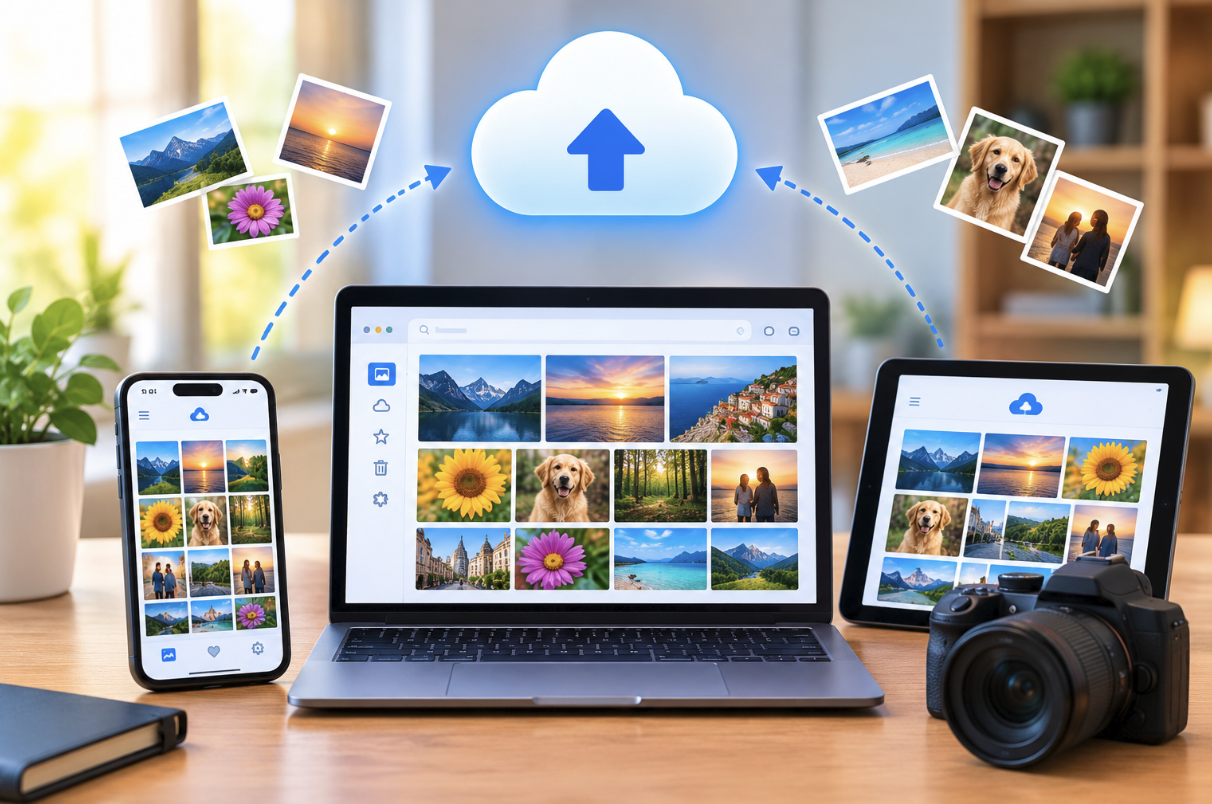
Photos are often the single most irreplaceable category of data on a phone or computer, making a properly configured cloud backup specifically for photos worth setting up carefully rather than assuming a general backup covers this adequately. Here’s how to do it properly.
Why Photos Deserve Special Backup Attention
Unlike documents or settings, which can often be recreated or reconfigured if lost, photos represent genuinely irreplaceable memories, making the stakes of a photo backup failure meaningfully higher than for most other data categories discussed in earlier general backup guides. This is worth keeping in mind when deciding how much redundancy and verification effort a photo backup specifically deserves.
Considering Metadata Preservation
Photo metadata, including the date taken, location, and camera settings, provides valuable context that’s worth preserving during backup, and checking that a chosen service maintains this information rather than stripping it during upload ensures photos remain properly organized and searchable by date and location well into the future.
Choosing a Cloud Photo Service
Most major cloud photo services offer broadly similar core functionality, automatic backup, cross-device access, and some organizational features, with differences emerging in storage pricing, integration with your existing device ecosystem, and specific features like advanced search or editing tools. Choosing a service that integrates well with your primary phone and computer ecosystem generally produces the smoothest experience, similar to the ecosystem integration considerations discussed in the earlier Windows vs macOS guide.
Bundling Photo Storage With Broader Cloud Plans
Some services offer photo storage as part of a broader cloud storage plan that also covers documents and general files, discussed in earlier general backup guides, which can offer better overall value than purchasing separate, dedicated photo storage if you’re already using that provider’s broader ecosystem for other backup needs.
Understanding Storage Tiers and Costs
Most services offer a limited amount of free storage, sufficient for casual, lower-volume photo taking, with paid tiers scaling up for larger photo and video libraries. Estimating your typical monthly photo and video volume, and checking it against a specific service’s tier boundaries before committing, avoids either paying for considerably more storage than needed or repeatedly hitting a storage limit that interrupts automatic backup.
Original Quality vs Compressed Storage
Some services offer a choice between backing up photos at their full, original resolution or a compressed, storage-optimized version, with original quality counting more heavily against storage limits. For photos with genuine long-term or professional value, original quality is worth the additional storage cost, while casual everyday photos may reasonably use compressed storage without a meaningfully noticeable quality difference for typical viewing purposes.
Setting Up Automatic Backup Correctly
Confirming automatic backup is genuinely enabled, rather than assuming it’s active by default, and checking that it’s set to run over Wi-Fi (to avoid unexpected mobile data charges) but not restricted only to times when specifically opened, ensures photos back up promptly and consistently rather than only when the app happens to be open and active.
Confirming Backup Actually Completes
Periodically checking that recent photos show as successfully backed up, rather than assuming the process is working silently in the background indefinitely, catches issues like a paused backup or an expired storage plan before a significant gap in backed-up photos accumulates unnoticed.
Organizing Photos During the Backup Process
Most cloud photo services offer some combination of automatic date-based organization, location tagging, and search by content, reducing the need for extensive manual folder organization compared to the general file organization principles covered in earlier guides. That said, creating a few manually organized albums for significant events or trips still helps with quickly finding specific photos later, supplementing rather than replacing the automatic organization.
Handling Screenshots and Duplicate Content Before Backup
Periodically clearing screenshots and duplicate burst-mode photos before they’re backed up, similar to the phone storage decluttering habits covered in an earlier guide, keeps cloud storage focused on genuinely meaningful photos rather than accumulating clutter that counts against paid storage limits without adding real value.
Deciding What to Actually Back Up
Not every photo needs the same backup priority ,screenshots, duplicate burst shots, and clearly accidental photos can reasonably be excluded or deleted before backup to save storage space for photos that genuinely matter, similar to the selective backup approach covered in the earlier general backup guide.
Family Sharing Considerations
Many cloud photo services support shared albums or family storage plans, allowing multiple family members to contribute to and view a shared photo collection, which is particularly useful for capturing photos from multiple people’s devices at shared events like family gatherings or vacations without needing to manually collect and consolidate photos afterward.
Setting Appropriate Privacy Settings for Shared Content
Before creating a shared album, reviewing who has access and for how long prevents photos from remaining accessible to people who no longer need ongoing access, such as a shared album from a one-time event that doesn’t need indefinite access privileges extended well beyond the occasion itself.
Setting Up Shared Albums for Specific Events
For a specific trip or event, creating a dedicated shared album that other attendees can contribute to directly consolidates everyone’s photos from that occasion into one accessible place, rather than photos remaining scattered across each individual person’s separate device and cloud account indefinitely.
Migrating Between Cloud Photo Services
If switching from one cloud photo service to another, most platforms offer either a direct transfer tool or support standard export formats that can be re-imported elsewhere, though this process can take considerable time for a large photo library. Verifying the migration completed fully before canceling the original service’s subscription avoids the risk of losing photos during an incomplete transfer.
Handling Photos From Multiple Devices
For anyone using more than one phone or camera, confirming each device backs up to the same consolidated cloud account, rather than having photos split across multiple separate accounts or services, keeps the full photo library searchable and organized in one place rather than fragmented across devices.
Backing Up Videos Alongside Photos
Videos consume considerably more storage per item than photos, and checking that video backup is included in your chosen service and storage plan, rather than assuming photo backup automatically covers videos identically, avoids an unpleasant surprise if videos are handled differently under your specific plan’s terms.
Considering Storage Needs for RAW or Professional Photo Formats
For anyone shooting in RAW format or using a dedicated camera alongside a phone, checking that a cloud service properly supports these larger, less common file formats, rather than assuming universal compatibility, avoids discovering a compatibility gap only after attempting to back up professional-format photos.
Considering a Local Backup as a Supplement
Following the 3-2-1 backup principle discussed in earlier guides, periodically downloading a full copy of your cloud photo library to a local external drive provides an additional safety net beyond relying on a single cloud service alone, protecting against the unlikely but real possibility of an account issue or service disruption affecting cloud-stored photos.
Reviewing Account Security for Your Photo Library
Given how much personal and sometimes sensitive content a photo library can contain, applying the two-factor authentication guidance from the earlier dedicated 2FA guide to your cloud photo account specifically protects this often-overlooked but genuinely significant category of personal data.
Considering What Happens to Photos If You Stop Paying
Understanding a specific service’s policy for what happens to photos if a paid storage plan lapses or is canceled, including any grace period before content is deleted, avoids an unpleasant surprise if a subscription is accidentally allowed to expire, similar to the subscription-awareness considerations covered in earlier device transfer guides.
Considering Redundancy Across Two Cloud Providers
For anyone with a particularly large or irreplaceable photo archive, splitting backup across two separate cloud providers, while more complex to manage, follows the same redundancy logic as the 3-2-1 backup rule discussed in earlier guides, protecting against the unlikely scenario of one provider experiencing an extended outage or account-level issue affecting access.
Handling a Full Storage Warning Promptly
When a service warns that storage is nearly full, addressing it immediately, either by upgrading the plan or clearing unnecessary content, prevents new photos from silently failing to back up while older content still displays as safely stored, an easy trap to fall into if the warning is dismissed without immediate action.
Common Cloud Photo Backup Mistakes
Assuming backup is active without ever verifying it, only to discover months or years of unbacked up photos after a phone is lost or damaged, is one of the most consequential and preventable mistakes covered throughout this guide. Choosing a storage tier based purely on current usage without accounting for growth, similar to the capacity planning discussed in earlier external drive guides, leads to a plan that quickly becomes insufficient as a photo library naturally grows over time.
Setting a Periodic Backup Verification Reminder
Setting a recurring reminder every few months to check backup status, storage usage, and that recent photos genuinely appear in the cloud library, similar to the periodic review habits recommended throughout earlier backup and security guides, catches silent failures before they compound into a significant gap in protected memories.
Documenting Your Backup Setup
Keeping a simple note of which service, account, and storage tier your photos are backed up under, similar to the documentation habits recommended in earlier home maintenance and backup guides, makes it far easier for a family member to locate and access photos later if needed, rather than leaving this information undocumented and dependent on memory alone.
Conclusion
A properly configured cloud photo backup, verified periodically rather than assumed to work silently forever, protects against the loss of genuinely irreplaceable memories. Choosing original quality for photos that matter most, planning storage tier needs around realistic growth, and supplementing with an occasional local backup copy provides the most reliable overall protection.
Read more about TechNewWeb