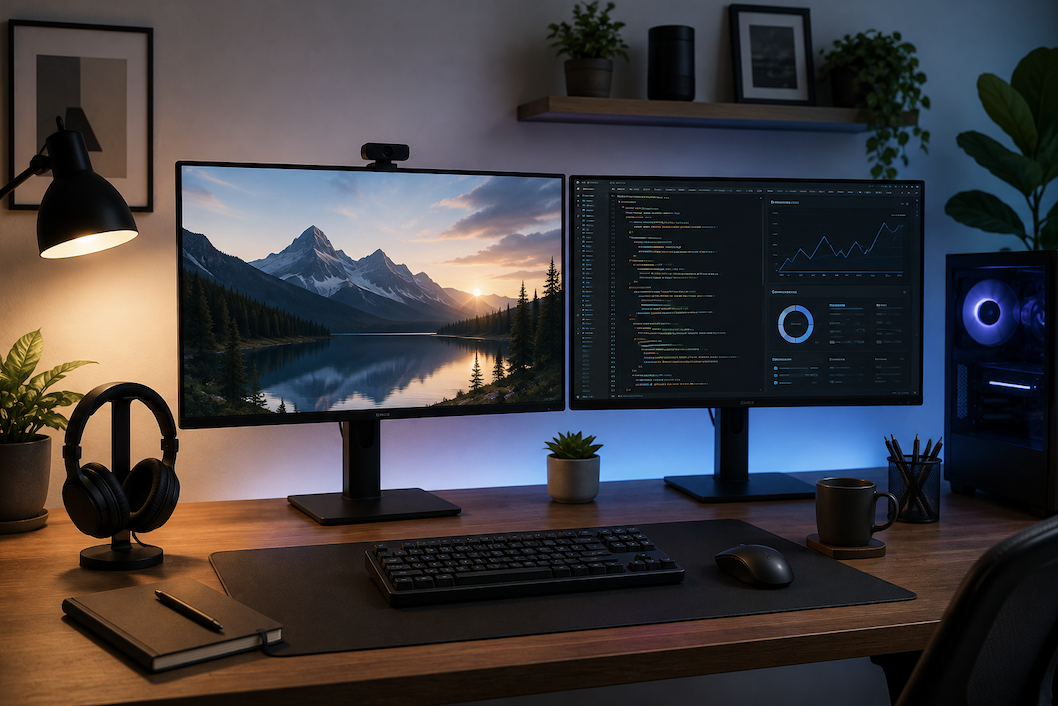
A second monitor is one of the more genuinely productivity-boosting upgrades available for anyone doing regular desk-based work, offering more screen space for multitasking meaningfully without the cost or complexity of a much larger single display. Here’s how to set one up properly.
The Genuine Benefits of a Dual Monitor Setup
Beyond simply having more screen space, dual monitors reduce the constant window-switching that a single-screen setup requires for tasks like referencing a document while writing, or monitoring communication tools while doing focused work elsewhere. This reduction in context-switching is where much of the genuine productivity benefit comes from, rather than screen size alone.
Considering Monitor Bezels and Visual Continuity
Thinner monitor bezels create a more visually seamless transition when content spans across both screens, such as a wide spreadsheet or a panoramic image, compared to thicker bezels that interrupt the visual flow more noticeably. This is a minor but real consideration for anyone frequently working with content that spans the full width of a dual monitor setup.
Choosing Matching vs Different Monitors
Matching monitors, identical in size, resolution, and refresh rate, create the most visually consistent experience, with windows and cursor movement feeling uniform as you move between screens. Using different monitors, perhaps repurposing an older display alongside a new one, is a reasonable budget-friendly option, though it’s worth expecting some visual inconsistency in color, size, and refresh rate between the two screens.
Desk Depth and Viewing Distance
A desk that’s too shallow forces monitors closer to the eyes than is comfortable for extended use, particularly for larger displays. As a general guideline, sitting roughly an arm’s length away from the screens reduces eye strain compared to a cramped setup where monitors sit uncomfortably close simply because the desk doesn’t provide adequate depth.
Physical Arrangement and Ergonomics
For most dual monitor setups, positioning both screens at the same height with a slight inward angle toward the user, meeting roughly at the edge closest to the primary working position, reduces neck strain from constantly turning fully toward one screen or the other. If one monitor serves as your primary display for most work, centering it directly in front of you rather than splitting attention evenly between two centered screens generally produces better ergonomics.
Vertical Monitor Arm Considerations for Small Desks
For particularly small or shallow desks, a dual monitor arm that stacks screens vertically rather than side by side offers an alternative arrangement that requires less desk width, though this layout suits certain tasks, like monitoring a chat window below a primary work screen, better than others, and is worth considering specifically for space-constrained setups.
Choosing Between Monitor Stands and Arms
Standard monitor stands, included with most monitors, work adequately for a basic side-by-side setup but offer limited height and angle adjustability. Monitor arms, mounted to the desk or wall, offer considerably more flexibility for height, angle, and even depth adjustment, and can also free up desk space by lifting monitors off the surface entirely, which matters more in a smaller desk setup with limited surface area.
Cable and Port Considerations
Before purchasing a second monitor, confirming your computer or laptop has enough available video output ports, or a compatible dock or hub that supports multiple simultaneous outputs, avoids discovering a port limitation after the second monitor has already arrived. As covered in the USB-C guide, not every port on a laptop necessarily supports video output, making it worth checking specifically rather than assuming any available port will work.
Basic Operating System Display Settings
Most operating systems provide a display settings menu allowing you to arrange monitors to match their physical desk position, which ensures cursor movement between screens feels natural rather than jumping unexpectedly. Taking a moment to drag and arrange the on-screen representation of your monitors to match their actual physical layout is a small but important step many people skip when first setting up a dual monitor system.
Choosing a Primary Display
Designating one monitor as the primary display, where the taskbar and default new windows appear, keeps the experience predictable and organized. Generally, choosing the monitor directly in front of your primary seated position as the main display, rather than a secondary monitor to the side, keeps your most frequently referenced information in the most naturally comfortable viewing position.
Window Management Tips for Multiple Monitors
Most operating systems support quick keyboard shortcuts or drag-based snapping to move windows between monitors and resize them to fill half or a quarter of a screen, which becomes considerably more useful once you have two full displays’ worth of space to organize. Learning a few of these shortcuts specific to your operating system meaningfully speeds up daily window management compared to manually dragging and resizing every window.
Using Portrait Orientation for Specific Tasks
Rotating one monitor into portrait orientation suits tasks involving long vertical content, like reading lengthy documents, reviewing code, or scrolling through long web pages, since it shows considerably more vertical content at once than a standard landscape orientation. This works particularly well as a secondary monitor dedicated to this kind of vertical content, paired with a primary landscape monitor for general work.
GPU Output Considerations
Confirming your graphics card, whether integrated or dedicated, actually supports driving two monitors simultaneously at your desired resolution and refresh rate avoids a setup that technically connects but performs at a reduced resolution or refresh rate on one or both displays. This is generally not an issue for modern dedicated graphics cards but is worth checking specifically for older systems or basic integrated graphics.
Adjusting Font and Interface Scaling for Comfort
Beyond resolution matching discussed earlier, individually adjusting text and interface scaling on each monitor to a comfortable reading size, rather than accepting a default that might suit one screen but not the other, reduces eye strain across an asymmetric dual monitor setup considerably.
Managing Mismatched Resolutions Between Monitors
If your two monitors have different native resolutions, windows and interface elements may appear at noticeably different physical sizes when moved between screens, since operating systems scale content based on each individual monitor’s resolution and settings. Adjusting each monitor’s individual scaling setting, rather than accepting the default, can reduce this jarring size difference somewhat, though it won’t eliminate it entirely between genuinely different resolution displays.
Considering Monitor Refresh Rate Consistency
Similar to resolution mismatches, monitors with different refresh rates can create a subtle but noticeable inconsistency in how smoothly motion appears when moving windows or cursors between screens. This matters less for typical office productivity work but is worth considering for anyone also using the dual monitor setup for gaming or video editing, where refresh rate consistency has a more noticeable practical impact.
Setting Up Wallpaper and Background Consistency
Most operating systems allow either a single wallpaper spanning both monitors or individual wallpapers per screen, and choosing whichever option better suits your visual preference is purely a matter of personal taste, without affecting functionality either way.
Software That Enhances Multi-Monitor Productivity
Beyond built-in operating system window management, some third-party utilities offer more advanced window snapping layouts, virtual desktop management across multiple monitors, and customizable hotkeys specifically designed for multi-monitor workflows, which power users doing especially heavy multitasking may find worth exploring beyond the operating system’s default capabilities.
Considering a Docking Station for Laptop Users
For laptop users regularly connecting to a dual monitor setup at a desk, a docking station consolidating power, both monitor connections, and other peripherals into a single cable significantly simplifies the daily process of connecting and disconnecting compared to plugging in several separate cables each time.
Considering a Triple Monitor Setup
For anyone finding two monitors still insufficient, a third display extends the same principles covered throughout this guide, though it requires confirming your graphics card supports three simultaneous outputs and generally benefits even more from monitor arms, given the additional desk space three separate monitor stands would otherwise require.
Planning Desk Layout Before Purchasing Monitor Arms
Measuring available desk space and clamp-compatible edge thickness before purchasing a monitor arm avoids the frustration of a mount that doesn’t physically fit the specific desk it’s intended for, since not every desk edge design accommodates every clamp-style mounting mechanism equally well.
Adjusting Lighting to Reduce Screen Glare Across Two Displays
With two screens instead of one, checking for glare from windows or overhead lighting against both monitors individually, rather than just the primary display, matters more since a dual monitor setup often spans a wider viewing angle where light sources can reflect differently off each screen depending on its specific position and angle relative to the room’s light sources.
Common Dual Monitor Setup Mistakes
Mismatching physical monitor arrangement with the on-screen display settings arrangement, causing confusing cursor movement between screens, is one of the most common and easily fixed early mistakes. Underestimating desk space needs, particularly without opting for monitor arms to save surface area, is another common issue that leads to a cramped, cluttered desk once a second monitor is added without adjusting the overall desk layout.
Testing the Full Setup Before Finalizing Cable Routing
Before permanently securing cables along a desk or through a monitor arm’s cable management channels, testing the complete setup for a day or two confirms everything works as expected, since adjusting monitor position or swapping a cable is considerably easier before cables are neatly routed and tucked away than after.
Final Thought
A dual monitor setup offers genuine productivity benefits through reduced context-switching, and the setup process matters more than most people expect for actually realizing that benefit comfortably. Matching your on-screen display arrangement to physical monitor placement, choosing appropriate mounting, and confirming your graphics card and ports support your intended configuration avoids the most common early frustrations.