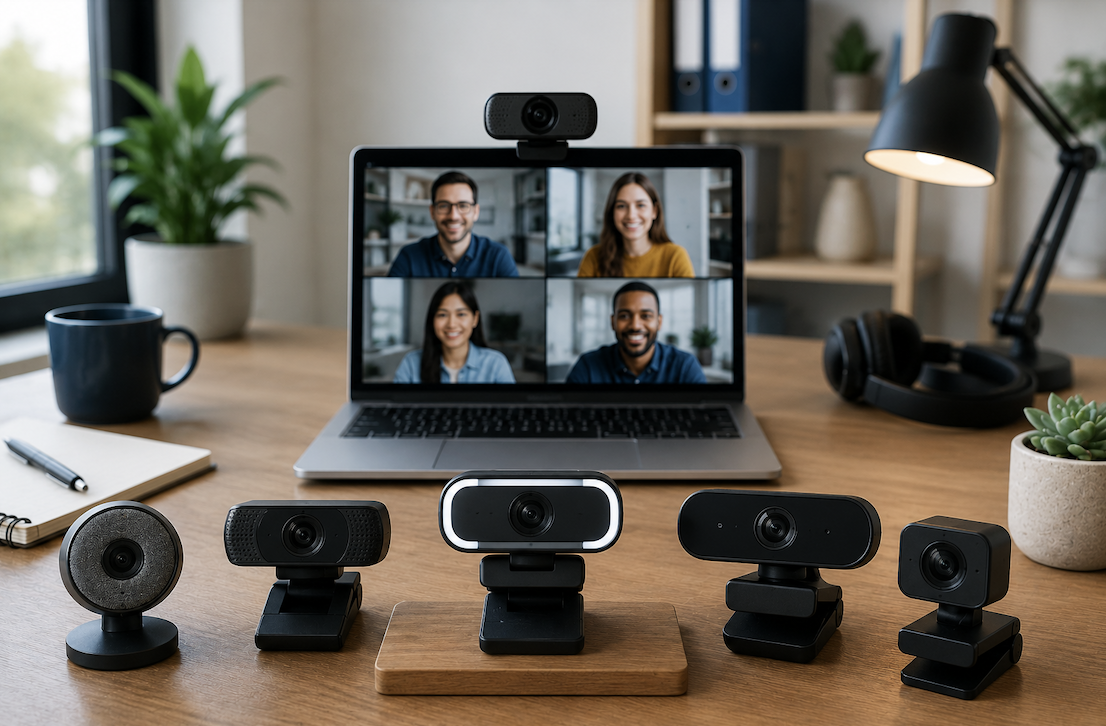
For anyone spending significant time on video calls, a dedicated webcam is one of the more cost-effective upgrades available, often making a bigger visible difference than a more expensive microphone or lighting setup alone. Here’s what actually matters when choosing one.
Why Built-In Laptop Webcams Fall Short
Most built-in laptop webcams use smaller, lower-quality image sensors than dedicated external webcams, given the physical space constraints of fitting a camera into a thin laptop bezel. This generally results in noticeably softer image quality, weaker low-light performance, and a narrower dynamic range compared to even a modestly priced dedicated webcam.
Resolution: 1080p Is the Practical Standard
1080p resolution has become the practical standard for professional video calls, offering noticeably sharper image quality than the 720p resolution common in older or budget built-in cameras. 4K webcams exist but offer diminishing practical benefit for typical video calls, since most video conferencing platforms compress video significantly regardless of the source resolution, making the difference between 1080p and 4K far less noticeable to call participants than the marketing might suggest.
Low-Light Performance: Often More Important Than Resolution
Many home offices and remote work setups have imperfect lighting, making a webcam’s low-light performance arguably more practically important than its maximum resolution. Checking a webcam’s sensor size and any specific low-light enhancement features, rather than resolution alone, gives a better sense of how it will actually perform in a typical home lighting situation rather than an ideal, brightly lit studio environment.
HDR and Image Processing Features
Some webcams include HDR (high dynamic range) processing, which helps balance bright and dark areas within the same frame, such as a bright window behind you combined with a dimmer foreground. This can meaningfully improve image quality in mixed-lighting home office setups where natural window light and indoor lighting create uneven exposure that a standard webcam sensor struggles to balance well.
Field of View: Wider Isn’t Always Better
A wider field of view captures more of the background and surrounding area, which can be useful for group calls with multiple people in frame, but for a typical single-person work call, an overly wide field of view can make the subject appear smaller and more distant unless the camera is positioned quite close. A moderate field of view, roughly comparable to a standard portrait framing, tends to work best for most individual remote work video calls.
USB Connection Standards and Bandwidth
Most webcams connect via USB, and checking that your computer has an available port matching the webcam’s connection standard avoids needing an adapter or hub that could introduce connection reliability issues. For anyone with a laptop that has limited port availability, choosing a webcam compatible with a docking station or hub you already use simplifies the overall desk setup.
Autofocus and Exposure Adjustment
A webcam with reliable autofocus adjusts smoothly as you move slightly during a call, avoiding the distracting hunting or blurring that a fixed-focus camera can show with any movement. Automatic exposure adjustment, which compensates for changing light conditions during a call like a cloud passing or a light being turned on nearby similarly reduces the need for manual adjustment mid-call.
Comparing Webcams Across Price Tiers
Budget webcams generally cover the basics of 1080p resolution and reasonable autofocus, while mid-range models add improved low-light performance and better built-in microphones. Premium webcams typically add features like HDR processing and more sophisticated companion software, though as discussed throughout this guide, the practical difference for typical video calls narrows considerably once you move past the budget tier into a solid mid-range option.
Microphone Quality: Often Overlooked
Many dedicated webcams include a built-in microphone that, while generally better than a laptop’s built-in microphone, still falls short of a dedicated external microphone in overall clarity. For anyone on video calls frequently, pairing a webcam with a separate, dedicated microphone often improves the overall call experience for other participants more than any further webcam upgrade alone would.
Frame Rate Considerations
A higher frame rate produces smoother motion during a call, though for typical talking-head video conferencing, a standard 30 frames per second is generally sufficient, and most video conferencing platforms cap frame rate regardless of what the webcam itself supports. Higher frame rate options matter more for content creation or streaming use cases than for standard remote work video calls.
Mounting Options and Positioning
Most webcams include a clip designed to mount on top of a laptop or external monitor, though checking that the clip design fits your specific monitor thickness, particularly for very thin or curved monitors, avoids an unstable or improperly angled mount. A separate tripod or flexible mounting arm offers more positioning flexibility for anyone with an unusual desk setup that a standard monitor clip doesn’t accommodate well.
Privacy Shutters and Physical Covers
A built-in physical privacy shutter, which slides over the lens when not in use, offers reliable, tamper-proof privacy protection compared to relying solely on software settings to disable the camera. This is a small but genuinely useful feature worth prioritizing for anyone concerned about unauthorized camera access, since a physical cover can’t be bypassed by a software vulnerability the way a purely software-based camera disable setting theoretically could be.
Considering a Dedicated Streaming and Content Creation Webcam
For anyone whose webcam use extends beyond standard remote work calls into content creation or streaming, prioritizing higher frame rate support and more advanced manual controls over autofocus and exposure becomes more relevant, since content creators often want finer manual control than the fully automatic settings most remote work-focused webcams are optimized for by default.
Companion Software Features
Some webcams include companion software offering background blur, framing adjustments, or basic color correction directly through the camera’s own software rather than relying entirely on your video conferencing platform’s built-in features. This can be a useful backup for platforms with weaker built-in background blur, though it’s generally not a deciding factor if your primary conferencing platform already handles these features adequately on its own.
Pairing Your Webcam With Better Lighting
Even a high-quality webcam can’t fully overcome genuinely poor lighting, and a simple, inexpensive ring light or desk lamp positioned in front of rather than behind you improves video quality more than most people expect relative to the low cost involved. This pairing a decent webcam plus basic supplementary lighting tends to produce noticeably better results than an expensive webcam used alone in poor ambient lighting.
Camera Placement Height and Angle
Positioning the camera at or slightly above eye level, rather than looking up from a laptop placed flat on a desk, generally produces a more flattering, professional angle than a low camera angle looking up at the face. A simple laptop stand or monitor mount, in addition to improving physical ergonomics, indirectly improves video call framing as a secondary benefit.
Background Considerations Beyond Software Blur
While software background blur handles most situations adequately, positioning your desk against a genuinely tidy, well-lit wall or corner as a physical backup gives a more polished result on platforms or connections where background blur performs inconsistently, and avoids the occasional visual glitching that virtual backgrounds can sometimes show around hair or fast movement.
Warranty and Driver Support Considerations
Checking a webcam manufacturer’s history of ongoing driver and software updates is worth a quick look before purchase, since a webcam that stops receiving software support can develop compatibility issues with newer operating system updates over time. This is a relatively minor consideration compared to the core image quality factors above, but worth a brief check for anyone planning to use the same webcam for several years.
Testing a Webcam Before an Important Call
Testing a new webcam setup, including lighting and framing, during a low-stakes call or a solo test recording before an important meeting or presentation catches issues like awkward framing or unexpected glare that are much easier to fix in advance than to notice for the first time during an actual important call.
Common Webcam Buying Mistakes
Prioritizing resolution above all else, while ignoring low-light performance, is a common mistake given how much home office lighting varies from an ideal studio setup. Assuming a webcam’s built-in microphone will be sufficient without testing it first is another common oversight, since audio quality often matters more to call participants than video quality, despite receiving less purchasing consideration in practice.
Considering Bundled Accessories
Some webcams ship with a small tripod, a cleaning cloth, or a carrying case, which adds modest value for anyone who plans to travel with the webcam between a home office and other locations. These extras rarely justify choosing one webcam over another on their own, but they’re a reasonable tiebreaker between two otherwise comparable options at a similar price point.
Considering Multiple Webcams for Different Purposes
For anyone splitting time between a home office desk setup and a laptop used elsewhere, a compact, travel-friendly webcam for the laptop paired with a more feature-rich desk webcam covers both use cases without compromising either setup, rather than trying to find one webcam that serves both purposes equally well.
Conclusion
For most remote work video calls, a 1080p webcam with solid low-light performance and reliable autofocus, paired with basic supplementary lighting and, ideally, a separate microphone, delivers a noticeably more professional call experience than relying on a laptop’s built-in camera alone. Resolution beyond 1080p offers diminishing practical benefit given how heavily most video conferencing platforms compress the video regardless of source quality.
- You May Want To Know: Why External Workforce Management Systems Will Be Essential!