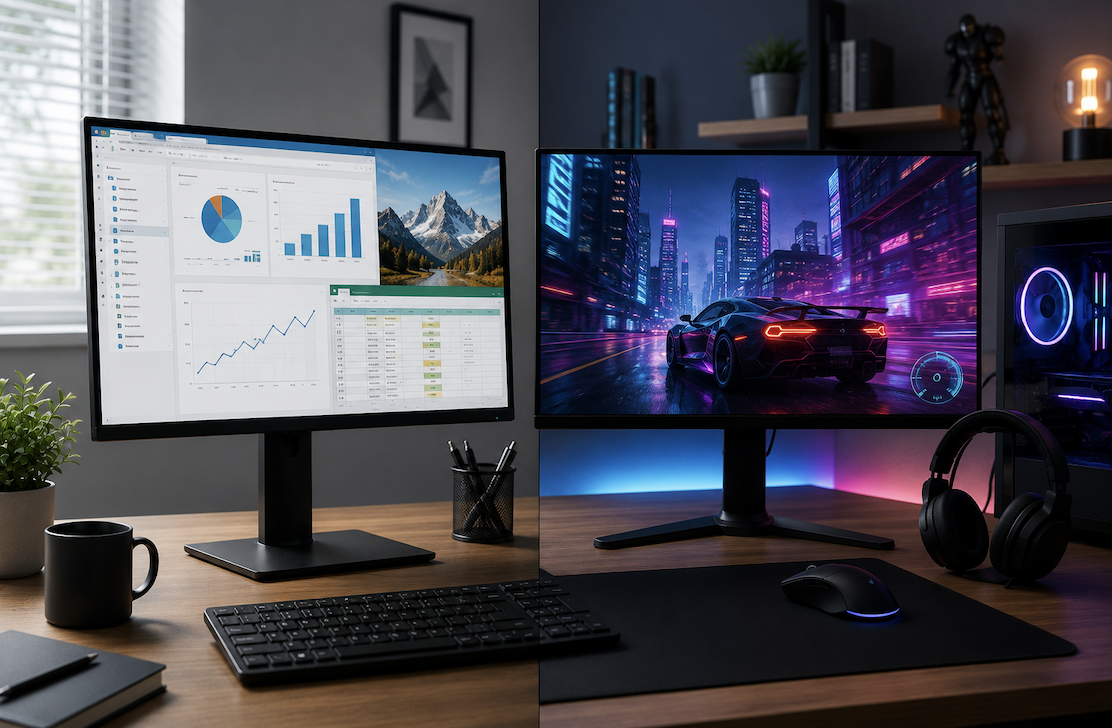
A monitor meant to handle both work and gaming needs to balance priorities that don’t always align perfectly what makes a monitor great for spreadsheet work isn’t necessarily what makes it great for fast-paced gaming. Here’s how to think through the tradeoffs and find a reasonable middle ground.
Aspect Ratio and Ultrawide Options
Standard 16:9 monitors remain the most universally compatible option for both work and gaming, with the widest software and game support. Ultrawide monitors (21:9 or wider) offer significantly more horizontal screen space, which can replace a dual-monitor setup for productivity and offers an immersive experience in supported games, though not every game or application handles the wider aspect ratio equally well, making it worth checking compatibility with your specific most-used software and games before committing to an ultrawide format.
Resolution: The Starting Point
1080p remains a budget-friendly, widely compatible resolution that’s easy to run smoothly even with modest hardware, but it shows its limitations on larger screens or for detailed work like photo editing. 1440p offers a noticeably sharper image and more usable screen space for multitasking, representing a strong middle ground for most work-and-gaming setups. 4K offers the sharpest detail and the most screen real estate for productivity, but requires significantly more graphics power to run smoothly in demanding games, which is worth factoring in alongside your current or planned graphics card.
Adaptive Sync Technology
Adaptive sync features, which synchronize the monitor’s refresh rate with your graphics card’s frame output, reduce visual tearing and stuttering during gaming without needing to cap frame rates manually. Confirming your monitor and graphics card support a compatible adaptive sync standard is worth checking specifically, since mismatched or unsupported combinations mean this smoothing effect won’t function even if both individual components technically support some version of the technology.
Refresh Rate: Why It Matters More for Gaming Than Work
A 60Hz refresh rate is generally sufficient for productivity work, where fast motion on screen is rare. For gaming, particularly fast-paced or competitive titles, a higher refresh rate (100Hz to 144Hz or beyond) makes motion appear noticeably smoother and can genuinely improve reaction-based gameplay. A monitor in the 144Hz range offers a reasonable middle ground, providing a clearly noticeable gaming improvement over 60Hz without the cost premium of the highest refresh rate options on the market.
Considering Eye Comfort Features
Features like flicker-free backlighting and adjustable blue light filtering can reduce eye strain during long work sessions, and are worth checking for specifically if you spend many consecutive hours at the monitor for work. These comfort-focused features rarely affect gaming performance either way, making them a reasonable additional checkbox rather than a tradeoff against gaming specs.
Panel Types: IPS vs VA vs TN
IPS panels offer the best color accuracy and widest viewing angles, making them well-suited for both creative work and general gaming, though historically with slightly slower response times than TN panels (a gap that has narrowed considerably in recent years). VA panels offer excellent contrast and deep blacks, making them a strong choice for movie watching and certain game genres, though color accuracy and viewing angles are typically a step behind IPS. TN panels offer the fastest response times and often the lowest prices, making them popular in competitive gaming setups, but they generally show noticeably worse color accuracy and viewing angles, making them a weaker choice for work involving color-sensitive tasks.
Response Time and Why It’s Different From Refresh Rate
Response time measures how quickly a pixel can change color, while refresh rate measures how many times per second the image updates. A high refresh rate paired with a slow response time can still produce visible motion blur, so for fast-paced gaming specifically, checking both specifications together — rather than refresh rate alone — gives a more complete picture of actual motion clarity.
Screen Size and Viewing Distance
A larger monitor isn’t automatically better if it’s too close to a typical desk setup, since oversized screens at close range can require excessive head movement to see the full display. As a general guideline, 27 inches is a comfortable, versatile size for most desk setups at typical viewing distances, while larger sizes benefit from either more desk depth or a slightly curved panel to keep the edges within comfortable view.
Curved vs Flat Displays
Curved monitors can improve immersion in gaming and reduce eye movement across very wide or large screens, but they’re less ideal for tasks involving straight lines, like spreadsheet work, graphic design, or video editing, where a curved edge can slightly distort perceived alignment. For a monitor genuinely split between serious productivity work and gaming, a flat panel is generally the safer, more broadly functional choice.
HDR: Worth It or Marketing Hype?
HDR (high dynamic range) can meaningfully improve contrast and color range in supported games and media, but budget monitors advertising HDR compatibility often lack the actual brightness capability to display a genuinely noticeable HDR effect. Checking a monitor’s peak brightness rating specifically, rather than trusting an “HDR-compatible” label alone, is the more reliable way to judge whether HDR will look meaningfully different on a given monitor.
Reading Independent Reviews Over Marketing Specs
Manufacturer specification sheets represent best-case, ideal-condition numbers, and independent reviews that measure actual color accuracy, real response times, and genuine HDR brightness give a far more reliable picture than the marketing specifications alone. This is particularly worth doing for any monitor purchase where color accuracy or HDR performance is a genuine priority rather than a secondary consideration.
Color Accuracy for Creative and Detail Work
For any work involving photo editing, video editing, or design, checking a monitor’s color gamut coverage and factory calibration is worth prioritizing over gaming-focused specs like refresh rate. A monitor advertised primarily for gaming may still perform reasonably for casual creative work, but dedicated color-accurate monitors, typically IPS-based, remain the safer choice for anything where color precision genuinely matters for the final output.
Connectivity and Ports
DisplayPort generally supports higher refresh rates and resolutions than HDMI at a given cable generation, making it the preferred connection for high-refresh-rate gaming where available. Checking that your graphics card and monitor support matching versions of these connection standards avoids the disappointment of a monitor that can’t actually reach its advertised refresh rate or resolution due to a mismatched or outdated cable and port combination.
Built-In Speakers, Webcams, and Extra Features
Some monitors include built-in speakers, webcams, or USB hubs, which can reduce desk clutter by consolidating cables and peripherals into the monitor itself. These built-in extras are generally convenient but rarely match the quality of dedicated standalone peripherals, so they’re worth treating as a helpful bonus rather than a primary purchasing factor, particularly for anyone who already owns separate speakers or a webcam they’re happy with.
Adjustability and Ergonomics
A monitor stand that supports height, tilt, and swivel adjustment matters more for comfortable long-term desk use than most buyers initially prioritize. A monitor positioned at an improper height or angle contributes to neck and eye strain over extended work sessions, making adjustability a practical consideration worth checking, particularly for anyone spending many hours a day at the same desk setup.
Multi-Monitor Setup Considerations
If you’re planning a multi-monitor setup, matching resolution and refresh rate across displays creates a more consistent, comfortable experience than mixing significantly different specs, since windows and cursor movement can feel jarring when moving between screens with mismatched refresh rates. It’s also worth confirming your graphics card has enough available ports to drive multiple monitors at your desired resolution and refresh rate simultaneously before purchasing additional displays.
Warranty and Dead Pixel Policies
Monitor warranties and dead pixel policies vary significantly between manufacturers, with some offering zero-dead-pixel guarantees and others allowing a small number of defective pixels before qualifying for replacement. Checking this policy before purchase, particularly for monitors bought for color-sensitive creative work, avoids being stuck with a minor but permanent defect that falls just outside the manufacturer’s replacement threshold.
A Reasonable Budget Breakdown
For a monitor genuinely balancing work and gaming, a 1440p IPS panel with a refresh rate around 144Hz represents a strong, well-rounded middle ground for most people, avoiding the compromises of either a pure budget 1080p/60Hz option or the higher cost of a 4K high-refresh-rate display that also demands considerably more graphics power to fully utilize.
Considering Refresh Rate Overclocking
Some monitors support overclocking their refresh rate slightly beyond the advertised specification through settings in the monitor’s menu, though results vary by individual unit and aren’t guaranteed. This is a minor bonus worth knowing about rather than a primary purchasing factor, and shouldn’t be relied upon as the deciding reason to choose one monitor over another with a higher native advertised refresh rate.
Common Monitor Buying Mistakes
Focusing exclusively on refresh rate while ignoring panel type is a common mistake, since a high refresh rate on a low-quality panel still produces a mediocre overall image for both work and gaming. Buying a monitor with a resolution and refresh rate combination your current graphics card can’t actually drive well in games is another common issue, worth checking against your specific GPU’s realistic performance before assuming the monitor will look as impressive in practice as its specifications suggest.
The Bottom Line
For a monitor meant to handle both productivity and gaming well, a 1440p IPS panel with a refresh rate in the 144Hz range offers the most balanced combination of color accuracy, sharpness, and smooth motion without requiring the most expensive tier of hardware to drive effectively. Checking connectivity compatibility with your specific graphics card and prioritizing panel type alongside refresh rate rather than refresh rate alone avoids the most common disappointments after purchase.
- You May Want to Know – Definitive Technology: 10 Game-Changing Features You Need to Know!