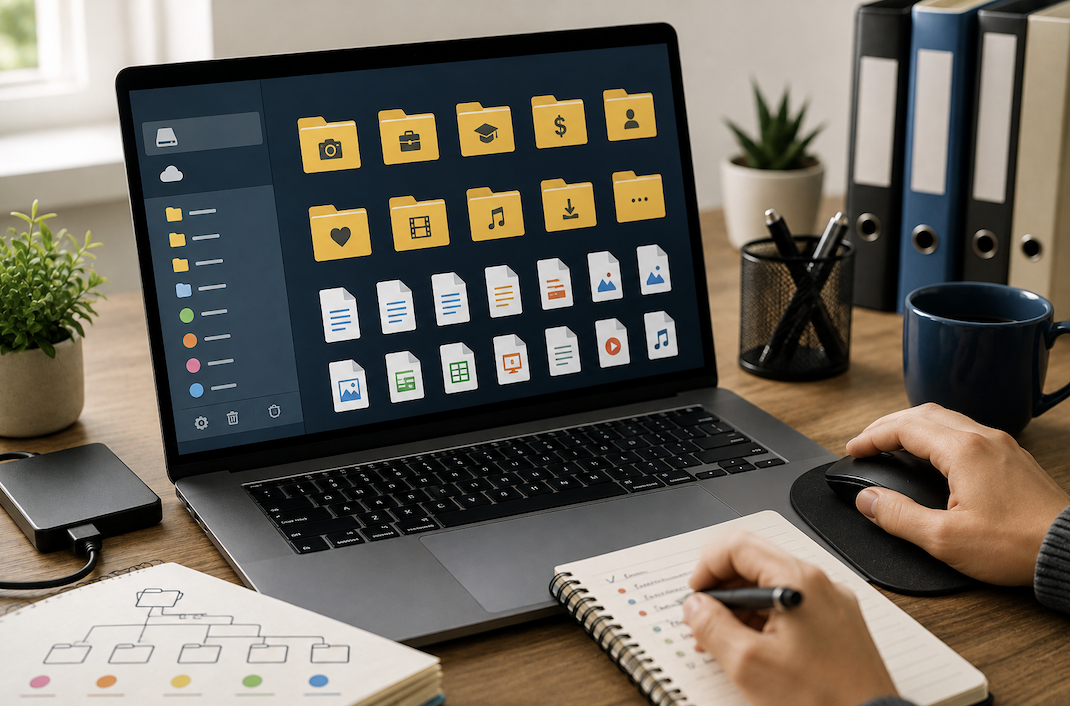
Most people’s digital files end up organized by accident rather than by design a downloads folder that’s become a dumping ground, desktop icons scattered without pattern, duplicate files saved in multiple places because the original couldn’t be found. A deliberate, simple system fixes this permanently, and it takes far less ongoing effort than most people expect once it’s set up.
Why File Organization Matters Beyond Just Tidiness
Poor file organization costs real time, not just visual clutter time spent searching for a specific document, recreating a file that already exists somewhere but can’t be located, or accidentally working from an outdated version because the current one wasn’t where it was expected to be. A clear system prevents all three of these common, recurring frustrations.
Handling Shared and Collaborative Folders
For files shared with family members or colleagues, agreeing on a shared naming and folder convention upfront prevents the confusion that comes from multiple people organizing the same shared space differently. A brief, written explanation of the agreed structure, kept in a top-level readme-style note within the shared folder itself, helps new collaborators follow the existing system rather than introducing their own inconsistent approach.
Starting With a Simple Top-Level Structure
Rather than an elaborate, deeply nested folder system, a small number of clear top-level categories something like Work, Personal, Financial, Photos, and Archive gives every file a logical home without requiring extensive thought each time you save something new. Overly complex folder structures with many nested layers tend to break down over time, since remembering exactly where a file belongs becomes harder the deeper the structure goes.
Organizing Email Attachments Separately
Important attachments left buried in email threads are easy to lose track of over time. Making a habit of saving genuinely important attachments into your main organized folder structure, rather than relying on searching through email later, keeps important documents consistently accessible alongside everything else rather than scattered across two separate, inconsistently searched systems.
Establishing a Consistent Naming Convention
A consistent file naming pattern makes files far easier to locate through search alone, even without needing to navigate to the correct folder. A useful, simple pattern is date, followed by a brief descriptive name, such as “2026-08-15_ClientProposal.” This keeps files chronologically sortable within a folder while remaining descriptive enough to identify at a glance.
Version Control Without Specialized Software
For documents that go through multiple revisions, appending a version number or date to the filename (rather than relying on vague terms like “final” or “latest”) keeps the revision history clear even without dedicated version control software. Many cloud services also maintain automatic version history in the background, which is worth understanding and relying on instead of manually keeping many separate saved versions of the same file cluttering a folder.
Using Dates in Filenames Effectively
Formatting dates as year-month-day (rather than month-day-year) ensures files sort correctly in chronological order within a folder, since most file systems sort alphabetically, and a year-first format aligns alphabetical and chronological order automatically. This small formatting choice prevents files from appearing in a confusing, non-chronological order as a folder grows over time.
Deciding What’s Actually Worth Keeping
Not every file needs to be preserved indefinitely, and periodically reviewing older archived material for anything genuinely no longer needed outdated drafts, superseded reference material, duplicate downloads keeps storage and backup systems focused on what actually matters rather than growing indefinitely with material that will likely never be referenced again.
Separating Active Work From Archives
Keeping a clear distinction between files you’re actively working on and completed or older files you’re keeping for reference prevents your main working folders from becoming cluttered with outdated material. Periodically moving completed projects into a dedicated archive folder, rather than leaving everything in one continuously growing active folder, keeps your day-to-day workspace easier to navigate.
Organizing a Desktop That’s Gotten Out of Control
A desktop covered in icons is one of the most common signs an organization system has broken down, since the desktop tends to become a default save location out of convenience rather than intention. Treating the desktop purely as a temporary holding area with a recurring habit of filing everything into its proper folder within a day or two rather than a permanent storage location prevents this particular kind of clutter from accumulating indefinitely.
Cloud vs Local Organization: Keeping Them Consistent
If you use both local storage and a cloud service, mirroring the same folder structure across both avoids the confusion of files being organized differently depending on which one you happen to open at the time. Many cloud services also offer selective sync, letting you keep your full organized structure in the cloud while only syncing the folders you need locally, keeping local storage from filling up unnecessarily.
Using Search Effectively as a Supplement
Even with a solid folder structure, modern operating systems and cloud services offer powerful search that can locate files by name, content, or file type almost instantly. Relying on search as a backup to folder navigation, rather than either exclusively, gives the best of both approaches: a logical structure for browsing and context, plus fast retrieval when you know roughly what you’re looking for but not exactly where it was filed.
Folders vs Tags: Which Approach Fits Better
Traditional folders work well when a file clearly belongs to one primary category. Tags, supported by some operating systems and cloud services, allow a single file to be associated with multiple categories simultaneously, which is useful for files that don’t fit neatly into just one folder. For most personal use, a solid folder structure alone is sufficient, with tags serving as a useful supplement for files that genuinely span multiple categories rather than a replacement for folders entirely.
Taming the Downloads Folder
The downloads folder is one of the most common sources of digital clutter, since files land there by default regardless of where they actually belong long-term. Setting a recurring habit weekly or biweekly to sort through downloads and either file items into their proper folder or delete what’s no longer needed prevents this folder from becoming an unmanageable backlog.
Organizing Photos Specifically
Photos benefit from a somewhat different approach than documents, since browsing by date or event is usually more useful than a topic-based folder structure. Organizing photos into folders by year and, within that, by specific event or trip, combined with using a cloud photo service’s automatic date-based organization and search features, covers most people’s practical needs without requiring extensive manual folder management for every individual photo.
Handling Duplicate Files
Duplicate files accumulate naturally over time, particularly when the same file gets downloaded or saved from multiple sources. Periodically running a duplicate file finder tool, many of which are free, and reviewing what it identifies before deleting, helps reclaim storage space and reduces confusion about which version of a file is the current one.
Syncing Across Multiple Devices
If you regularly work across a computer, tablet, and phone, using a cloud service that automatically syncs your organized folder structure across all devices keeps everything consistent, rather than manually transferring files and risking different devices ending up with different versions of the same file over time.
How This Connects to Your Backup Strategy
A well-organized file structure also makes backups more effective, since it’s far easier to confirm your backup actually covers everything important when files are logically grouped rather than scattered. If you haven’t already set up a proper backup routine, organizing your files first makes that process considerably more straightforward to configure correctly.
Setting Up Automated Organization Rules
Some operating systems and cloud services support automated rules that sort incoming files based on type or source, such as automatically routing screenshots into a dedicated folder. Setting up a small number of these automated rules for your most common, repetitive file types reduces the manual filing effort needed to keep the system maintained over time.
Common Organization Mistakes
Creating an overly complex folder structure with many nested subfolders is a common mistake that often does more harm than good, since it becomes harder to remember where things belong the deeper the structure goes. Saving files with vague, generic names like “Document1” or “Final_Final_v2” is another common issue that undermines even a well-structured folder system, since the file itself becomes hard to identify regardless of which folder it’s stored in.
Naming Conventions for Shared Household Files
For households sharing a computer or cloud storage, prefixing filenames with a family member’s initials for personal documents, while keeping shared items (like household budgets or shared photos) under a clearly neutral naming pattern, prevents confusion about whose file is whose without requiring entirely separate folder structures for each person’s material.
Maintaining the System Long-Term
A file organization system only stays useful if it’s maintained consistently rather than set up once and abandoned. Building small habits filing a document immediately rather than leaving it on the desktop “for now,” doing a quick monthly review of the downloads folder, and archiving completed projects promptly keeps the system functional without requiring a large, occasional cleanup effort.
Conclusion
A simple, consistent folder structure combined with a clear naming convention solves the majority of everyday file organization frustration, without needing an elaborate or overly complex system. Keeping cloud and local storage consistent, taming the downloads folder regularly, and building small filing habits into your routine keeps the system working long after the initial setup effort.
- Read more about Technewweb!