
External storage used to mean a spinning hard drive rattling in a plastic case, slow to wake up and easy to damage with a single drop. Solid-state drives changed that equation entirely, offering speeds that make transferring a large video project or a full photo library a matter of minutes rather than hours, along with far better resistance to the bumps of daily travel.
With dozens of models on shelves at wildly different price points, picking the right external SSD means looking past the marketing headline speed and matching a drive’s real capabilities to how it will be used.
Speed Ratings and What They Mean in Practice
Every external SSD advertises a maximum transfer speed, usually expressed in megabytes per second, but that number represents a best-case scenario under specific conditions rather than a guarantee for every file transfer. Sequential speeds, measured by moving one large file, are almost always higher than random read and write speeds, which matter more when working with thousands of small files such as a folder of RAW photos or a software project with many source files.
The interface a drive uses caps its maximum possible speed regardless of how fast the internal memory chips are. A drive built around USB 3.2 Gen 2 tops out at a different ceiling than one built around USB4 or Thunderbolt, and pairing a fast drive with an older port on a laptop or desktop means the connection, not the drive, becomes the limiting factor. Buyers upgrading their storage should check their computer’s real port specifications before assuming a headline speed will be reachable in real use.
- Sequential speed: Reflects performance moving one large file, the number most commonly advertised on packaging.
- Random read and write speed: Matters more for tasks involving many small files, such as loading a project folder or an operating system.
- Sustained write performance: Some drives slow down substantially after their fast cache fills during a large, continuous transfer.
- Interface bottlenecks: A drive’s advertised speed can only be reached if the host device’s port supports a matching or faster standard.
Thermal throttling is a less-discussed factor that affects real-world speed on longer transfers. Compact SSDs packed into small aluminum or plastic enclosures can heat up during sustained heavy use, causing the drive to reduce its own speed to avoid damage, which shows up as a slowdown partway through a very large file copy rather than a steady rate from start to finish.
Marketing speed figures are typically generated under laboratory conditions using a specific benchmarking tool, ambient temperature, and file type, none of which perfectly mirror how a drive gets used at a kitchen table or in a bag during a hot afternoon. Independent review sites that test drives with a mix of large and small file transfers, and under sustained load rather than a short burst, tend to give a far more reliable picture of everyday performance than the number printed on the retail box. Buyers making a purchase based primarily on speed should look for these independent benchmarks rather than relying solely on manufacturer claims, since two drives with an identical advertised top speed can behave quite differently once a transfer runs for several minutes rather than a few seconds.
Metal enclosures generally dissipate heat more effectively than plastic ones, giving them an edge in sustained performance during long transfers, though this comes with a modest weight and cost increase. Drives designed with a larger surface area or small internal heat sink tend to maintain their top speed for longer stretches, which matters most to buyers regularly moving very large video files or complete system backups rather than occasional smaller documents.
Connector Types and Cable Compatibility

The physical connector on an external SSD, and the cable used to attach it, matters as much as the internal speed of the drive itself. USB-C has become the near-universal standard across new laptops, phones, and tablets, but USB-C as a shape doesn’t guarantee any specific speed, since the same connector shape is used for standards ranging from basic USB 2.0 speeds up to the fastest Thunderbolt implementations.
Thunderbolt, a standard developed with Intel and Apple involvement and now converging with USB4, delivers the highest available speeds and is common on many premium drives aimed at video editors and other professionals moving huge files regularly. USB4 has narrowed the gap with Thunderbolt substantially, and newer drives increasingly support both standards through the same physical port, simplifying compatibility across a mixed fleet of devices.
- USB-C connector shape: Now standard across most modern devices, though the underlying speed standard varies by product.
- Thunderbolt support: Offers the fastest available speeds, especially valuable for professional video and large dataset workflows.
- USB4 compatibility: Increasingly converges with Thunderbolt speeds while remaining broadly compatible with standard USB-C ports.
- Cable quality and length: A poor-quality or overly long cable can prevent a drive from reaching its full rated speed even on a compatible port.
Cable choice deserves more attention than most buyers give it. A cable rated for basic charging and slow data transfer, even with the correct connector shape, will bottleneck a fast drive regardless of the drive’s own capability, so keeping the cable that ships with a premium drive, or replacing a lost one with a properly rated replacement, protects the investment made in the drive itself.
Backward compatibility across connector generations is generally solid, letting a newer drive plug into an older port and still function, but at the older port’s slower ceiling rather than the drive’s full potential speed. This matters for buyers with a mix of newer and older computers in a household or office, since the same drive will perform noticeably differently depending on which machine it’s connected to at any given time.
Docking stations and hubs add another variable, since routing a drive’s connection through a multi-port hub can introduce its own bottleneck if the hub itself doesn’t support the same speed standard as the drive and host device, a detail worth checking before assuming a hub is a transparent pass-through.
Durability Features for Life on the Road
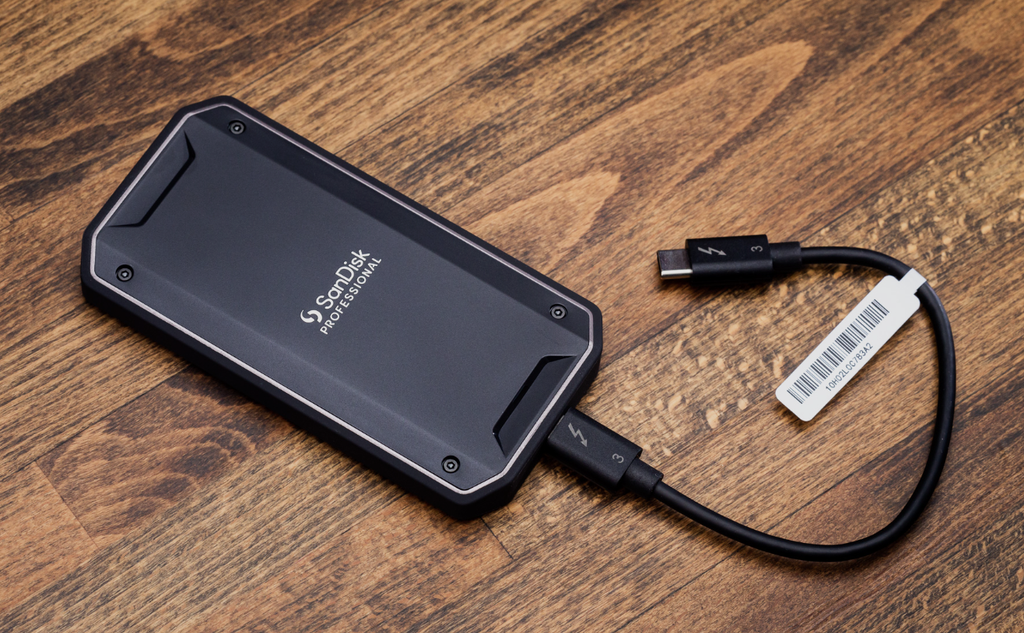
One of the clearest advantages solid-state drives hold over traditional hard drives is the absence of moving parts, which removes the biggest source of damage from drops and vibration during travel. Many external SSDs marketed for field use add rubberized or silicone bumpers, shock-resistant internal mounting, and IP-rated dust and water resistance, making them a natural fit for photographers, videographers, and field researchers working away from a controlled office environment.
- Shock resistance ratings: Many rugged drives are tested to survive drops from a meter or more onto hard surfaces.
- IP-rated water and dust resistance: A rating like IP65 or IP67 indicates a drive can handle splashes, dust, and brief submersion.
- Operating temperature range: Rugged models are often rated for a wider temperature range than standard consumer drives, useful in extreme climates.
- Included protective cases: Some drives ship with a hard carrying case designed to absorb impact during transport in a bag.
Buyers who don’t need extreme ruggedization can often save money by choosing a standard external SSD and pairing it with a simple protective sleeve, since everyday office and home use rarely subjects a drive to the kind of abuse rugged models are built to survive. Matching the durability tier to the real use case avoids paying a premium for protection that will never be tested.
Capacity Planning for Different Workflows
Capacity needs vary enormously depending on what a drive will store, and buyers frequently either overspend on space they’ll never fill or underspend and find themselves shopping for a second drive within a year. Photographers working primarily with compressed JPEG files need far less space than videographers working with raw 4K or 8K footage, where a single project can consume hundreds of gigabytes before editing even begins.
A reasonable approach is to calculate current storage needs based on recent projects, then add a worthwhile buffer for growth rather than buying exactly enough space for today’s files. Solid-state drives also benefit from operating with some free space rather than running consistently near full capacity, since performance on many drives can decline as available space shrinks toward the last few percent of total capacity.
Backup strategy should factor into capacity planning as well. A single external SSD, no matter how large, represents a single point of failure, and professionals working with irreplaceable footage or client files typically maintain at least two copies across separate physical drives, with an additional cloud or offsite copy for critical projects.
Multi-drive setups also help spread out risk when a single large drive would otherwise hold years of accumulated files in one place. Some buyers prefer two or three mid-capacity drives organized by project type or year rather than one very large drive holding everything, since a failure or loss affects a smaller portion of the total archive. This approach also makes it easier to keep an older project drive disconnected and safely stored once a project wraps, rather than leaving every file exposed to daily wear on a single actively used drive. Labeling drives clearly and keeping a simple written or digital log of what’s stored where becomes increasingly valuable as a personal or small business archive grows across several physical devices over multiple years.
Comparing Popular Brands and Product Lines

Samsung’s T-series drives, including the T7 and its successors, have become a common reference point in the category for balancing speed, size, and price for general consumer use. SanDisk’s Extreme series targets a similar audience while emphasizing ruggedization more heavily in several models. Crucial and WD both offer competitive options at various price points, often undercutting premium brands on cost while delivering comparable everyday performance for typical file transfer and backup tasks.
At the professional end, drives built around Thunderbolt from brands like OWC and LaCie target video editing workflows where sustained high-speed transfer matters more than portability or price. LaCie in specific has built a long-standing reputation for rugged, professional-grade external storage aimed at photographers and filmmakers working in demanding field conditions.
- Samsung T-series: A widely available consumer option balancing compact size, dependable speed, and broad compatibility.
- SanDisk Extreme line: Emphasizes rugged construction alongside solid everyday transfer speeds.
- Crucial and WD budget options: Offer competitive pricing for buyers prioritizing capacity over top-tier speed.
- LaCie and OWC professional drives: Built around Thunderbolt for sustained high-speed transfer in video and photo workflows.
Warranty length varies across brands and product tiers, with some consumer drives covered for a few years and select professional lines extending coverage further given their higher price point and target audience of working professionals who depend on the hardware daily. Reading warranty terms closely reveals differences beyond just duration, since some manufacturers cover only manufacturing defects while others include a limited data recovery service for drives that fail within the coverage window, a benefit that can matter far more than the drive’s replacement cost if an irreplaceable project is at stake.
Regional availability and after-sales support also vary between brands, with some manufacturers maintaining stronger local repair or replacement networks in certain countries than others. Buyers who travel frequently or live outside a manufacturer’s primary market may want to confirm warranty service is available in practice where they live before assuming a printed warranty period translates into convenient support if something goes wrong.
Formatting and File System Choices
An external SSD arrives formatted with a specific file system, and that choice affects compatibility across operating systems in ways that surprise buyers switching between a Mac and a Windows machine. exFAT has become the most broadly compatible option, readable and writable by both major operating systems without additional software, making it a sensible default for drives that will move between different computers.
NTFS, the default Windows file system, offers full read and write support on Windows but only read access on macOS without additional third-party software installed. APFS and HFS+, the native macOS file systems, face the reverse problem, generally unreadable on a standard Windows installation without extra tools. Buyers who work primarily on one platform but occasionally need to share files with the other should default to exFAT unless there’s a specific reason to use a platform-native format.
- exFAT: The most broadly compatible format across Windows and macOS, ideal for drives moved between different computers.
- NTFS: Native to Windows with full read and write access, but limited to read-only on macOS without added software.
- APFS or HFS+: Native macOS formats offering the best performance on Apple systems but poor compatibility with Windows.
- exFAT file size limits: Unlike older FAT32 formatting, exFAT supports individual files well beyond 4 gigabytes, important for large video files.
Reformatting a drive erases its existing contents, so buyers switching a drive’s file system after initial use should back up any important files elsewhere first, then reformat, rather than assuming the process preserves existing data.
Final Thoughts
Choosing an external SSD comes down to matching interface speed, durability, capacity, and file system format to how the drive gets used day to day. A drive with an impressive headline speed offers little benefit if it’s paired with an older port that caps the connection well below its potential, and a rugged, weather-resistant model may be unnecessary spending for someone who only ever uses a drive at a desk.
Formatting choice matters more than many buyers expect when files need to move between different operating systems. Taking a few extra minutes to check interface compatibility, realistic capacity needs, and backup strategy before purchasing leads to a far more satisfying result than choosing based on price or brand recognition alone.
Frequently Asked Questions
Are external SSDs more reliable than external hard drives?
Solid-state drives lack moving parts, making them far more resistant to damage from drops and vibration than traditional hard drives, though both drive types can still fail, so backups remain important regardless of which type is used.
How much faster is an external SSD compared to a hard drive?
External SSDs typically transfer data several times faster than a comparable external hard drive, with the exact difference depending on the specific interface and drive quality on both sides of the comparison.
Can an external SSD be used to run an operating system?
Some external SSDs, especially those with fast interfaces like Thunderbolt or USB4, can boot an operating system, though performance and official support vary by device manufacturer and computer model.
Do external SSDs need to be defragmented?
No, defragmentation is unnecessary and can add wear to solid-state storage without providing the performance benefit it offers on traditional spinning hard drives.
How long do external SSDs typically last?
Modern SSDs are rated for a substantial number of write cycles before wear becomes a concern, and for typical backup and file transfer use, most drives remain reliable for many years under normal conditions.
Should I buy a drive based on capacity alone or also consider speed?
Both matter, and the right balance depends on the workflow. Large file backups benefit more from capacity, while active project work with large media files benefits more from a faster interface and sustained write performance.