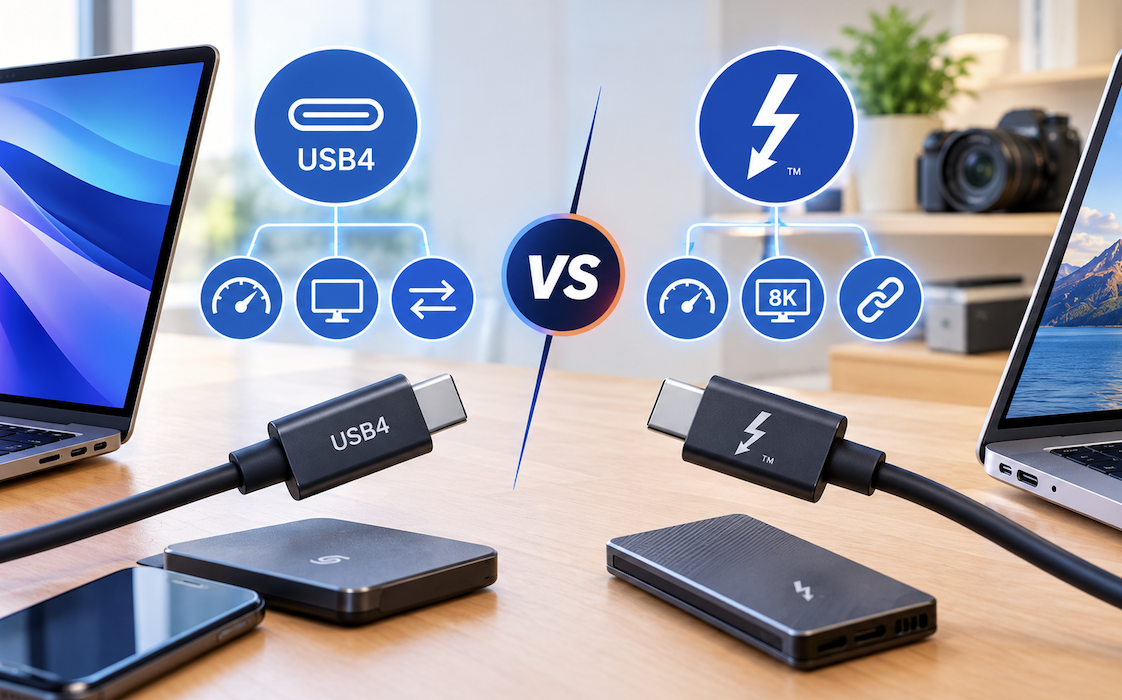
A shopper stands in an electronics store aisle, staring at two nearly identical-looking cables, one labeled USB4 and one labeled Thunderbolt 4, both claiming to support the same fast charging and data transfer speeds. The packaging offers little clarity, the price difference is significant, and the sales associate isn’t much help either. This confusion is common, and it’s not entirely the shopper’s fault these two standards share a complicated, overlapping history that even some tech-savvy buyers misunderstand.
The Historical Relationship Between These Two Standards
Thunderbolt and USB4 aren’t unrelated competitors Thunderbolt 3’s technical specification directly became the foundation for USB4 when the USB Implementers Forum adopted it as a base requirement for the newer standard. This shared lineage explains why USB4 and Thunderbolt devices often look identical and use the same physical connector, and why cables and ports can sometimes work interchangeably between the two standards, though not always reliably or at full advertised performance.
Core Technical Differences That Matter
Despite their shared ancestry, meaningful differences remain between USB4 and Thunderbolt 4, and these differences affect real-world performance and compatibility.
- USB4 has a minimum required speed of 20 Gbps, while Thunderbolt 4 requires a guaranteed 40 Gbps minimum
- Thunderbolt 4 mandates support for at least two 4K displays or one 8K display, while USB4’s display support requirements are less strict
- Thunderbolt 4 requires certification testing by Intel, while USB4 certification, while still rigorous, follows a different governing process
- Thunderbolt 4 guarantees PCIe data minimum speeds for external storage, while USB4 leaves this more flexible depending on manufacturer implementation
This flexibility built into the USB4 specification is both its strength and its weakness. It allows manufacturers to build more affordable devices that don’t need every high-end feature, but it also means two products both labeled “USB4” can perform quite differently from each other, unlike Thunderbolt 4’s stricter, more consistent certification requirements.
Why Cable Quality Matters More Than Most Buyers Realize
Not every cable that physically fits a USB-C port supports the same speeds, and this is one of the most common sources of frustration among buyers who assume any cable will deliver full performance.
Cables rated for basic USB-C charging often support far lower data transfer speeds than a proper USB4 or Thunderbolt cable
- Active cables, required for longer lengths at full speed, cost noticeably more than passive cables but maintain performance over distance
- Cheap, unmarked cables frequently fail to deliver anywhere near their box’s advertised speed in real-world testing
- Certified Thunderbolt cables carry a lightning bolt icon, making them easier to visually distinguish from generic USB-C cables
Buying a cheap cable to save a few dollars is one of the most common reasons people experience disappointing transfer speeds or charging performance despite owning otherwise capable devices on both ends of the connection.
Real-World Performance Differences You’ll Notice
For most everyday tasks, the practical difference between USB4 and Thunderbolt 4 is smaller than the marketing suggests, but certain use cases reveal a clear gap.
- Transferring large video files from an external SSD shows minimal real-world difference for most consumer drives, which rarely saturate either standard’s full bandwidth
- Running multiple high-resolution external displays simultaneously is where Thunderbolt 4’s stricter display requirements provide a more consistent experience
- Professional video editing workflows involving RAID storage arrays benefit more noticeably from Thunderbolt’s guaranteed minimum speeds
- Daily tasks like charging a laptop or connecting a single monitor perform nearly identically across both standards for most users
Your actual use case matters more than chasing the higher spec number on a box. A casual user connecting a single external drive and monitor is unlikely to notice any meaningful difference between the two standards in daily use.
Compatibility Considerations When Mixing Devices
Because USB4 and Thunderbolt share physical connectors and significant technical overlap, mixing devices from both standards is common, but it comes with some compatibility caveats worth before assuming everything will work seamlessly together.
- A Thunderbolt 4 device connected to a USB4 port will generally work, though it may not achieve full Thunderbolt speeds if the port doesn’t support them
- A USB4 device connected to a Thunderbolt port typically works fine, since Thunderbolt requirements meet or exceed USB4’s minimums
- Older Thunderbolt 3 devices are generally compatible with USB4 ports, given the shared technical foundation between the standards
- Checking both the device and cable specifications together, rather than assuming any USB-C combination will work identically, avoids unexpected performance issues
Manufacturers don’t always make these compatibility nuances obvious in product marketing, which is part of why researching actual specifications, rather than relying solely on a “USB-C compatible” label, remains important before making a purchase for a performance-sensitive use case.
Which Standard Makes Sense for Different Types of Buyers
The right choice between USB4 and Thunderbolt depends heavily on what you’re going to do with the connection, rather than defaulting to whichever standard sounds more impressive.
- Casual users primarily charging devices and transferring occasional files rarely need to prioritize Thunderbolt certification specifically
- Content creators working with large video files and multiple displays benefit from Thunderbolt’s guaranteed performance floor
- Gamers connecting external GPU enclosures should prioritize Thunderbolt support, since external GPU compatibility is far more consistent on Thunderbolt
- Budget-conscious buyers can often find excellent USB4 devices at a lower price point without sacrificing much practical performance
Matching the standard to actual needs, rather than assuming more expensive always means necessary, helps avoid overspending on Thunderbolt certification for use cases that USB4 already handles perfectly well.
How to Verify What a Device Supports
Given how much specification variation exists within both standards, verifying actual supported speeds and features before purchasing prevents disappointment after the fact.
- Checking a manufacturer’s detailed technical specification sheet rather than relying on marketing headlines alone
- Looking specifically for guaranteed minimum speeds rather than theoretical maximum speeds, which don’t always reflect real-world performance
- Reading independent reviews and benchmark tests from technology publications that have measured real-world transfer speeds
- Confirming both the port and the cable meet the speed requirements needed for your specific intended use case
This verification step takes only a few extra minutes but reliably prevents one of the most common post-purchase frustrations in this category: discovering that an expensive new device isn’t achieving anywhere near its advertised top speed due to an overlooked cable or port limitation.
How Cable Length Affects Real-World Performance
An often-overlooked factor in both USB4 and Thunderbolt performance is cable length, since signal integrity degrades over distance in ways that can force a cable to operate below its rated speed if not properly engineered for that length.
- Passive cables, without embedded electronics, maintain full speed only over shorter lengths, typically under about half a meter for the fastest speeds
- Active cables include embedded chips that boost and maintain signal integrity over longer distances, at a higher price point
- Longer cables not specifically rated for full-speed data transfer often silently fall back to a lower-speed mode without any obvious warning
- Optical cables, a newer category for very long runs, avoid many of the signal degradation issues affecting long copper cables entirely
This is a common, quiet source of disappointing performance: someone buys a rated USB4 or Thunderbolt device, connects it with a cable that happens to be too long for its build quality, and never realizes the connection is running well below its potential speed, since there’s typically no obvious on-screen indication that a fallback has occurred.
Where the Two Standards Are Headed Next
Both USB4 and Thunderbolt continue to evolve, with newer specifications pushing maximum speeds and capabilities further, and this trajectory helps put current purchasing decisions in context.
- Newer specification updates for both standards have continued pushing maximum theoretical speeds beyond the original 40 Gbps ceiling
- Backward compatibility has remained a consistent priority across specification updates for both standards
- Increased power delivery capabilities in newer versions support charging larger, more power-hungry devices over the same connection
- The continued close alignment between USB4 and Thunderbolt specification updates suggests the two standards will likely remain closely intertwined going forward
Buyers investing in a large ecosystem of cables and accessories can reasonably expect backward compatibility with future updates, though achieving the fastest possible speeds from newer devices will still require correspondingly newer, properly rated cables and ports.
How Retailers and Manufacturers Market These Standards Misleadingly
Marketing language around USB4 and Thunderbolt products has historically contributed to consumer confusion, and recognizing common misleading patterns helps buyers make more informed decisions.
- Vague terms like “USB-C compatible” on packaging reveal nothing about actual supported data transfer speeds
- Marketing headlines often emphasize theoretical maximum speeds rather than guaranteed minimum performance
- Product photography and packaging design can make budget cables look visually similar to properly certified, higher-performance options
- Independent, detailed review sources tend to provide more reliable, verified performance claims than manufacturer marketing materials alone
Developing a habit of looking past headline marketing claims toward detailed technical specifications, ideally cross-referenced against independent testing, remains the most reliable way to avoid disappointment when purchasing cables and devices in this confusing product category.
Troubleshooting Common Connection Problems
Even with correctly rated hardware, USB4 and Thunderbolt connections occasionally exhibit performance or connectivity issues, and a handful of common troubleshooting steps resolve the majority of these problems.
- Ensuring both the cable and both connected devices are all rated for the same speed tier, since the connection defaults to the slowest common denominator
- Testing with a different cable before assuming a device itself is faulty, since cable issues are a surprisingly common culprit
- Checking for firmware or driver updates on both connected devices, which occasionally resolve compatibility issues
- Avoiding daisy-chaining too many devices through hubs, which can sometimes introduce bandwidth or power delivery limitations
Working through these steps systematically, starting with the simplest explanation of a mismatched cable or port speed tier, resolves the large majority of connectivity frustrations without needing to assume a more serious hardware fault has occurred.
How Display Technology Intersects With These Connection Standards
External displays represent one of the more common real-world applications where USB4 and Thunderbolt differences become noticeable, as monitor resolutions and refresh rates have continued increasing.
- Higher resolution and refresh rate monitors require correspondingly more bandwidth than either standard’s minimum guaranteed speed
- Daisy-chaining multiple monitors through a single cable requires careful attention to each standard’s specific display support requirements
- Some docking stations bottleneck available bandwidth across multiple connected displays and peripherals simultaneously
- Checking a specific laptop’s actual display output capabilities, not just its port’s labeled standard, avoids purchasing an incompatible monitor setup
This display-specific consideration is worth researching carefully before investing in a multi-monitor setup, since a laptop’s USB-C port supporting data transfer at full speed doesn’t automatically guarantee it can drive multiple high-resolution external displays simultaneously through that same port.
Choosing the Right Dock or Hub for Multiple Peripherals
Docking stations and hubs built around USB4 or Thunderbolt let a single cable connect a laptop to multiple peripherals simultaneously, but their bandwidth-sharing behavior prevents a disappointing multi-device setup.
- Bandwidth is shared across all devices connected through a single hub or dock, rather than each device getting the full rated speed independently
- Docks certified for the higher Thunderbolt standard generally handle demanding multi-device, multi-display setups more reliably
- Checking a dock’s total combined throughput rating, not just its individual port speeds, avoids an underpowered purchase for heavy multi-device use
- Power delivery capacity varies between docks, which matters for charging a laptop while simultaneously running multiple peripherals
Researching a dock’s real-world combined bandwidth handling, ideally through independent reviews rather than marketing copy alone, prevents the common disappointment of a dock that performs beautifully with a single connected device but struggles once several demanding peripherals are attached simultaneously.
A Quick Note on Backward Compatibility With Older USB Standards
Both USB4 and Thunderbolt 4 ports remain backward compatible with older USB standards, meaning existing peripherals like keyboards, mice, and older external drives continue working without issue, simply operating at their own original speed rather than the port’s maximum capability. This backward compatibility removes a common early adoption worry: upgrading to a newer laptop or hub with these ports doesn’t strand an existing collection of older USB peripherals, even though those older devices won’t see any speed benefit from the newer port they happen to be plugged into.
Final Thoughts
USB4 and Thunderbolt’s shared heritage makes them more alike than their separate branding suggests, but the differences that remain, around guaranteed minimum speeds and certification rigor, matter for certain use cases like professional video work or external GPU setups. For most everyday buyers, actual usage needs rather than chasing the more expensive label lead to a purchase that performs exactly as expected without unnecessary spending.
Frequently Asked Questions
1. Can I tell the difference between USB4 and Thunderbolt just by looking at the port?
Not reliably. Both standards typically use the same USB-C physical connector shape, though Thunderbolt ports are sometimes marked with a small lightning bolt icon next to the port itself. Checking a device’s official specifications remains the most reliable way to confirm which standard, and which specific speed tier, a given port supports.
2. Does USB4 support Thunderbolt devices and accessories?
Generally yes, since USB4 was built on Thunderbolt 3’s technical foundation, most Thunderbolt accessories work with USB4 ports, though performance may vary depending on the specific USB4 implementation in that particular device. Checking manufacturer compatibility notes for specific high-performance accessories is worth doing before assuming full compatibility.
3. Is Thunderbolt 4 always faster than USB4 in practice?
Thunderbolt 4 guarantees a 40 Gbps minimum speed, while USB4’s minimum can be as low as 20 Gbps depending on implementation, so Thunderbolt 4 often does deliver faster real-world performance for demanding tasks. However, some USB4 implementations do match the full 40 Gbps speed, so checking specific device specifications remains important rather than assuming based on the standard name alone.
4. Why is Thunderbolt certification more expensive for manufacturers?
Thunderbolt certification requires testing and licensing through Intel, with stricter, more comprehensive requirements than USB4’s certification process, which increases manufacturing costs. This cost typically gets passed on to consumers, which is part of why Thunderbolt-certified devices and cables tend to carry a noticeable price premium over comparable USB4 products.
5. Can I charge my laptop using either standard?
Both USB4 and Thunderbolt support USB Power Delivery for charging, so most modern laptops can charge over either type of connection, provided the cable and power source support sufficient wattage for that specific laptop’s charging requirements.
6. Will future standards eventually replace both USB4 and Thunderbolt?
Both standards continue to evolve, with newer versions periodically increasing speed requirements and capabilities. Given their shared technical foundation and the industry cooperation behind recent versions, future updates are likely to continue this pattern of close alignment rather than diverging into entirely separate, incompatible standards.