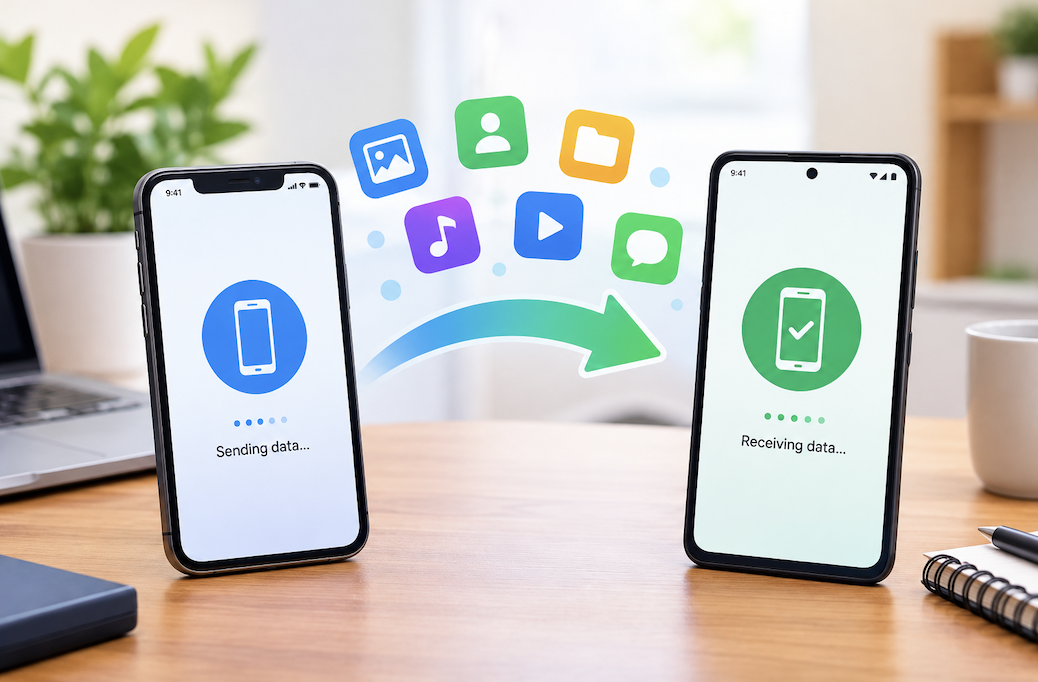
Getting a new phone should feel exciting rather than stressful, but a poorly planned data transfer can mean lost photos, missing app data, or account access problems that take days to fully sort out. A methodical approach avoids most of these common frustrations.
Why a Careful Transfer Process Matters
Beyond the obvious risk of losing irreplaceable photos and messages, an incomplete or rushed transfer can leave authentication apps disconnected, subscriptions confused about which device is active, and settings that need to be manually reconfigured from scratch rather than carried over automatically. Taking the process step by step avoids most of these downstream headaches.
Preparing Your New Phone Before Starting
Charging both phones fully, ensuring both have adequate available storage, and connecting to a stable Wi-Fi network before beginning the transfer process avoids an interrupted transfer partway through, which can sometimes create incomplete or duplicated data that’s more difficult to sort out afterward than simply restarting a transfer that never began.
Back Up Your Old Phone Before Doing Anything Else
Before starting any transfer process, ensuring your old phone has a complete, current backup through your phone’s built-in cloud backup service provides a safety net independent of whatever transfer method you choose, protecting against an interrupted or partially failed direct transfer.
How Long a Full Transfer Typically Takes
A large photo and video library can take anywhere from thirty minutes to several hours to fully transfer, depending heavily on total data size and whether a wired or wireless method is used. Planning the transfer for a time when you don’t urgently need either phone, similar to the timing advice given for a computer clean install in an earlier guide, avoids the pressure of rushing through verification steps afterward.
Wired vs Wireless Transfer Methods
A direct cable connection between old and new phones generally offers the fastest, most reliable transfer speed, particularly for a large photo and video library, and avoids depending on a potentially slower or less stable Wi-Fi connection throughout the process. Wireless transfer methods offer more convenience without needing a specific cable, at the cost of slower transfer speed for large amounts of data.
Handling SIM Cards and eSIM Transfers
Depending on your carrier and phone type, transferring service to a new phone involves either physically moving a SIM card or activating an eSIM profile through your carrier’s app or website, and this step is generally separate from the data transfer process discussed throughout this guide, worth completing either before or immediately after the data transfer rather than assuming one process handles both automatically.
Transferring Within the Same Operating System
Moving between two phones running the same operating system, such as two devices from the same platform, generally offers the smoothest transfer experience, since built-in transfer tools are specifically designed for this same-ecosystem scenario and typically handle apps, settings, and data with minimal manual intervention required.
Switching Between Operating Systems
Moving from one mobile operating system to a different one involves more manual work, since built-in transfer tools generally handle core data like contacts, photos, and messages but don’t carry over app-specific data or exact settings configurations as seamlessly as a same-ecosystem transfer. Most major platforms offer a dedicated switching tool or app specifically designed to ease this cross-platform transition, which is worth using rather than attempting a fully manual transfer.
What Doesn’t Transfer Automatically
App-specific settings and preferences within individual apps, some subscription and payment method configurations, and certain app data tied to device-specific security features often require manual reconfiguration or re-login after the main transfer completes, even when the core transfer process otherwise goes smoothly. Expecting some manual cleanup afterward, rather than assuming a single transfer step handles everything completely, sets more realistic expectations.
Transferring Two-Factor Authentication Apps
As covered in the earlier dedicated 2FA guide, authenticator apps require specific transfer steps, generally through the app’s own built-in transfer or backup feature, separate from the phone’s general data transfer process. Completing this step before wiping the old phone is critical, since losing access to authenticator codes without having transferred them first can mean being locked out of accounts that don’t have backup codes readily available.
Reinstalling and Reconfiguring Smart Home App Connections
For anyone with smart home devices, as discussed in the companion guide on smart home hubs, reconnecting the relevant hub or device apps to the new phone and confirming automation and voice assistant integrations still function properly is worth checking specifically, since these connections don’t always carry over automatically during a general phone transfer.
App-Specific Data Considerations
Messaging apps, in particular, sometimes require a separate, in-app backup and restore process distinct from the phone’s general transfer tool, given how these apps handle message history and media differently from standard phone data. Checking each major app you rely on for any app-specific transfer instructions, rather than assuming the general phone transfer process covers everything, avoids losing message history unexpectedly.
Transferring Health and Fitness App Data
Health and fitness tracking apps sometimes store accumulated historical data in ways that don’t transfer automatically between phones, particularly when switching operating systems entirely. Checking whether your specific health or fitness app offers an export or cloud sync option before switching devices avoids losing months or years of accumulated activity history.
Handling Payment and Banking Apps
Banking and payment apps often require re-authentication and sometimes a waiting period or additional identity verification when first accessed from a new device, as a security measure rather than a transfer failure. Being aware that this is expected, rather than assuming something went wrong, avoids unnecessary troubleshooting for what is actually a normal security process.
Reviewing Your New Phone’s Storage and Sync Settings
Once the transfer completes, reviewing cloud backup and sync settings on the new device confirms photos, contacts, and other data continue syncing going forward, rather than assuming the one-time transfer also configured ongoing backup automatically, which isn’t always the case depending on the specific transfer method used.
Testing Critical Apps Before Fully Committing to the New Phone
Before wiping the old phone, specifically opening and testing banking apps, authenticator apps, and any other critical accounts on the new device confirms they’re genuinely functional rather than just visually present, since an app can transfer and install correctly while still requiring a fresh login or verification step to actually work.
Verifying Everything Before Wiping the Old Phone
Before erasing the old phone, spending time confirming that photos, contacts, important messages, and app logins all transferred successfully to the new device provides a final safety check. Keeping the old phone intact and unwiped for at least a week or two after the transfer, similar to the advice given for keeping a backup after a computer clean install in an earlier guide, provides a safety net in case something is discovered missing after the fact.
Handling the Transition Period Gracefully
Keeping the old phone accessible but set aside, rather than immediately repurposing or storing it somewhere hard to reach, during the initial days of using a new phone makes it far easier to check back for anything overlooked, striking a reasonable balance between moving forward with the new device and maintaining a safety net during the adjustment period.
Securely Wiping the Old Phone
Once you’re confident everything has transferred successfully, performing a proper factory reset on the old phone, after first signing out of all accounts and removing it from any “find my device” type services, ensures your personal data isn’t accessible to whoever receives the device next, whether through trade-in, resale, or recycling.
Removing the Old Phone From Trusted Device Lists
Beyond wiping the device itself, checking your various account security settings to remove the old phone from any “trusted devices” or “active sessions” lists prevents lingering account access tied to a device you no longer control, an easily overlooked step that a factory reset alone doesn’t necessarily address on the account side.
Recycling or Donating Your Old Phone Responsibly
Once wiped and confirmed clean of personal data, trading in, donating, or recycling the old phone through a manufacturer or certified e-waste program, similar to the environmental considerations discussed in the earlier smartphone upgrade guide, keeps working components out of landfills rather than sitting unused indefinitely in a drawer.
Setting Up Your New Phone’s Security From the Start
Since a new phone represents a natural checkpoint, taking the opportunity to review and strengthen security settings, enabling two-factor authentication on any accounts that still lack it, following the guidance from the earlier dedicated 2FA guide, and setting a strong screen lock method is a reasonable, low-effort addition to the overall setup process.
Common Phone Transfer Mistakes
Wiping the old phone immediately after what seems like a successful transfer, without a verification period, is one of the more consequential mistakes, since some missing data isn’t discovered until days or weeks later when a specific app or feature is actually needed. Forgetting to transfer authenticator app codes before wiping the old device is another common and particularly frustrating mistake, given how difficult account recovery can become without those codes or their backup codes readily available.
The Bottom Line
A safe phone transfer comes down to backing up thoroughly before starting, using the appropriate official transfer tool for your specific same-platform or cross-platform scenario, and verifying everything transferred correctly before wiping the old device. Two-factor authentication apps and app-specific data deserve particular attention, since these are the areas most likely to require manual steps beyond the main automated transfer process.