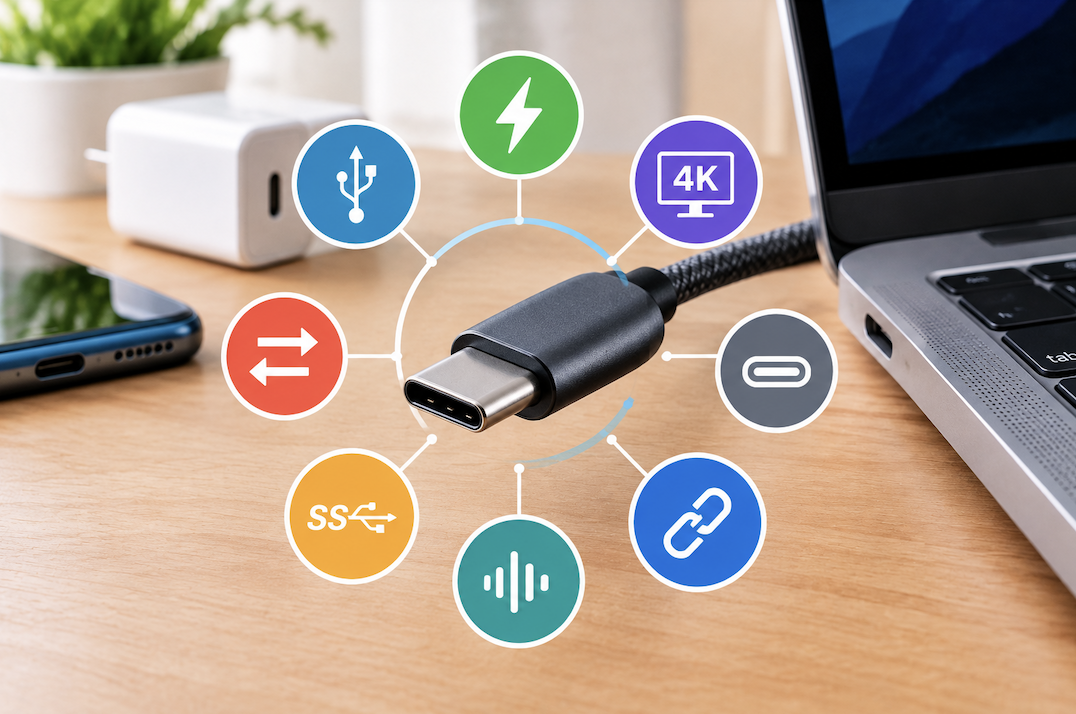
USB-C has become the near-universal connector shape across phones, laptops, and accessories, but this uniformity in shape hides significant variation in actual capability. Two USB-C cables can look identical while supporting completely different power, data, and video capabilities, which is the source of most USB-C-related confusion and frustration.
Why This Confusion Persists Industry-Wide
Unlike older connector standards, where physical shape often corresponded reasonably closely to capability, USB-C was specifically designed as a universal physical connector meant to serve many different underlying purposes, which created flexibility for manufacturers but also the persistent confusion this guide addresses, since the specification intentionally decoupled shape from capability in a way earlier connectors generally didn’t.
USB-C Is a Shape, Not a Specification
This is the single most important thing to understand about USB-C: the term refers only to the physical connector shape, not to any specific set of capabilities. A USB-C cable might support fast data transfer, high-power charging, and video output, or it might support none of those beyond basic slow charging, despite looking physically identical to a much more capable cable.
Fast Charging Standards Beyond USB Power Delivery
Some manufacturers implement their own proprietary fast-charging standards on top of the USB-C connector, which may require using that manufacturer’s specific charger and cable to achieve the fastest advertised charging speed, rather than any generic USB-C charger meeting the same wattage rating. Checking whether your specific device relies on a proprietary standard, in addition to general USB Power Delivery, helps set accurate charging speed expectations.
Understanding Power Delivery Wattages
USB Power Delivery (USB-PD) is the standard that allows USB-C to charge devices ranging from small earbuds to full laptops, with wattage support varying significantly by cable and charger combination. A charger and cable rated for a specific wattage will only deliver up to that maximum, meaning a laptop requiring high wattage charging won’t charge properly, or will charge very slowly, if paired with a lower-wattage charger or cable, even though the connector fits perfectly.
Data Transfer Speed Variations
USB-C cables vary dramatically in data transfer speed depending on which underlying USB standard they support, ranging from basic USB 2.0 speeds up to much faster USB 3.2 or USB4 speeds. A
cable that looks physically identical to a high-speed cable might only support the slowest speed tier, which becomes a genuine problem specifically when transferring large files or connecting high-bandwidth external drives.
Video Output and DisplayPort Alt Mode
Some USB-C ports and cables support DisplayPort Alt Mode, allowing a single USB-C cable to carry video output to an external monitor, in addition to data and power. Not all USB-C ports support this feature, which is why a USB-C cable that works fine for charging might fail to display anything when connected to an external monitor, confusing users who assume any USB-C cable and port combination should support any USB-C feature.
Thunderbolt vs Standard USB-C
Thunderbolt uses the same USB-C connector shape but represents a separate, more capable standard supporting significantly faster data transfer and more robust video output than standard USB-C, though it requires both the device and cable to specifically support Thunderbolt rather than standard USB-C alone. Checking for the Thunderbolt logo specifically on both the port and cable confirms this higher capability tier, rather than assuming standard USB-C branding covers it.
Why Cable Quality Genuinely Matters
Poorly made or mislabeled USB-C cables can fail to deliver their advertised specifications, and in rare but documented cases, poorly manufactured cables that don’t properly implement the USB-C specification have caused damage to connected devices by delivering incorrect power levels. Buying cables from reputable manufacturers, particularly for higher-wattage charging cables, reduces this risk considerably compared to the cheapest available option from an unverified source.
Common Charger Compatibility Myths
A common myth is that any USB-C charger works identically with any USB-C device, when in reality charging speed and even basic charging functionality depend on matching power delivery specifications between the charger, cable, and device. Most modern devices will still charge, even if slowly, with a mismatched but genuinely USB-C compliant charger, but won’t necessarily achieve their fastest possible charging speed without a properly matched charger and cable combination.
Labeling Your Own Cables at Home
For households with multiple USB-C cables of varying capability, labeling each cable with a small tag or marker noting its wattage and speed rating, once identified through the methods discussed above, prevents the recurring frustration of grabbing an underpowered cable for a task that requires higher capability.
How to Identify a Cable’s Actual Capabilities
Checking cable packaging or the manufacturer’s product page for specific wattage and data speed ratings, rather than assuming based on price or physical appearance, is the most reliable way to confirm a cable’s actual capabilities before an important purchase. Some manufacturers print small markings directly on the cable itself indicating its supported speed tier, though this practice isn’t universal across all manufacturers.
Common Problems Caused by Cheap Cables
Slow charging despite an otherwise capable charger, failed or unreliable data transfers, and external monitors that won’t display anything are among the most common symptoms traced back to an underpowered or mismatched cable, rather than a genuine device or charger malfunction. Testing with a different, known-capable cable is often the fastest way to rule out the cable itself as the source of a connectivity problem.
Understanding USB4
USB4 represents the most current major USB standard, converging some of Thunderbolt’s capabilities into the broader USB specification, offering significantly faster data transfer and more consistent video output support than earlier USB-C generations. Devices and cables specifically certified for USB4 offer the most capable, future-proof USB-C experience currently available, though checking for explicit USB4 certification, rather than assuming any modern USB-C cable supports it, remains necessary given the continued variation across cables.
USB-C on Non-Computer Devices
USB-C has extended well beyond computers and phones into headphones, controllers, portable battery packs, and countless other accessories, though the same capability variation applies equally to these devices. A USB-C port on a pair of headphones, for instance, typically supports only basic charging and possibly audio, without the data or video capabilities relevant to a laptop’s USB-C ports.
Using Adapters and Hubs Effectively
USB-C hubs and adapters, which add additional ports like HDMI, USB-A, or an SD card reader through a single USB-C connection, vary in quality and capability similarly to cables. Checking that a specific hub supports the total bandwidth needed for all the peripherals you intend to connect simultaneously avoids a hub that technically has enough physical ports but can’t actually support full performance across all of them at once.
Reversible Connector Design
One universally consistent USB-C benefit, regardless of the capability variation discussed throughout this guide, is the connector’s reversible design, meaning it can be plugged in either orientation without needing to check which way is “up” first, unlike the older USB-A connector it has largely replaced.
Checking Your Laptop’s Specific Port Capabilities
Not every USB-C port on the same laptop necessarily supports identical capabilities — some laptops include one Thunderbolt-capable port alongside other standard USB-C ports with more limited capability. Checking your specific laptop’s documentation for which individual ports support which features avoids the frustration of a feature not working simply because the wrong physical port was used.
USB-C and Car Chargers
USB-C car chargers face the same capability variation as any other USB-C accessory, and a budget car charger may deliver considerably less power than a device needs for meaningful in-transit charging, making the same wattage-checking principle discussed throughout this guide relevant when shopping for car-specific accessories too.
USB-C on Gaming Handhelds and Consoles
Modern gaming handhelds and some consoles use USB-C for both charging and, on select models, video output to an external display via a dock, and the same capability variation discussed throughout this guide applies here too an underpowered cable may charge the device slowly during active use rather than fully keeping pace with battery drain, a common point of confusion for owners assuming any USB-C charger delivers equivalent results.
Common USB-C Mistakes
Assuming any USB-C cable will support fast charging, high-speed data transfer, and video output simultaneously is the most common and understandable point of confusion, given how uniform the connector shape appears. Buying the cheapest available cable for a high-power charging or high-bandwidth data need, without checking its actual rated specifications, is another common mistake that leads to underwhelming real-world performance despite a seemingly correct cable purchase.
Testing a New Cable or Adapter Before Relying on It
Similar to the advice given for new external drives in earlier guides, testing a newly purchased USB-C cable or hub with a smaller, less critical task first, before depending on it for something important like a work presentation, catches any unexpected compatibility or performance issues while there’s still time to address it.
Keeping Firmware and Drivers Updated for Full USB-C Functionality
Occasionally, a laptop’s USB-C port functionality, particularly for video output or higher-speed data transfer, depends partly on up-to-date system firmware or chipset drivers, similar to the driver considerations covered in the earlier clean install guide. Checking for and installing available updates before troubleshooting a suspected cable or hardware issue rules out this software-side possibility first.
Conclusion
USB-C’s uniform connector shape hides genuinely significant variation in power, data, and video capability between individual cables and ports. Checking actual rated specifications, rather than assuming capability based on the connector shape alone, avoids most of the common frustrations people experience with USB-C charging, data transfer, and video output.
- Read more about Technewweb