
With iOS 26, Apple has introduced smarter, more intuitive tools that make storage management easier, cleaner, and more efficient than ever before. This comprehensive guide walks you through the best methods to clear system data, optimize media storage, manage apps, and keep your iPhone running smoothly-without losing important files.
Before you begin cleaning your device, it’s important to understand how iPhone storage works. Your iPhone uses two primary systems to store data:
1. Internal Device Storage
This refers to the physical storage built into your iPhone. It holds:
- Apps
- Photos and videos
- Documents and files
- System data
- Cached information
Since internal storage cannot be increased or expanded, careful management is essential. If it becomes too full, performance issues may begin to appear-slow loading, app crashes, and even incomplete system updates.
2. iCloud Storage Solutions
iCloud is Apple’s cloud storage system that keeps your data accessible without taking up physical space on your iPhone. It can store:
- Photos and videos
- Backups
- Notes
- Messages
- iCloud Drive files
iCloud storage is expandable through subscription plans, making it a flexible way to offload large files and reduce pressure on internal storage.
By balancing internal storage with cloud storage, you can keep your device functional while still accessing all your information whenever you need it.
Managing Apps to Reclaim Valuable Space
Apps are often the biggest contributors to storage consumption, especially when they generate large amounts of cached data. Streaming platforms, social media apps, editing tools, and games typically use the most space.
To manage them effectively:
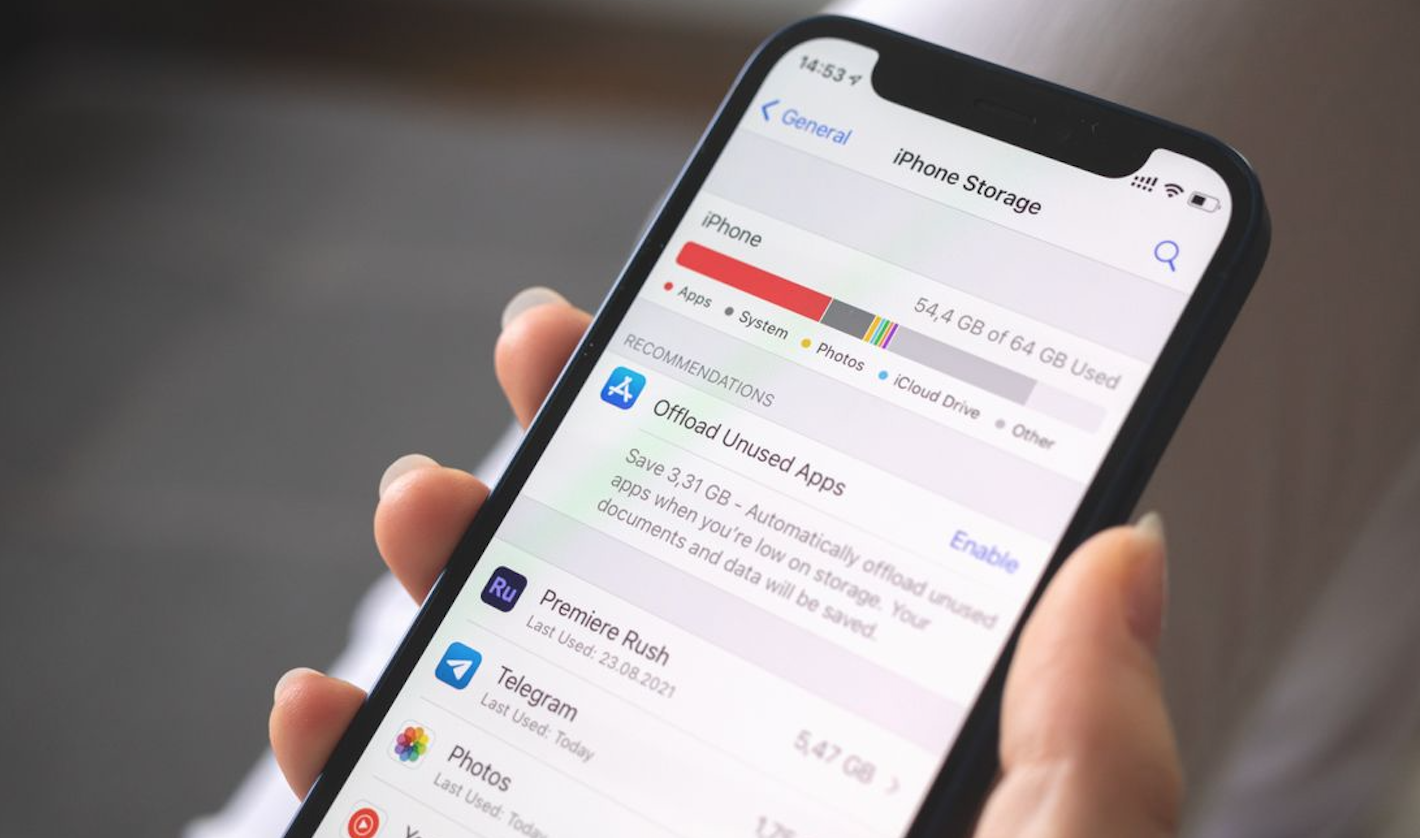
Step 1: Check Storage Usage for Each App
- Open Settings
- Go to General
- Tap iPhone Storage
This section shows a complete breakdown of apps and how much space they use-including both the app size and its data.
Step 2: Delete Apps You Don’t Use
If an app hasn’t been opened for months, it’s probably time to remove it. Deleting an app also removes its associated data, making it one of the fastest ways to free up several gigabytes.
Step 3: Offload Unused Apps
iOS 26 provides a smart option called Offload Unused Apps, which:
- Removes the app from the device
- Keeps its data safely stored
- Allows reinstalling later without losing progress
This is ideal for apps you occasionally use but don’t need installed all the time.
For example, large games, travel apps, or editing tools can be offloaded and reinstalled easily when needed. This alone can free up substantial storage.
Managing Messaging Apps to Prevent Fast Storage Fill-Up
Messaging platforms-especially WhatsApp, iMessage, and Telegram-can accumulate thousands of media files over time. These include photos, videos, voice notes, stickers, and forwarded files.
If left unchecked, they can fill up gigabytes of storage without you realizing it.
WhatsApp Storage Optimization
To review and remove unnecessary WhatsApp data:
- Open WhatsApp
- Go to Settings
- Tap Storage and Data
- Select Manage Storage
Here, you’ll find:
- Large files
- Frequently forwarded media
- Chats that consume the most space
Clearing old voice notes, duplicate media, and unused documents can free up significant space.
iMessage and Other Messaging Apps
Many users don’t realize that iMessage stores high-quality images and videos indefinitely. To manage this:
- Open any conversation
- Tap the contact name
- Review Photos, Videos, and Documents
- Delete what you no longer need
Additionally, consider enabling auto-delete old messages, which automatically removes messages after 30 days or 1 year.
Reducing System Storage in iOS 26
System storage includes temporary files, logs, caches, language files, and background data created by apps and iOS processes. While some of this data is essential, much of it can be reduced or refreshed using several strategies.
Restart Your iPhone Regularly
A simple restart can:
- Flush out temporary files
- Clear cached processes
- Refresh system memory
Although often overlooked, this is one of the easiest ways to see immediate storage improvements.
Disable Unused System Features
If you rarely use features like:
- Siri
- Voice processing
- Apple Intelligence
they could be storing unnecessary data such as voice recordings and predictive suggestions.
Turning off features you don’t use can help reduce ongoing system storage growth.
Update to the Latest Version of iOS
iOS updates often include:
- System optimizations
- Reduced storage footprints
- More efficient cache handling
Keeping your device updated ensures you benefit from Apple’s latest improvements.
Note: It may take some time for system storage values to adjust after these changes.
Optimizing Photo and Video Storage with iCloud
Photos and videos are usually responsible for the largest portion of storage usage. High-resolution images, 4K videos, and live photos quickly fill internal storage.
iCloud offers a powerful solution through iCloud Photos.
How to Enable Optimized Photo Storage
- Go to Settings
- Tap Photos
- Enable iCloud Photos
- Select Optimize iPhone Storage
With this enabled:
- Your device stores smaller versions of photos
- Full-resolution originals upload to iCloud
- You still retain access to all your media
This method alone can free up tens of gigabytes.
Additional Tips for Maximizing iPhone Storage
To keep your device organized and running efficiently, consider these extra strategies:
Delete Large and Unneeded Media Files
- Remove old videos
- Delete duplicate photos
- Clear screenshots you no longer need
Organize and Remove Forwarded Media
Forwarded content from WhatsApp and Messenger often includes large, repeated files. Sorting through them prevents unnecessary duplication.
Evaluate Your iCloud Plan
If you rely heavily on cloud storage, upgrading to a larger plan might be worthwhile, especially for users who store:
- Thousands of photos
- Large document collections
- Multiple device backups
Clear Safari Cache
Safari stores browsing data, cached pages, and cookies. To clear these:
- Open Settings
- Go to Safari
- Tap Clear History and Website Data
This helps free up storage and keeps your browser running efficiently.
Final Thoughts: iOS 26 Makes Storage Management Easier Than Ever
iOS 26 equips iPhone users with powerful tools to manage storage effectively. Whether you’re removing apps, clearing system data, optimizing photos, or using iCloud intelligently, these methods ensure your device remains fast, organized, and clutter-free.
By making these strategies a habit, you can avoid running into storage problems and maintain a smooth, uninterrupted iPhone experience.