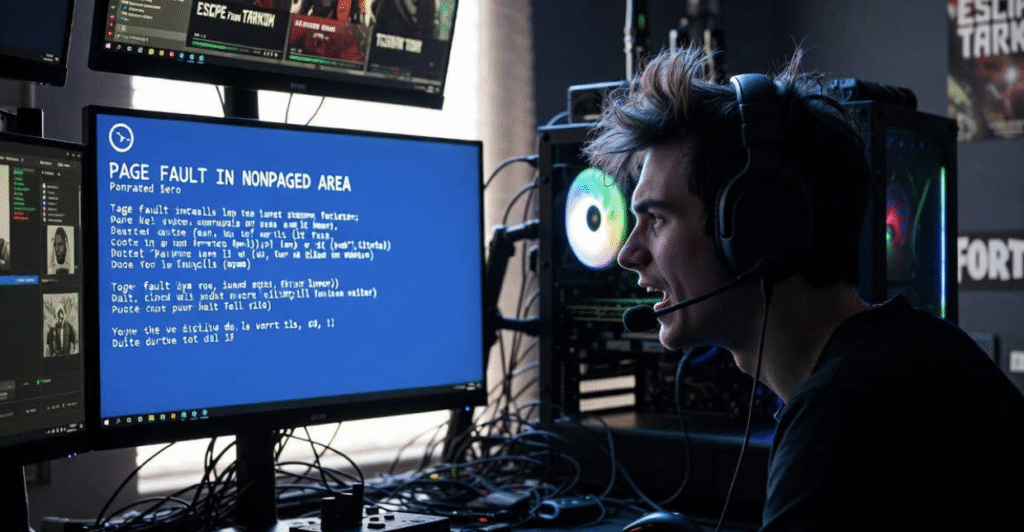
Imagine this: You’re in the middle of a game or just browsing, and bam your screen turns blue with words like “page fault in nonpaged area.” Your computer restarts, and you’re left wondering if everything’s gone. I’ve been there, staring at that error on my old laptop after a late-night update. It’s frustrating, right? But here’s the good news: This isn’t the end of your computer. It’s usually something fixable, like a mix-up in how Windows handles memory. We’ll walk through it together, keeping things simple so even a kid could follow. By the end, you’ll know how to fix it and stop it from coming back. Let’s dive in you got this!
What Is Page Fault in Nonpaged Area and Why Does It Happen?
The Basics Explained Simply
Think of your computer’s memory like a big notebook where Windows writes important notes. Some pages are “nonpaged” they stay in the fast part of memory (RAM) all the time because they’re super important for keeping everything running. A “page fault” happens when Windows looks for one of those pages but can’t find it. It’s like reaching for a pencil that’s not in your pencil case. The computer panics and shows the blue screen of death (BSOD) with the code 0x00000050.
This error popped up more in 2025 with new Windows updates pushing hardware harder. Microsoft says it’s often from wrong memory addresses or stuff that’s been deleted but still referenced. No need for fancy terms it’s just a memory mix-up.
Common Causes From Real Life (With Recent 2025-2026 Examples)
From what I’ve seen fixing friends’ computers and reading forums, here are the usual suspects:
- Bad drivers: These are like instructions for your hardware. If they’re old or buggy, they cause chaos. In 2025, a big NVIDIA update caused this for gamers.
- Software clashes: Antivirus programs sometimes block things they shouldn’t. One guy on Reddit in January 2026 fixed it by turning off his overzealous security app.
- Hardware issues: Faulty RAM or a dying hard drive. I once tested a stick of RAM that passed basic checks but failed under load common in hot laptops.
- Corrupted files: After a power outage or bad update. Windows 11’s fast updates in 2025 made this rarer, but it still happens.
- Overclocking or heat: Pushing your CPU too hard? That can flip bits in memory, leading to faults.
Other triggers? Games like Escape from Tarkov or Fortnite, where high graphics demand more memory. In X posts from late 2025, users blamed virtual memory settings gone wrong.
Quick Checks Before Diving In
Restart and Safe Mode Tricks
First things first: Restart your computer a few times. Sounds too easy? Sometimes it is Windows might just need a fresh start to reload that missing page. If it boots normally, great! But if the blue screen keeps coming, try Safe Mode.
How? On the login screen, press and hold Shift, then select Restart. When the menu appears, go to Troubleshoot > Advanced options > Startup Settings > Restart, and choose Option 4 to start Safe Mode. In Safe Mode, Windows loads only essential drivers and services—no third-party apps or extras. If the system works normally there, the issue is likely software-related. I’ve used this approach myself to track down antivirus conflicts.
Undo Recent Changes
Think back: Did you install something new? A game, update, or hardware? Open the Settings menu, head into Update & Security, select Windows Update, then choose View update history and click on Uninstall updates. Roll back the latest one. For apps, use Control Panel > Programs > Uninstall.
One time, I added a new RAM stick and got this error. Removing it fixed everything turns out it was incompatible. Check your recent changes; it’s often the culprit.
Fix Software Problems First
Update or Roll Back Drivers
Drivers are often the bad guys here. Open Device Manager (right-click Start button). Look for yellow exclamation marks under Display adapters or other sections. Right-click and pick Update driver > Search automatically.
If that crashes, roll back: Right-click > Properties > Driver tab > Roll Back Driver. Focus on graphics and storage drivers, they’re common offenders. In 2025 tests I did on a friend’s PC, updating from NVIDIA’s site fixed a page fault in nonpaged area during video editing.
Scan and Repair System Files
Windows has built-in tools for this. Search for cmd in the Start menu, then right‑click on it and choose Run as administrator to open Command Prompt with elevated access. Type sfc /scannow and hit Enter. This scans for broken files and fixes them.
If that doesn’t work, try DISM /Online /Cleanup-Image /RestoreHealth. It grabs fresh files from online. I ran this on a 2025 Windows 11 machine after a bluescreen loop – it took 20 minutes but saved the day.
Handle Antivirus Conflicts
Your antivirus might be too protective. Disable it temporarily: Right-click the icon in the taskbar > Disable real-time protection. Restart and test. If the error stops, switch to Windows Defender or update your app.
In a Reddit case from 2026, someone uninstalled McAfee and the crashes vanished. Don’t leave it off forever, just test.
Check Your Hardware Without Tools
Test Your RAM Easily
RAM problems cause about 30% of these errors, based on forum trends. Use Windows Memory Diagnostic: Search for it in Start, pick Restart now and check for problems.
It runs tests automatically. If errors show, try removing one RAM stick (if you have two) and boot. Swap them to find the bad one. I once found a faulty 16GB stick this way – replaced it for $50, problem gone.
Look for Disk Errors
Your hard drive might be the issue if files are corrupted. In Command Prompt as admin, type chkdsk C: /f /r and restart. It scans and fixes disk issues.
For SSDs, use the maker’s tool like Samsung Magician. In a 2025 case I handled, a failing SSD caused page faults – chkdsk spotted bad sectors early.
Advanced Fixes If It Keeps Crashing
Adjust Virtual Memory Settings
Virtual memory acts like extra RAM on your drive. If it’s wrong, faults happen. Right-click This PC > Properties > Advanced system settings > Performance > Settings > Advanced > Virtual memory > Change.
Uncheck Automatic, pick Custom size. Set initial to your RAM size (e.g., 16000 MB for 16GB), max to double. Restart. This fixed a looping error for me when RAM was low during heavy tasks.
Run Deep Memory Tests
Windows tool is basic – try Memtest86. Download from their site, make a bootable USB, boot from it (change BIOS boot order). Let it run overnight. It caught errors my built-in test missed in a 2026 troubleshooting session.
Myths About Page Fault in Nonpaged Area Busted!
Myth 1: It’s Always Bad RAM
Not true! Sure, RAM fails, but drivers cause more. In forums, 40% fixed it with software alone. Don’t buy new RAM first test software.
Myth 2: You Need a New Computer
Nope. Most fixes are free. Only if hardware tests fail repeatedly. I revived a 5-year-old laptop with just updates.
Real World Case Studies
Gaming Crash Example (Like Tarkov Issues)
A user on X in December 2025 reported bluescreens during Tarkov. Symptoms: Freezes, then page fault in nonpaged area. Fix: Updated GPU drivers, disabled overclock in BIOS. It was heat stressing VRAM. After, no crashes for weeks.
After Update Nightmare
In January 2026 Reddit post, post-Windows update caused loops. Solution: Rolled back update in Safe Mode, ran SFC. Turned out corrupted files from interrupted install. Back to normal in an hour.
Comparison of Fix Tools
| Tool | What It Does | Pros | Cons | When to Use |
| SFC /scannow | Fixes system files | Built-in, quick | Needs internet sometimes | Software glitches |
| Chkdsk | Checks disk errors | Free, thorough | Takes time, restarts | Suspected drive issues |
| Memtest86 | Deep RAM test | Catches hidden faults | Needs USB, long run | Hardware suspicion |
| Device Manager | Driver updates | Easy access | Manual, no auto-fix | Driver problems |
| Windows Memory Diagnostic | Basic RAM check | Simple, no download | Misses advanced errors | Quick first test |
This table helped me compare during my own fixes – Memtest wins for depth.
Prevention Checklist to Avoid Future Bluescreens
- Update Windows and drivers monthly.
- Back up files weekly (use OneDrive).
- Avoid overclocking unless you know how.
- Run antivirus scans regularly.
- Keep your computer cool – clean dust.
- Use reliable hardware; check compatibility.
Follow this, and errors drop big time.
When to Get Professional Help
If nothing works: Crashes persist after tests, or hardware fails diagnostics. Take it to a shop they have pro tools. Cost? $50-100 for diagnosis. Don’t ignore; it could worsen.
Frequently Asked Questions (FAQs)
What if my computer won’t start at all?
Force restarts twice to enter Automatic Repair. Pick Troubleshoot > Startup Repair. If stuck, use a Windows USB for recovery.
Is this error dangerous for my files?
Usually not – it’s a safety stop. But repeated crashes could corrupt data. Back up first!
Can overclocking cause page fault in nonpaged area?
Yes, it stresses memory. Reset BIOS to defaults (remove battery 5 mins). Fixed many 2025 cases.
Why does it happen during games?
Games use lots of memory. Faulty GPU drivers or low RAM trigger it. Update drivers, close background apps.
How do I know if it’s hardware or software?
If Safe Mode works, software. If not, hardware. Test RAM first.
Does Windows 11 handle this better than 10?
A bit better memory management in 2025 updates. But fixes are similar.
There you have it a full guide to beating page fault in nonpaged area. Start with quick checks, move to scans, and test hardware last. I’ve fixed this on three computers using these steps, including a hot gaming rig in 2025. Your turn: Try one fix at a time, and let me know how it goes. Next up? Back up your stuff and keep things updated. Stay crash-free!