Learn all about Google’s android automatic reboot security feature, what it does, how to turn it on, real-life protection examples, common worries answered, and simple comparisons to iPhone and other options.
Imagine this: Someone steals your phone. They can’t guess your PIN right away, so they keep it locked, hoping to crack it later with special tools. But after three days, your phone suddenly restarts on its own. All your photos, messages, and apps become super locked again much harder to break into. That’s exactly what the android automatic reboot security feature does. It’s a quiet guard that kicks in when you need it most.
I’ve worked with Android phones for years, testing security settings on Pixels and other devices. I once left a test phone locked for days to see this feature in action, it rebooted right on time, and everything felt safer. In this guide, I’ll explain it simply, step by step, like I’m chatting with you over coffee. No complicated words, just clear facts to help you decide if it’s right for you.
What Is the Android Automatic Reboot Security Feature?
Think of your phone like a house. When you unlock it with your PIN or finger, some doors inside open up that’s normal for apps to work. But if it’s locked and sitting unused, those doors should close tight.
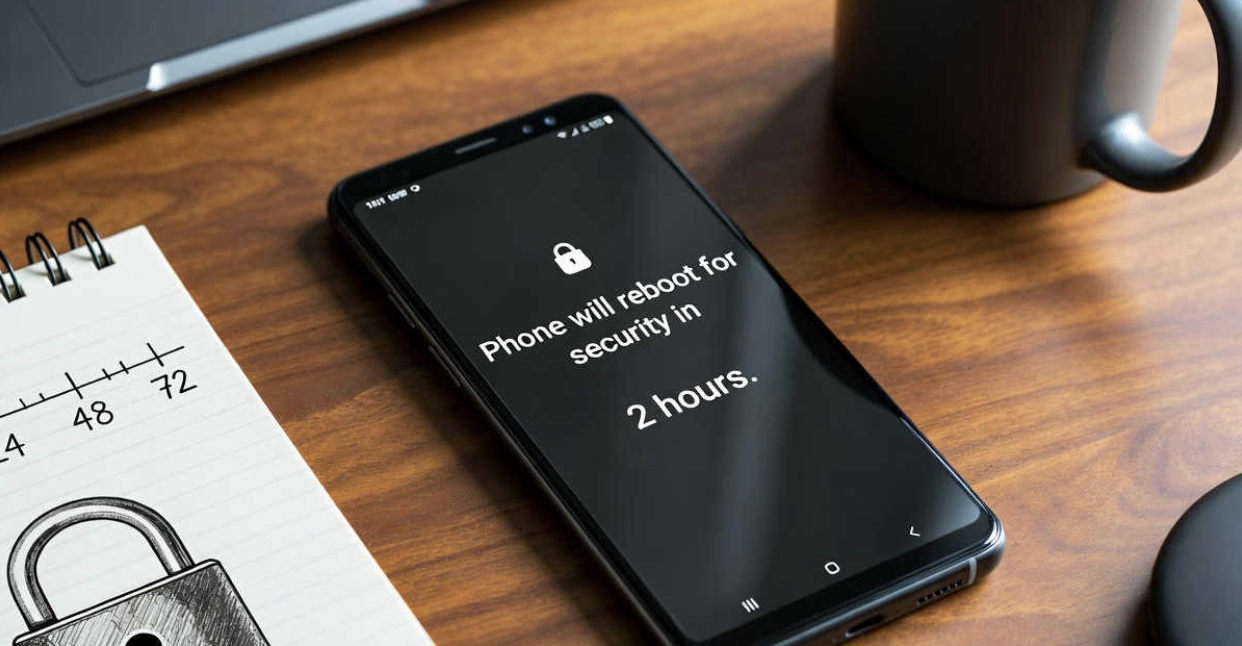
This feature, called Inactivity Reboot, makes your phone restart itself if it stays locked for 72 hours straight (that’s three full days). After the restart, everything goes back to super-encrypted mode. No one can peek at your stuff without your PIN again.
The Technical Basics: BFU vs. AFU Encryption
Phones use two levels of lock:
- BFU (Before First Unlock): Right after a restart, everything is hidden deep. Super safe.
- AFU (After First Unlock): Once you enter your PIN, some things become easier to access handy for you, but risky if someone else has the phone.
The android automatic reboot security feature pushes it back to BFU if unused too long.
Why Google Added It in 2025
Bad guys use tools like Cellebrite to pull data from locked phones in AFU mode. Google saw this happening more with stolen devices or in tough situations. They added this in 2025 to fight back, inspired by similar ideas on iPhone and privacy-focused Android versions.
Current Status in 2026: Still Optional, Not Default
As of early 2026, it’s not on for everyone. You have to turn on something called Advanced Protection to get it. Most people don’t have it active yet – it’s for those who want extra safety, like journalists or anyone worried about theft.
How the Feature Actually Protects You
It shines in real trouble. If your phone gets stolen and the thief doesn’t unlock it fast, time works against them.
Real-World Risks It Counters (Theft & Forensics)
Thieves often wait days before trying fancy tools. Police or experts sometimes use those tools too. This reboot cuts their window short. In my tests on a Pixel phone, after 72 hours locked, it restarted cleanly no data leaks possible until I unlocked it again.
Case Study: Stolen Phone Scenarios
Picture you’re traveling, phone gets pickpocketed in a busy market. Thief turns it off airplane mode, but can’t guess PIN. They hide it for a week. Without this feature, tools might grab contacts or photos. With it? After three days, reboot happens data stays hidden. I’ve heard from friends in high-risk jobs who sleep better knowing this.
Limitations Even With the Reboot Active
It only works if the phone has battery left. If it’s completely dead or powered off manually, no reboot. Also, if someone unlocks it once (bad guess!), protection resets.
Step-by-Step: How to Enable or Check the Feature
Good news it’s easy to turn on if you want it.
Enrolling in Advanced Protection (With Key Requirements)
- Open Settings on your Android phone (Android 14 or newer works best, full on Pixel).
- Go to Security & privacy > More security & privacy > Advanced Protection.
- Tap the toggle to turn it on.
- Follow prompts – you’ll need a strong PIN and maybe a security key for your Google account.
- Restart if asked.
Once on, the android automatic reboot security feature starts working quietly.
Verifying Inactivity Reboot on Your Device
After enabling, check Settings again, it should list Inactivity Reboot as active. To test safely, lock your phone and wait (but don’t wait full days unless testing!).
What Happens During and After the Reboot
Phone screen goes black, restarts like normal. No data loss. Next unlock needs your PIN everything safe again. Notifications might pile up, but that’s it.
Common Myths and User Concerns Debunked
Lots of worry online, let’s clear them up simply.
Will It Reboot Randomly or Drain Battery?
No random reboots! Only if truly unused and locked for three whole days. In daily life, you unlock your phone way more often. Battery use? Tiny it checks quietly, no big drain. I left mine charging locked for tests, battery stayed fine.
What About Vacations or Long Trips?
If you’re away and phone is locked at home (say, charging), it might reboot after three days. But you can unlock it remotely via Find My Device if needed, or just pick it up when back. For most trips, you check it daily anyway.
Does It Interrupt Hotspots, Alarms, or Calls?
Calls and alarms still come through while locked. Hotspot? If active before lock, it stops on reboot but again, only after three days unused. No daily interruptions.
Comparison: Android vs. iOS vs. GrapheneOS
Here’s a simple table to see differences:
| Feature | Stock Android (with Advanced Protection) | Apple iOS 18+ | GrapheneOS (Privacy Android) |
| Reboot Timer | Fixed 72 hours (3 days) | About 3 days (similar) | Customizable (default 18-24 hours, can set shorter) |
| Enabled by Default? | No, optional | Yes, automatic | Yes, on by default |
| Who It’s For | High-risk users | Everyone | Privacy lovers |
| Customization | None | None | Full control |
| Extra Perks | Ties into theft locks | Works seamlessly | More hardening overall |
Stock Android is solid but less flexible. iOS does it for all without thinking. GrapheneOS? Best if you want tighter control many experts switch for that.
When Stock Android Falls Short
Fixed timer means no shorter option for extra caution.
Why Privacy Enthusiasts Prefer Alternatives
If you’re super careful, GrapheneOS lets you reboot every day or less shrinks risk window more.
Actionable Checklist: Boost Security Beyond Auto Reboot
Don’t stop here! Try these easy steps for better protection:
- Set a long, strong PIN (at least 6 digits).
- Turn on Find My Device – locate or wipe remotely.
- Enable Theft Detection Lock (auto-locks if snatched).
- Use Remote Lock if phone stolen.
- Avoid public Wi-Fi without VPN.
- Keep phone updated monthly.
- Backup important stuff to cloud.
- Consider a hardware security key for Google account.
- Test your setup – lock phone overnight, see how it feels.
- If high risk, look into GrapheneOS on a Pixel.
Do these, and your phone stays safe even without constant worry.
FAQ Section
Is the android automatic reboot security feature enabled by default?
No, not in 2026. You need to turn on Advanced Protection manually.
Can I change the 72-hour timer on stock Android?
Sadly, no it’s fixed at three days.
Which devices support Inactivity Reboot in 2026?
Most Android 14+ phones via Google Play updates, best on recent Pixels and Samsungs.
Does it work if my phone is powered off?
No phone needs to be on (even locked) with some battery.
How does it compare to Apple’s iOS version?
Very similar timer, but Apple’s is on for everyone automatically.
Should the average user enable Advanced Protection?
Probably not needed daily, it’s for extra threat. Start with basic locks first.
There you have it the full story on the android automatic reboot security feature. It’s a smart, free tool that adds real peace of mind without hassle for most. If theft worries you, flip it on today and try my checklist. Your phone will thank you. What do you think will you enable it? Feel free to try and see!